Zombie Trend AI Video Generator

Make the AI zombie trend from two photos: a survivor lowers a prop gun, hugs their undead loved one, and the clip cuts to a happy memory.

  • Free to Try
  • Just 2 Photos
  • 9:16 or 16:9
  • No Card Required

Eligible new accounts may get 15 free credits, enough for one 4-second Lite clip.

0 / 150

Lite squeezes the story into 4 seconds. For the full 15-second story with the flashback, pick Standard or HD.

Zombie Trend Video Examples

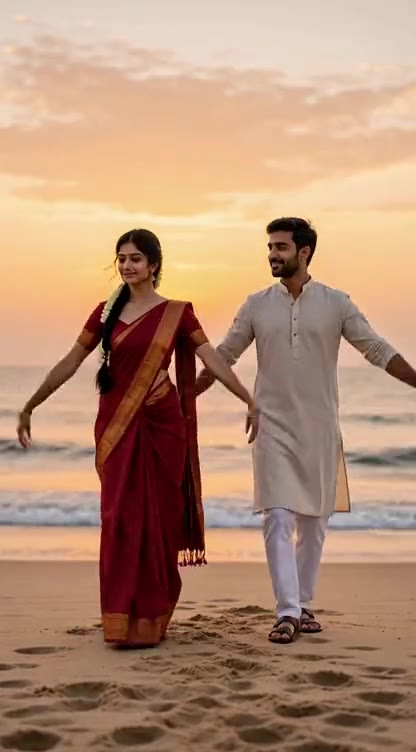
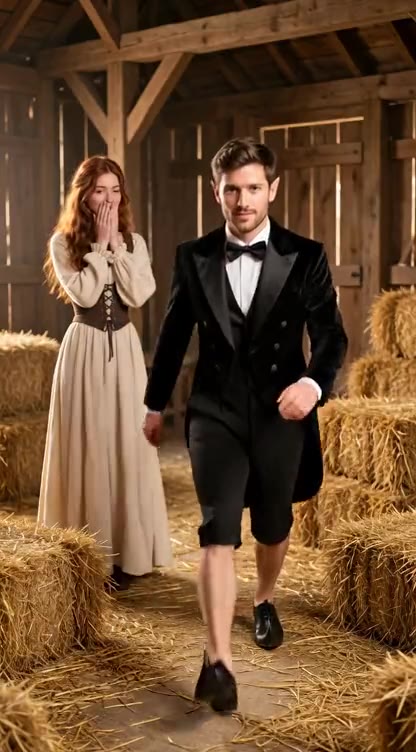
Six zombie trend videos made with other AI tools, each ending in a flashback. They are references for the trend, not videos made here; your clip is a new one from your two photos and may vary.

  • Cabin to Mountain Meadow
  • Empty Hall to Alpine Meadow
  • Kitchen Standoff to Wheat Field
  • School Uniform Flashback
  • Barn Standoff to Sunset Field
  • Field Jacket Flashback

How to Make an AI Zombie Trend Video

  1. 01

    Upload Two Photos

    Choose a clear photo of the survivor for the first slot and the loved one for the second. Front-facing photos from the chest up help the AI keep each person recognizable. For a dog or cat, pick My pet and put your pet's photo second.

  2. 02

    Choose Quality and Ratio

    Use the AI zombie video generator to pick Lite for 4 seconds or Standard and HD for 15 seconds, then 9:16 or 16:9. Add an optional scene detail.

  3. 03

    Review and Download

    Create your zombie trend video, check the faces and motion, then download the MP4. Add any music you have rights to in your social app.

What Your Zombie Trend Video Can Show

Two Photos, Two Roles

Upload one clear photo of the survivor and one of the person who appears undead. The AI uses both as references for a new scene.

An Undead Look Without Gore

The second person gets cracked grey skin and milky white eyes but keeps their own face and clothes. The scene stays tender, without attacks or graphic horror.

The Hug and the Flashback

The survivor lowers a prop gun, the loved one runs into their arms, and at that moment the clip cuts to a happy memory of the two of them. Timing and details vary by generation.

Use Photos With Permission

Use your own photos or photos of adults who agreed to be in the clip. Do not upload actors, celebrities or anyone without consent.

Vertical or Wide

Choose 9:16 for TikTok, Reels and Shorts, or 16:9 for a wider scene. Lite makes a 4-second clip; Standard and HD tell the story in 15 seconds.

Three Quality Levels

Lite uses Seedance 2.0 Mini at 480p; Standard and HD use Wan 3.0 at 480p and 720p. Generated audio is included, without a preexisting song.

Mais de 100 mil criadores confiam

S

"Uso o ImagesArt.ai para transformar uma ideia de produto em um vídeo curto. Posso testar algumas versões e compartilhar a que prefiro sem organizar uma filmagem."

Sarah Chen
@sarahchen
A

"Com o ImagesArt.ai, transformo uma foto em um vídeo para as redes sociais. Descrevo o movimento, gero o clipe e ajusto a próxima versão."

Alex Martinez
@alexmartinez
E

"Uso quadros inicial e final no ImagesArt.ai para mostrar a transição do vídeo como imaginei. Fica mais fácil apresentar a ideia ao cliente."

Emma Wilson
@emmawilson
D

"Posso descrever uma cena no meu idioma e criar um vídeo com o ImagesArt.ai. É uma forma simples de testar ideias antes de editar."

David Kim
@davidkim
L

"No ImagesArt.ai, transformo uma descrição curta em um rascunho de vídeo e ajusto o movimento da câmera até a história funcionar."

Lisa Anderson
@lisanderson
M

"Testei a mesma ideia em alguns modelos de vídeo no ImagesArt.ai e escolhi o clipe que mais combinou com a campanha."

Michael Brown
@michaelbrown
R

"O ImagesArt.ai me ajuda a criar vídeos curtos de produtos para anúncios e redes sociais. Posso testar cenas diferentes antes de escolher uma."

Rachel Green
@rachelgreen
J

"Gosto de comparar modelos de vídeo no ImagesArt.ai. Um cria movimentos sutis; outro dá um visual mais cinematográfico."

James Taylor
@jamestaylor
O

"Com o ImagesArt.ai, transformo um quadro do storyboard em um vídeo curto. Minha equipe consegue ver o movimento em vez de só imaginá-lo."

Olivia Davis
@oliviadavis
R

"O processo de vídeo no ImagesArt.ai é simples: envio uma imagem, descrevo a ação e baixo o clipe."

Robert Lee
@robertlee
S

"O ImagesArt.ai facilita compartilhar ideias de vídeo. Consigo mostrar um rascunho em movimento mesmo sem muita experiência com edição."

Sophie White
@sophiewhite

Pricing

A 4-second Lite clip costs 15 credits. Eligible new accounts may receive 15 free credits. A 15-second Standard clip costs 120 credits; HD costs 240 credits and needs Starter or a one-time credit pack.

Grátis

$0USD / mês

Créditos

  • 15 créditos no cadastro
  • Até 2 vídeos ou 5 imagens

Recursos

  • Vídeo em 480p
  • Vídeos sem marca d'água

Starter

$9.9USD / mês

Créditos

  • 450 créditos/mês
  • Até 75 vídeos ou 150 imagens

Recursos

  • Vídeo em 720p
  • Imagens em 4K
Recomendado

Pro

$19.9USD / mês

Créditos

  • 1350 créditos/mês
  • Até 225 vídeos ou 450 imagens

Recursos

  • Vídeo em 1080p e 4K
  • Imagens em 4K

Ultimate

$49.9USD / mês

Créditos

  • 3600 créditos/mês
  • Até 600 vídeos ou 1.200 imagens

Recursos

  • Vídeo em 1080p e 4K
  • Imagens em 4K

Zombie Trend AI Video Generator FAQ

The AI zombie trend is a short fictional love-story video: someone sees a loved one turned into a zombie, cannot bring themselves to shoot, and embraces them. Then the clip cuts to a warm memory of the two before the outbreak, and this generator makes that whole story. It is also called the zombie AI love story, and its signature is the match cut on the hug that jumps straight into the flashback.

Upload one photo of each adult, with the survivor first and the undead loved one second. Choose Lite, Standard or HD and a ratio, then create and download your clip. It is a new video, not footage from the original trend.

Yes. This is the Lite prompt the generator sends with your two photos: Emotional 4-second zombie short in four shots, photoreal. PHOTO 1, the survivor, stays human. PHOTO 2 is their loved one, now turned: same face and hairstyle, grey skin, milky white eyes, and wearing exactly the outfit from PHOTO 2, same colors, in every shot. Never swap them. Shot 1: over-the-shoulder from behind PHOTO 1 on a foggy ruined street. PHOTO 1's shaking hands aim a prop pistol straight at PHOTO 2, who walks toward the camera, face recognizable. Shot 2: reverse close-up of PHOTO 1 in tears, lowering the gun. Shot 3: wide side shot. PHOTO 2 runs into PHOTO 1's open arms; they hug tightly. Shot 4: as they collide, hard cut to the same street on a sunny day before the outbreak. PHOTO 2 is human again, both laughing. Tense sound, then warm piano. No gunshot, biting, blood, wounds, extra people, text or watermark. Standard and HD use a longer 15-second version of the same story. You do not need to paste it here: pick a template and the page fills it in, then add a short director's note for any changes.

Yes. The template asks for the survivor aiming, recognizing their loved one, lowering the gun and opening their arms, then their leap cuts to a sunny memory. Standard and HD give it 15 seconds; Lite fits it into 4. The AI can still vary the timing, faces and details.

Eligible new accounts may receive 15 free credits; one 4-second Lite clip costs 15 credits. Free credits are unavailable in some regions. Standard and HD need more credits, and HD requires Starter or a one-time credit pack.

Yes, if the adults in the photos agreed to be in your video. Use clear, front-facing pictures and avoid group shots, celebrities and public figures.

Lite uses Seedance 2.0 Mini at 480p and makes a 4-second clip at the lowest cost. Standard uses Wan 3.0 at 480p for a 15-second clip. HD uses that model at 720p and requires Starter or a one-time credit pack. The price updates before you generate.

Add a short director's note for lighting, weather or camera motion. The hug-and-flashback story stays fixed. The generated video can have new AI audio; add a song only through a service where you have permission to use it.

The photos guide each character, but AI generation can change facial details, clothes or movement. Review the finished clip before sharing it.

The finished MP4 appears on the page and in My Assets, where you can download or delete it. Generation time varies with quality and length.

Make Your Zombie Trend Video

Two photos, one last-hug template and a new clip ready to share.

Compare Plans