AI Colorize Photo Guide: How to Keep Details Natural
ImagesArt.ai
10/30/2026
The most common advice for an AI colorize photo job is still "upload the file and keep the first result." That advice treats a convincing picture as a recovered fact. It isn't one. A grayscale file stores brightness, not the dress, the shop sign, or the paint on a house. The model fills those gaps from shapes and from how similar things usually look.
I wouldn't publish that first pass for a brand, a family archive, or a classroom. Personal enjoyment can stop at a draft. A Reel, an ad, or a documentary use needs a check, a label, and the original kept beside the color version. Repair the scan first, generate several candidates, fix the risky regions, then decide whether the color is honest enough to share.
Table of Contents
- What AI Colorization Adds and What It Cannot Recover
- Prepare the Scan Before You Colorize
- How to Colorize a Photo with AI in Five Steps
- Generate Candidates and Refine Problem Areas
- Enlarge and Finalize Without Inventing Detail
- Check Accuracy and Fairness Before You Publish
- Export Colorized Photos for Reels, Ads and Posts
What AI Colorization Adds and What It Cannot Recover
A black-and-white photograph does not store the colors it once showed. An AI colorizer maps shapes, textures, and learned patterns onto plausible color channels. Modern systems do that with convolutional neural networks, generative adversarial networks, or transformer models. Fully automatic colorization is much newer than the manual film work explored since the 1980s.
In 2017, an NVIDIA-documented colorization system was trained on 1.3 million color photographs that had been converted to grayscale synthetically. It did not need paired originals of the same print. That is why a model can color an old family photo at all. It is also why the result can be wrong. Clothing, architecture, vegetation, and skin tones can receive values that look right and still fail history.
Say a wedding portrait comes back with an ivory gown. Nothing in the file recorded ivory. A 1950s street scene can paint a shop sign red when the print never proved that red. If you later animate the still, start from a file you have already checked. Preparing restored photos for animation only pays off when the still underneath is stable.
Treat the first colorization as a creative draft. Decide before you start whether the photo is for personal enjoyment, a social post, or a documentary use where accuracy matters more.
Prepare the Scan Before You Colorize
The colorizer cannot tell a scratch from a shadow if both are in the scan. Clean up the file first, but keep an untouched copy so repairs remain reversible.
Set exposure and contrast before colorizing. Faded highlights and silvering can distort how the model assigns color. Mask dust and scratches, then repair torn or missing structure before adding color. Preserve the original luminance during colorization, and adjust colors by region afterward.
Interactive colorization research describes a staged approach because grayscale intensity does not uniquely determine hue. Damage, compression, and tonal shifts can affect neighboring pixels, too. The work reports dataset-specific FID thresholds of 20.5 for Yumi, 17.5 for Tag2pix, and 19.5 for CelebA. These figures are specific to those datasets; a useful result also depends on the intended use and how closely the colors need to match reality.
A crease across a face can read as a shadow or cheek once color is added. Mask and repair it first. For important prints, use sparse color hints on faces, uniforms, products, signs, and broad background areas, then refine only the regions that need correction. Even a carefully prepared result remains a plausible reconstruction, not proof of the original colors.
Fix each damage type before colorizing
| Problem in the scan | Fix before colorizing | Why it matters |
|---|---|---|
| Dust and scratches | Clean and mask them before colorizing | Scratches can be read as colored objects |
| Faded highlights or silvering | Correct exposure and contrast first | Tonal errors can be interpreted as hue |
| Low-resolution scan | Rescan at the highest optical resolution the print supports | Enlarging later cannot restore detail absent from the scan |
| Torn or missing area | Inpaint the structure before coloring | The model must guess at missing content |
| Heavy compression | Use the cleanest available source | Compression artifacts can affect nearby color assignments |
How to Colorize a Photo with AI in Five Steps
Work from a clean file, and keep every candidate. A single output hides mistakes that a side-by-side comparison makes obvious.
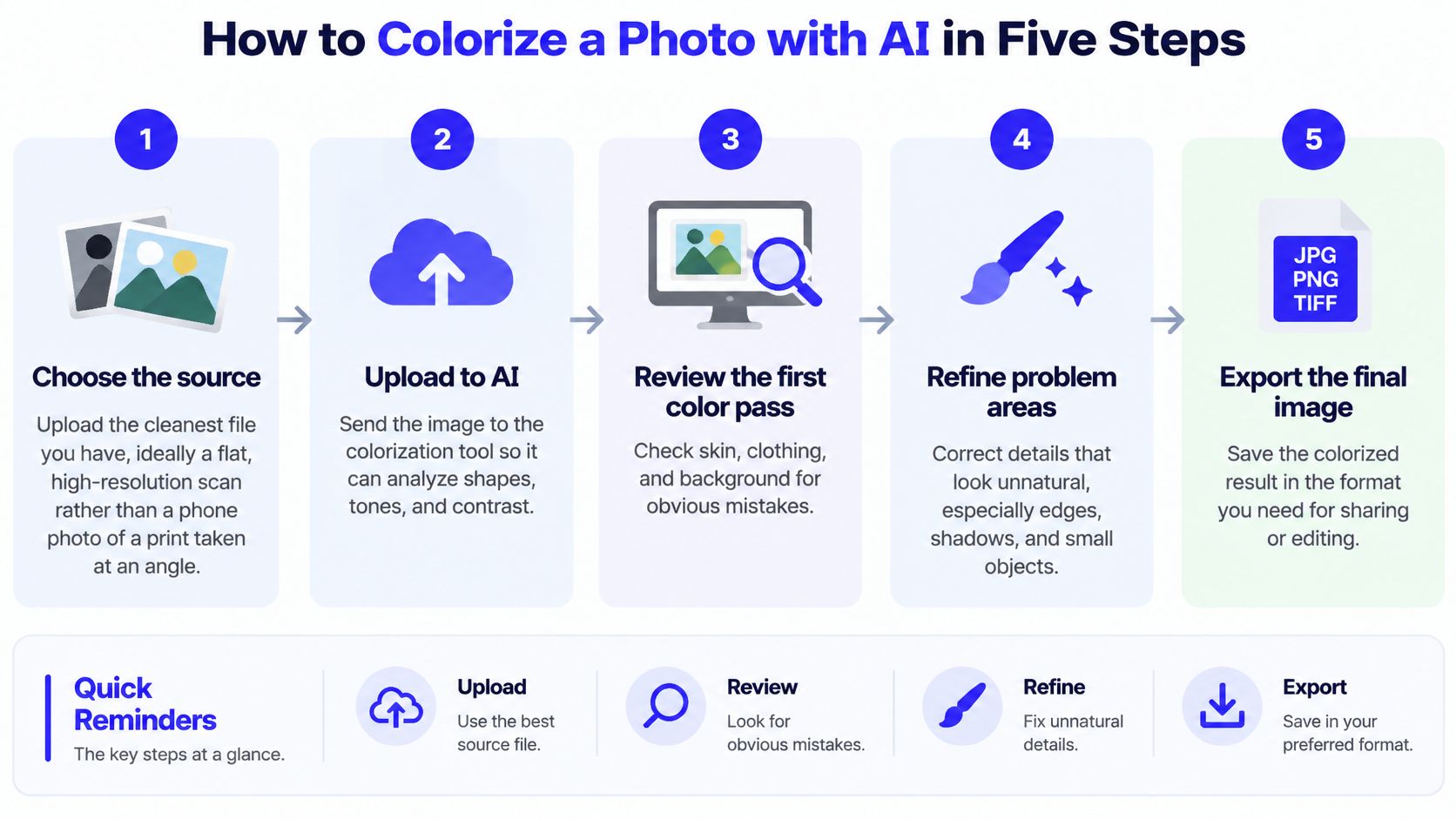
- Choose the source. Upload the cleanest file you have, ideally a flat, high-resolution scan rather than a phone photo of a print shot at an angle. A tilted phone grab bends faces, and the model then colors the bend.
- Crop to the subject. Crop before colorizing so faces and hands get the model's attention, and keep the untouched original as a separate file. The common slip is a crop that cuts off hands. Those hands then come back a different tone from the face.
- Run the colorizer. Pick a colorization mode, or use an image-to-image pass if your tool accepts an edit prompt. A useful prompt is "natural skin tones, muted period colors, no oversaturation." A blurred original still produces smeared faces. Color will not invent sharp eyes that the scan never had.
- Compare outputs. Generate at least three versions and name them clearly, such as
portrait-v1,portrait-v2, andportrait-v3, in the same folder as the original. One pretty frame is not a review. - Export and label. Save the chosen version next to the original and add a note that the colors are AI-inferred. New accounts on ImagesArt AI start with 15 free credits, which is enough for a first three-way comparison before you commit to a batch.
What a good result looks like at full size
Zoom to 100 percent. Edges should stay clean. Skin on the face should match the hands. Color should not bleed across the outline of a person, a collar, or a window frame. If saturation is the only thing that improved, you don't have a better photo. You have a louder guess.
Generate Candidates and Refine Problem Areas
A convincing colorization can still be wrong. Treat each result as a plausible reconstruction: compare candidates against the grayscale original, then refine only areas where the color or boundaries are uncertain.
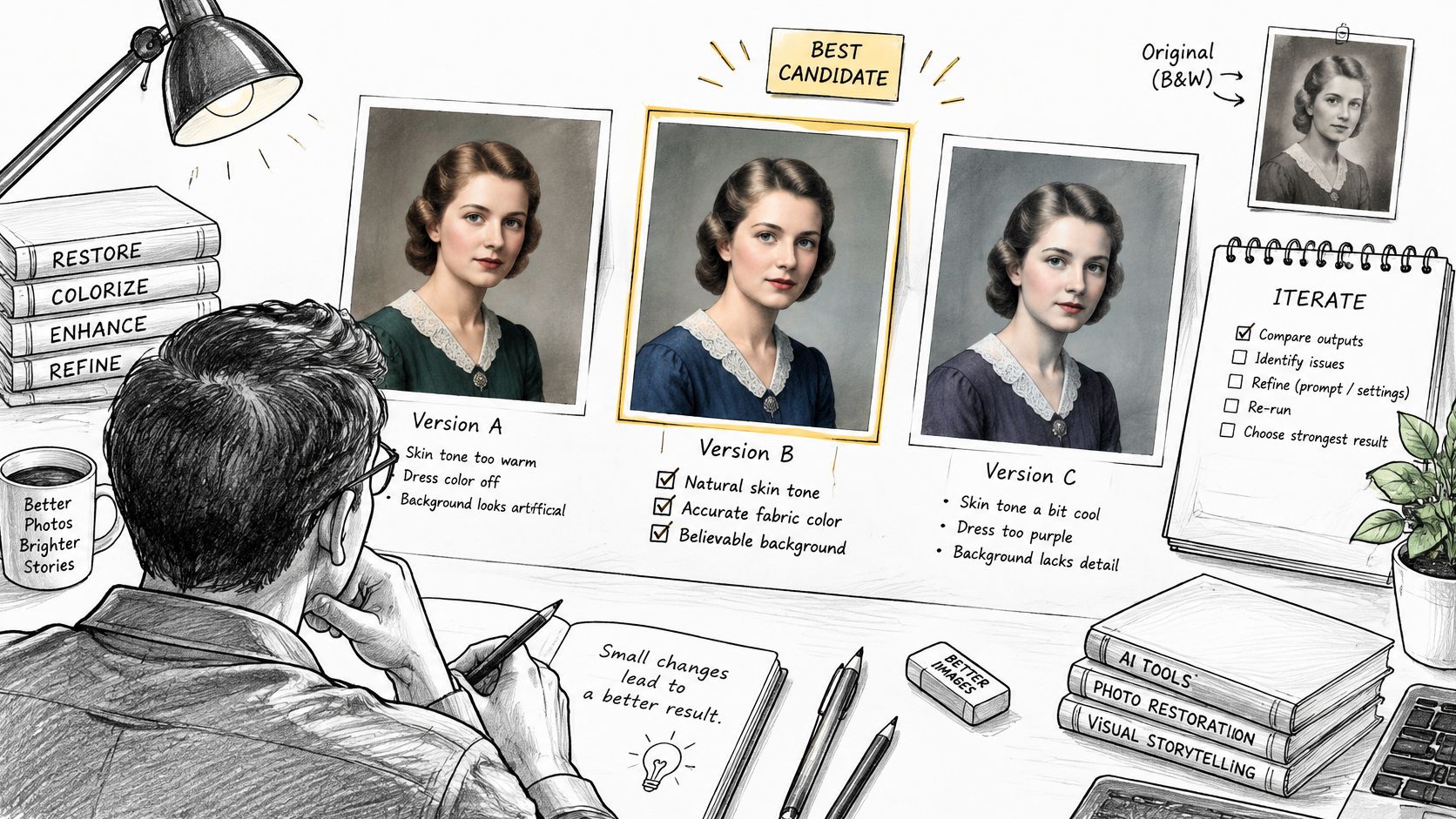
In Colorization Transformer experiments, human evaluators preferred the highest-rated of three generated colorizations over the ground-truth color image in more than 60% of cases. The study also found that LPIPS and FID aligned better with human judgments than PSNR and SSIM. The practical takeaway is to compare several candidates rather than trust a single output or a metric alone.
The comparison pass
Place the candidates beside the grayscale original and check them feature by feature.
- Boundaries: Look for color that crosses an object edge or starts before the edge.
- Bleeding: Check that foliage color stays off shoulders and sky color stays off hat brims.
- Saturation: Reject versions where sky or grass looks like a filter preset.
- Skin and shadow: Compare the face, neck, and hands for consistent tone. Shadows should follow the image's lighting rather than introduce an unrelated orange or gray cast.
Refine only the problem area. An AI image editing tool can help target a region instead of repainting the whole frame. For a storefront, for example, hint the sign color and review the result alongside the window reflections and street. Work from faces to clothing, then large surfaces and background, so prominent details get checked before less specific areas.
Refinement targets and targeted fixes
| Region | Common error | Targeted fix |
|---|---|---|
| Skin | Orange or gray cast that differs from the hands | Adjust the face tone locally and compare it with a known reference photo |
| Clothing and uniforms | Plausible but potentially incorrect fabric or uniform colors | Add a garment-color hint and rerun that region |
| Sky and foliage | Oversaturated blue or green | Reduce saturation locally while retaining the visible texture |
| Signs and products | Incorrect label or sign colors | Add a color hint and rerun only that area |
| Large background surfaces | Color bleeding across edges | Mask the edges and refine the surface separately |
Enlarge and Finalize Without Inventing Detail
Enlarge only after the colors pass review. Upscaling a face you haven't checked spreads a bad tone into eyelashes, pores, and fabric weave.
- Inspect at 100 percent. Look at eyes, hands, and fabric edges for bleeding or smeared texture. If an eye gained a highlight the scan never had, that highlight is invented.
- Upscale once. Go only to the size the final use needs. A second upscale past what the source can support softens faces and then the model "sharpens" features that weren't there.
- Compare the upscale with the candidate. Keep the version with cleaner faces, even if it is slightly less saturated.
- Keep a higher-resolution master. The same still can feed a feed post, an ad cut, and a print without another color pass.
For motion, keep the prompt short and specific. "Slow push-in on the face, soft background movement, no change to clothing colors" holds the palette you already approved. Don't ask the tool to add people, objects, or lettering. Each addition is another invented detail on a historical image.
If the tool offers to "complete" a blurred face, decline. A softer original face is more honest than a sharp stranger.
Check Accuracy and Fairness Before You Publish
A vivid result is not a truer result. In a study of 15 black-and-white photographs, AI colorization was faster and was often judged more aesthetically attractive, but it performed less reliably on traditional clothing and seasonal details. The stronger workflow is still generate, then compare clothing, architecture, vegetation, and other meaningful details against known references before you publish.
Test color against something you already have. A second photo of the same uniform, a family member's memory, a caption, or a known paint color on a building can confirm or kill a guess. If none of those exist, say so in the caption. Don't let a saturated coat stand in for evidence.
Where models drift
Training sets built from internet photos handle some subjects well and others poorly. Traditional garments and culturally specific objects are the weak spots. Check faces and garments separately. Run the same scan through two or more models when you can. Ask whether skin tones across a group stay consistent with the original grayscale, not with a modern default that lightens, warms, or smooths everyone the same way.
PSNR and SSIM reward pixel similarity and can favor a dull, safe result. FID and LPIPS track perceptual realism more closely, and they still don't prove history. For an archive or a documentary cut, I would publish the quieter version and leave uncertain regions visible, rather than the most saturated frame.
Quality metrics and what they tell you
| Metric | What it measures | Use it when |
|---|---|---|
| PSNR | Pixel-level similarity to a reference image | You have an original color image to compare against; it can reward dull, safe results |
| SSIM | Preservation of structure and edges | Checking that outlines and textures survived the colorization |
| FID | Similarity of the output set to real photos | Comparing batches from different models rather than judging one photo |
| LPIPS | Perceptual similarity closer to human judgment | Ranking candidate outputs for realism |
Label every published result. A line that works is: "Colors are AI-inferred and have not been verified against period records." Keep the monochrome original next to the color version, especially in marketing or teaching, where a convincing choice can be mistaken for a documented fact.
Would you show the original and the colorized image side by side to the person in the photo, or to the family that shared it? If the answer is no, go back to the local fixes before you post.
Export Colorized Photos for Reels, Ads and Posts
Short social cuts need a vertical frame and a slow reveal, not a busy effect stack.
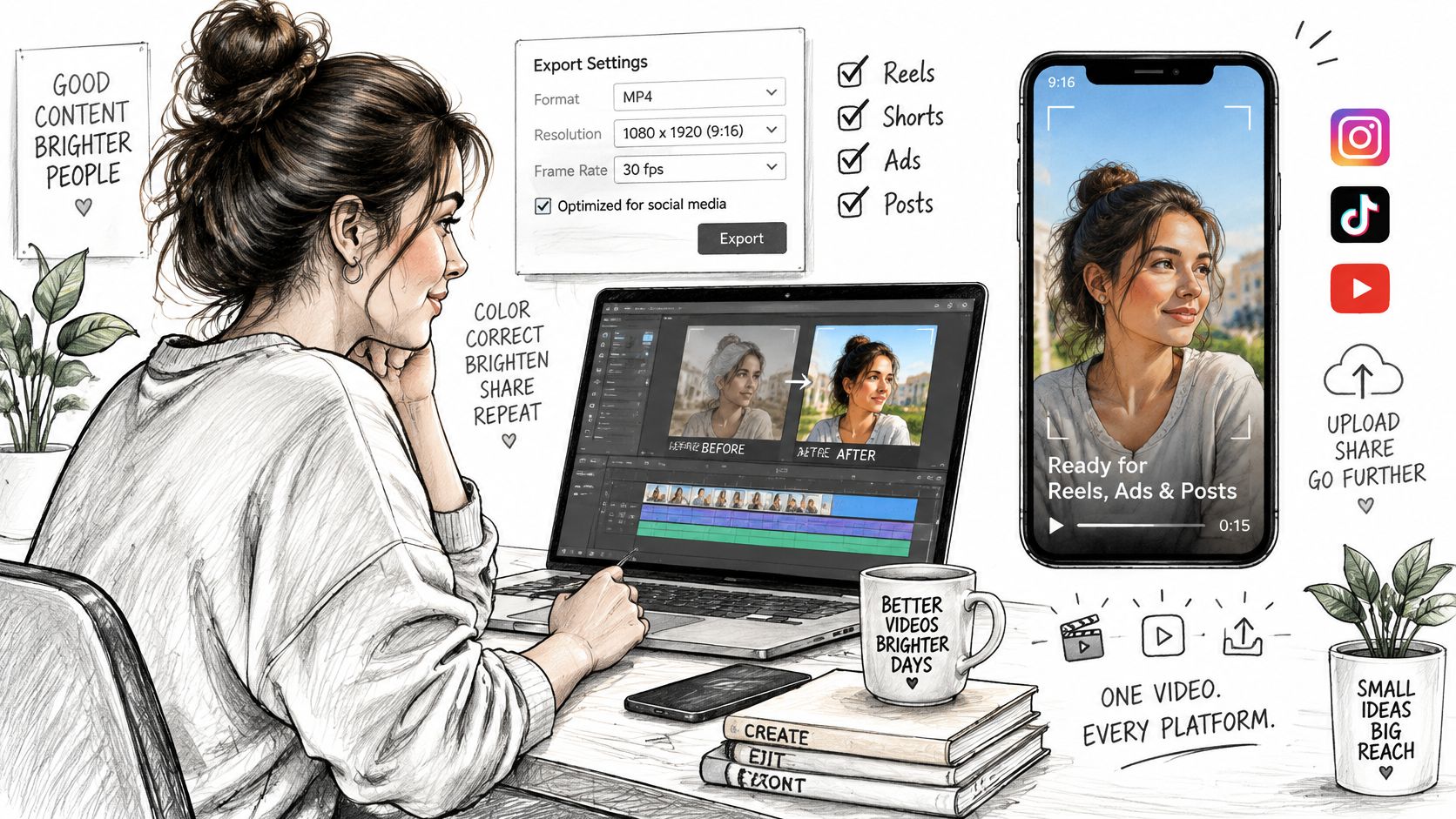
For TikTok reservation in-feed ads, TikTok's ad specifications recommend vertical 9:16 video at least 540 × 960 pixels, a 5–60-second duration, and 9–15 seconds as the recommended length. Instagram's creator guidance asks for high-resolution vertical Reels in 9:16 without borders, and warns against text that covers most of the screen. If you need the codec and quality knobs for that export, choose export settings for Instagram before you compress the master.
- Crop vertically first. Keep the face or product inside the central safe area so interface chrome doesn't cover it.
- Animate with restraint. A short prompt such as "slow push-in, gentle background movement, hold clothing colors" is enough. An image-to-video pass can turn the approved still into that clip.
- Export a 9–15 second test cut and watch it on a phone before you spend more time.
- Keep the higher-resolution master so the same colorized still can be recut for other placements. 540 × 960 is the minimum in those TikTok ad specs, not the file you should archive.
Open on the black-and-white image for one or two seconds, then a controlled color reveal, then a close-up of a hand, an object, or a sign. Put subtitles and the call to action away from the face. End the on-screen caption with the same honesty you used in the post: colors are inferred, not recovered from the source.
ImagesArt AI can color-correct a still through the image editor, then animate that approved frame with Text/Image to Video, Start-End Frame, or Reference mode using up to seven images. If you're ready to test a restrained before-and-after on a real scan, start with the free credits and compare candidates before you publish at ImagesArt AI.