Elf Video Maker: Make a Short Festive Clip
ImagesArt.ai
11/1/2026
You've got a holiday post to finish, a product photo in your downloads folder, and an idea involving a dancing elf. The quick version is easy to imagine. The version you can publish needs a readable face, controlled movement, room for your offer, and a file that fits the feed.
Treat an elf video maker as a way to build a small social asset, not an entire holiday movie. Start with the destination, use a controlled reference, and give the character a simple action. For a family greeting, you can make it personal without uploading a child's face at all.
Table of Contents
- Export Sizes for Reels, TikTok, and Shorts
- Build the Elf Clip from One Photo and a Prompt
- Festive Prompt Details That Stay Readable
- When the Elf Face or Motion Fails
- Safer Elf Videos for Families and Kids
- Disclose the Synthetic Elf Before Paid Use
Export Sizes for Reels, TikTok, and Shorts
A vertical elf clip needs room for its hat, hands, and any product or message. Set the destination first, then choose a practical export size and compose the scene for that frame.
Elf clip export targets by platform
| Destination | Aspect | Length to aim for | Resolution | Framing note |
|---|---|---|---|---|
| Instagram Reels | 9:16 | Short sting, often under 15 seconds as an editing target | 1080 × 1920; at least 720 px and 30 fps | Ratios allowed from 1.91:1 to 9:16; keep subject centered |
| TikTok in-feed ad | 9:16 | 21–34 seconds recommended; allowed 5–60 | At least 720p | Full-screen framing; put the benefit in the first seconds |
| TikTok or Reel gag test | 9:16 | 9–15 seconds as a test cut | 720p or higher | One action, one festive gag |
| YouTube Shorts | 9:16 or 1:1 | Up to 3 minutes if square or vertical | 1080p is a practical export size, not a platform limit | Square or vertical uploads after October 15, 2024 can classify as Shorts |
| Wide YouTube or site embed | 16:9 | Long enough to complete the action and show the offer | 720p to 1080p | Use wide framing when you don't want Shorts |
Instagram's Reels requirements allow 1.91:1 through 9:16, with at least 30 fps and a minimum resolution of 720 pixels. A 1080 × 1920 export is a practical target for vertical video. TikTok's creative guidance gives 5–60 seconds for in-feed ads, recommends 21–34 seconds, and favors full-screen 9:16 creative at 720p or higher. The shorter sting and gag cuts in the table are editing suggestions, not platform limits or promises of better performance.
YouTube's Shorts guidance classifies square or vertical uploads of up to three minutes as Shorts when uploaded after October 15, 2024. For a standard wide video that avoids Shorts classification, use a wider format such as 16:9.
Set the canvas before generation
- Pick the destination row. A close vertical product reveal needs different composition from a wide workshop scene.
- Set aspect and resolution. Leave breathing room around the hat, hands, and product.
- Write for that frame. In a vertical scene, an elf standing behind a candle may read more clearly than one crossing a crowded room.
- Preview on a phone. Check that interface overlays do not cover the offer or character.
For an existing file that needs conversion, FFmpeg resizing advice from RenderIO can help you plan a resize, crop, or padded export. Resizing cannot bring a product into view if it was outside the original frame.
The personalized elf format predates modern generative tools. CNBC's coverage of Elf Yourself traces the OfficeMax holiday campaign to December 2006. The useful lesson for a short social clip is simple: make the subject recognizable and the joke clear at a glance.
Build the Elf Clip from One Photo and a Prompt
A preset face-swap dance and a custom generated scene aren't the same workflow. The ElfYourself App Store listing describes the established preset format supporting up to five faces; a custom clip instead gives you control over the scene, camera, and product placement.
Use the workflow below to get a useful draft without repeatedly feeding the generator a weak image.
Choose the material you already have
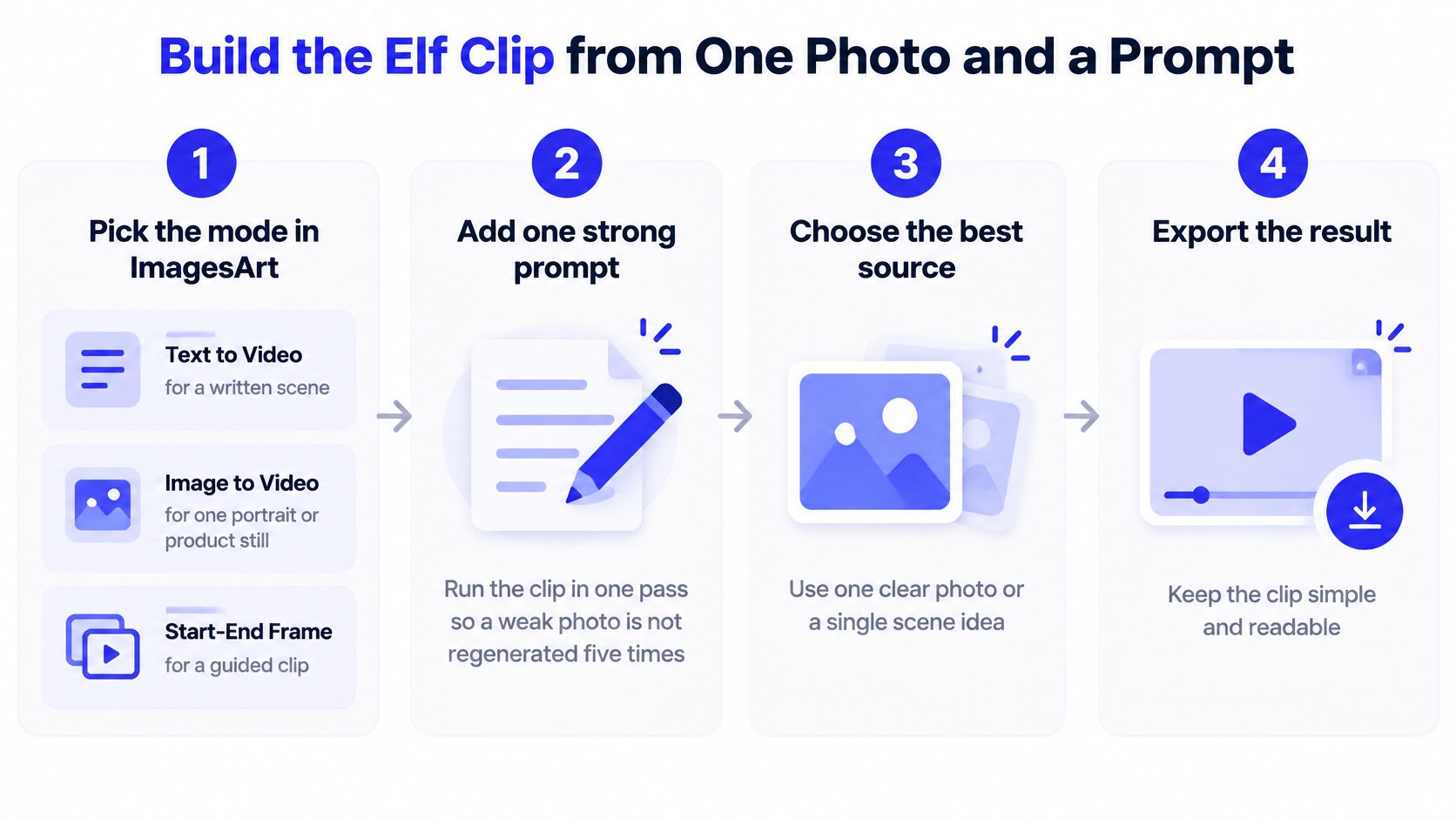
Pick the mode in ImagesArt. Use Text to Video for a written scene, Image to Video for a portrait or product still, Start-End Frame for a guided opening and ending, or Reference for consistent subjects across supplied images. The usual miss is choosing a photo-based workflow when you haven't decided what the source should show.
ImagesArt input modes for an elf clip
Mode Use when Input to prepare Text to Video You have a written scene and no photo One prompt with action, camera, and set Image to Video You have one portrait or product still One front-facing, well-lit image Start-End Frame You have an opening and closing picture Two matched stills of the same subject Reference Elf, wardrobe, or product must stay consistent Up to seven reference images Prepare a strong source. For a recognizable person, choose a front-facing portrait with visible eyes and mouth. Avoid stacked group shots, extreme profiles, and shadows across the face; give a pet its own image. If you're animating a product, keep its silhouette unobstructed and leave space for the elf's action.
Write action, camera, and set. Try this scene description: a felt elf turns toward the camera beside a gift box, slow push-in, pine garland and warm lamps, original soft bells, no spoken slogan. Don't ask the same take to introduce a character, perform a dance, open several presents, and reveal an offer.
The process overview keeps the source and scene deliberately simple.
Spend credits on a decision, not a guess
Set a short draft and inspect the cost. For example, test a six-to-ten-second sting before committing to a longer edit. The exact credit cost appears on the Create button before generation, and new accounts can start with 15 free credits. Draft at lower quality when available, then render the selected take more sharply rather than polishing every experiment.
Approve the animation before downloading. Look at the moving face, hands, product edges, and intended ending. A completed generation isn't automatically a usable take.
Preview the MP4 in its intended frame. Use the Image to Video workflow when your starting point is a still, then inspect the downloaded file before adding captions or claims. The common miss is approving the web preview without checking the deliverable itself.
If you're using a real person's likeness, AI Video Detector's deepfake guide provides context for understanding synthetic face-based video. Treat likeness permission as a production decision, not something to resolve after sharing.
Practical rule: Keep the original source and change only the input that caused the failure. A new render isn't a substitute for a better crop.
Festive Prompt Details That Stay Readable
Give the elf one action. A short clip becomes difficult to judge when the character dances, tosses gifts, changes clothes, and moves through a busy workshop.
Build the prompt around an action, a camera move, and a few set details. Use visible nouns such as felt, pine, ribbon, and wood instead of relying on cheerful or magical to describe everything.
Ready-to-adapt prompt patterns
Product sting
A small felt elf in a forest-green tunic sets an unlit candle on a wooden table. Slow push-in. Pine sprigs, warm practical light, cranberry ribbon. Keep the candle's shape and packaging unchanged. Original soft bells, no speech, no generated lettering.
This gives a small shop a clear product moment without asking the model to invent an entire commercial. Put the product where the viewer can recognize it before the elf starts moving.
Portrait gag
The consenting adult in the reference wears a red knit hat with a cream cuff and looks toward the camera with a slight head tilt. Gentle snowfall bokeh outside a cozy window. Calm movement, steady facial features, locked camera, no costume transformation during the shot.
A small expression change is easier to evaluate than a full-body dance. If you want a wardrobe change, prepare the dressed still first rather than combining the transformation with facial animation.
Pet greeting
The dog from the reference sits comfortably in a miniature sleigh, ears raised. Gentle camera pan. Warm fairy lights, soft fabric blanket, neutral interior. Preserve the dog's markings. No fast dance, no talking mouth, quiet room tone.
Don't force human gestures onto the animal just because the tool can attempt them. A recognizable pet with a gentle motion already supplies the joke.
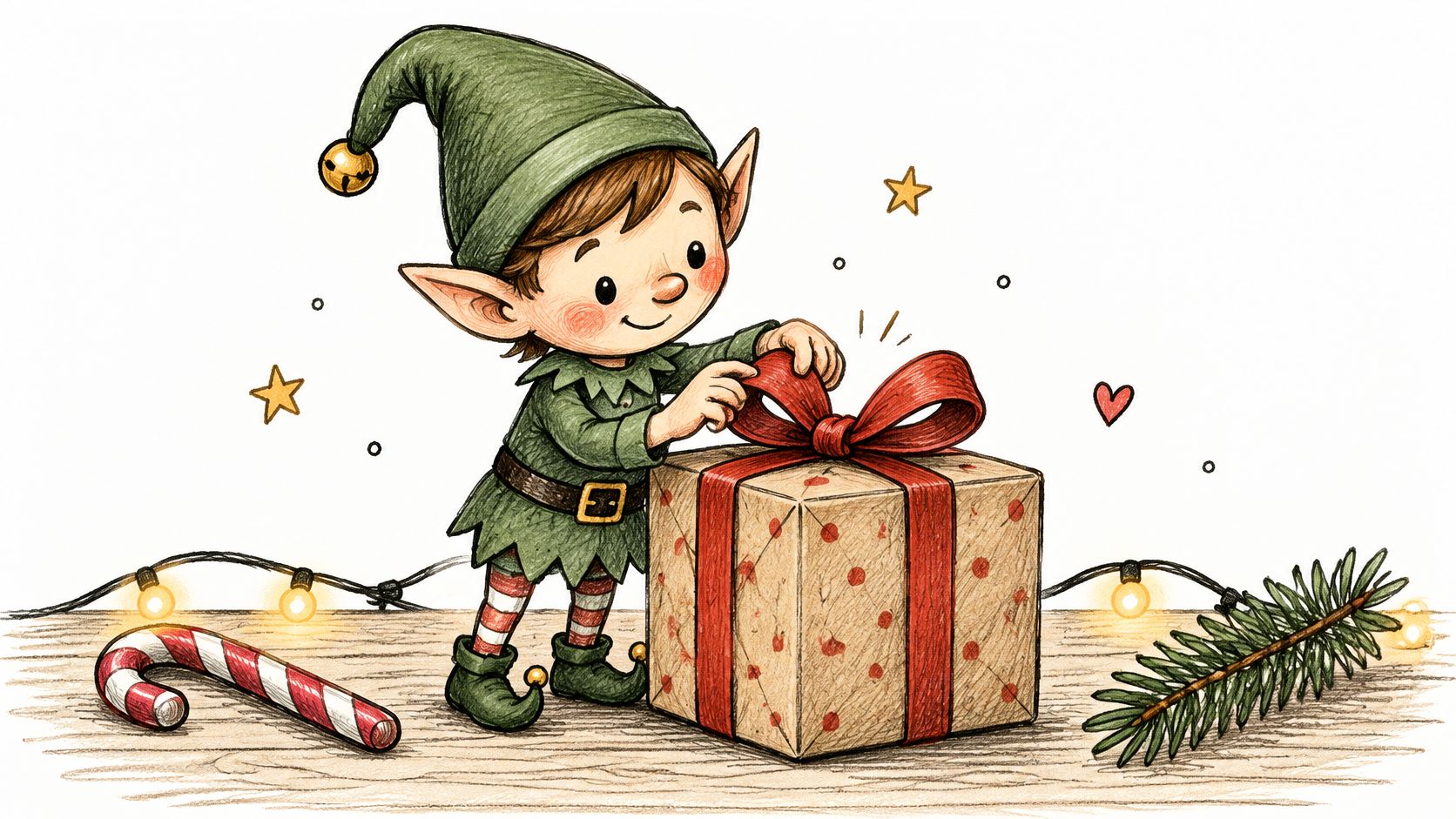
A compact tabletop scene also leaves space for a caption added during editing.
Control what the viewer must recognize
Choose colors that separate the subject from the background: forest green, cream trim, brass bells, and cranberry ribbon make a useful starting palette. Don't place a green sleeve against equally dark foliage if the hand needs to demonstrate a product.
Keep offers and small lettering out of the generated scene. Add them in the editor so you can control spelling, contrast, timing, and placement without regenerating the animation.
For sound, ask for original soft bells or room tone rather than a recognizable copyrighted chorus. If audio isn't essential to understanding the clip, design the visual action to work without sound.
Use the Veo prompt generator to organize a rough idea, then remove instructions that compete with the main action. More adjectives won't fix an unclear scene.
For a before-and-after concept, prepare a plain product opening and a matching festive ending. Describe the transition between them, not a new location or a replacement product.
One character, one move, one festive set, six to ten seconds as a starting edit.
When the Elf Face or Motion Fails
Reject a clip if the face loses alignment, the eyes or mouth smear, or the export fails on the intended device. Watch the full animation before judging the thumbnail. A clean opening frame can hide a distorted turn later in the take.
Evaluate face placement, stability through motion, and export usability separately. The Clipfly elf-video page offers product-capability context, not a neutral, independently verified success-rate benchmark, so don't treat a vendor percentage as a general reliability measure.
Diagnose the visible problem
Elf render problems and the input change
| What you see | Usual cause | Change before the next render |
|---|---|---|
| Mouth or eyes smear | Hidden features, side profile, or low resolution | Front-facing crop, eyes and mouth clear, brighter light |
| Face slides off during the move | Fast dance plus a hard camera move | Shorten to a turn or nod; drop the whip pan |
| Halo around the elf | Busy or high-contrast background | Simpler wall or crop the subject tighter |
| Wrong person in a group | Overlapping faces and unclear order | One cropped face per reference, then combine |
| Pet or glasses look melted | Landmarks missed or lens glare | Separate pet image; reduce glare and test a short preview |
| Clip looks fine as a still but fails in motion | Judged from the thumbnail only | Watch the full duration before export |
These are troubleshooting hypotheses, not guaranteed diagnoses. If a tighter crop fixes the face but removes the product, rebuild the source composition rather than accepting a new problem.
Say an elf's face slips during a rapid spin. Keep the source image and replace the spin with a restrained head turn; if it still slips, improve the portrait before changing models. Changing the image, prompt, camera, and model together makes it harder to identify what helped.
Keep a small failure log
Record the source category, model or template version, prompt, and visible defect. Include whether you corrected the result manually and whether the downloaded file had watermark or playback problems.
For team testing, separate frontal portraits, glasses, beards, darker and lighter skin tones, authorized child images, groups, pets, and low-light sources. Don't assume a successful adult portrait proves that the same setup works equally well for every subject.
- Face placement: Does the face belong on the character throughout the shot?
- Motion stability: Do distinctive features survive turns, blinks, and changes in lighting?
- Delivery usability: Does the file play correctly, retain the intended crop, and leave room for captions?
If the transition itself is causing problems, a start-and-end-frame workflow can define the intended opening and finish. It still needs human approval between those endpoints.
Approve the movement, not the thumbnail. Pause at suspicious moments, but also watch at normal speed to judge whether the result feels coherent.
Safer Elf Videos for Families and Kids
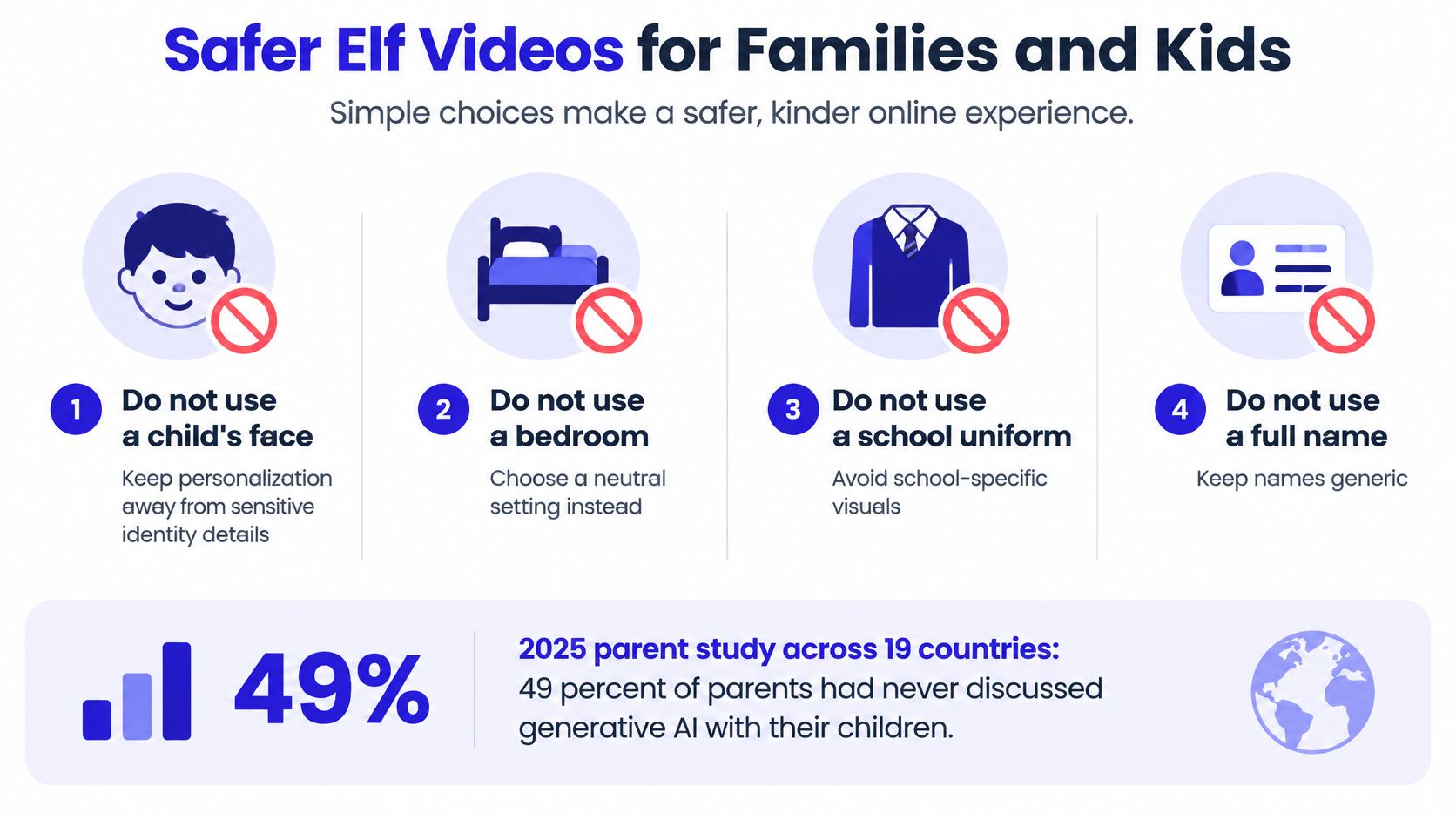
Personalization doesn't require a child's face, real bedroom, school uniform, or full name. A fictional elf can carry a favorite-color ribbon, wave beside a toy rocket, or greet a family pet without exposing those details.
A 2025 global parent study spanning 19 countries, discussed by UNICRI's AI-literacy material, found that 49% of parents had never discussed generative AI with their child, while 44% felt they lacked the knowledge to guide safe use and 40% didn't monitor their child's AI use. A holiday project is a useful opportunity to explain that someone created the character with software and that it does not know or watch the child.
Use this checklist before choosing the source image.
Make it personal without making it identifying
Start with a fictional illustration or a generic festive room. Add interests through props, colors, and a nickname placed in an editable caption rather than spoken by a realistic character.
For example, a space-loving child could receive a greeting from a cartoon elf holding a cardboard rocket beside a purple tree. The scene feels chosen for them without including their appearance, location, school, or voice.
- Use neutral surroundings: Avoid visible mail, family photographs, street views, and school logos.
- Keep the greeting modest: A simple seasonal message is enough. Don't make the elf claim it has been monitoring behavior.
- Share privately: Send the finished file through a private family channel rather than publishing it on an open profile.
- Explain the fiction: Tell the child that the elf is an animation someone made for fun.
Design for comfort and access
More realistic isn't automatically more suitable. For a young or sensory-sensitive viewer, choose a clearly fictional character, gentle pacing, simple language, and no sudden lunge or loud audio sting.
Add readable captions and offer a transcript for anyone who watches without sound. If the elf speaks, use the child's preferred language and keep the message easy to follow; if it signs, have a competent signer review the output rather than assuming generated gestures are accurate.
Mobility aids and hearing devices can appear as ordinary parts of the character. Don't use them as a surprise, a costume gag, or the reason the elf is funny.
Before uploading any personal image, read the tool's retention, model-training, and deletion terms. Note what the policy says, distinguish stored outputs from uploaded sources, and delete local project copies when they're no longer needed.
If the terms don't explain how an uploaded photo is handled, use a fictional image instead. Don't promise a family that deleting a download also deletes every uploaded source or service-side copy.
Disclose the Synthetic Elf Before Paid Use
A festive character can demonstrate a product without pretending to be a customer. The risk changes when the elf delivers a testimonial, wears a recognizable employee's face, or implies that someone used and recommended the product.
The FTC's consumer-reviews and testimonials guidance doesn't impose a blanket prohibition on AI-generated avatars in marketing. It does leave advertisers responsible for avoiding deceptive representations and making material relationships or simulated endorsements clear when viewers could be misled.
Separate a demonstration from an endorsement
An elf placing a candle beside a gift box is a visual demonstration. An elf claiming personal experience with that candle introduces an endorsement question, particularly if viewers could interpret the character as representing a genuine customer.
Write the product message from facts you can support. A seasonal packaging reveal can show the actual box and describe its contents; it shouldn't invent customer satisfaction, product testing, or performance results.
Where the synthetic presentation could affect how viewers evaluate the message, use a clear disclosure such as AI-generated character. That label doesn't validate an unsupported product claim, and it doesn't replace a sponsorship or material-relationship disclosure when one is needed.
Keep disclosure readable in the finished placement. A label hidden behind interface controls or visible only during a transition won't help viewers understand the presentation.
Complete the release checklist
Save the production record. Put the prompt, reference or start-end images, permissions, and export settings in the project folder. Keep the approved version identifiable so a teammate doesn't accidentally publish an earlier draft.
Verify every claim. Compare on-screen text, spoken lines, and captions with your product records. Check the actual item shown, including packaging, included accessories, availability, and the offer's conditions.
Get written likeness permission. Include a team member who supplies their face for the elf. Agree on the intended channels and commercial use before generation, not after the finished clip circulates.
Confirm the disclosure decision before paid use. Label a synthetic presenter when viewers could mistake it for a real customer or genuine endorsement. Don't invent a review and assume an AI label makes it acceptable.
Confirm the delivery version. Publish the vertical keeper for Reels or TikTok, or the wide cut when the video shouldn't be a Short. Add captions and offers in the editor, then inspect the exported file with those elements included.
Passing this checklist supports release, but it isn't a blanket guarantee of compliance with every platform policy or campaign-specific requirement. If a claim, permission, or disclosure remains unresolved, keep the clip out of the ad account.
A fast draft helps the team choose a creative direction. A publishable asset also needs an accountable owner who confirms the source rights, message, disclosure, and final file.
ImagesArt AI offers Text to Video, Image to Video, Start-End Frame, and Reference modes, with camera movement and native sound available through Text/Image to Video. Visit ImagesArt AI to build a simple elf scene from a prompt or controlled reference, check the credit cost on the Create button, and generate a draft you can review before publishing.