How to Use Higgsfield Genjutsu: Modes, Cost & an Alternative
ImagesArt.ai
11/3/2026
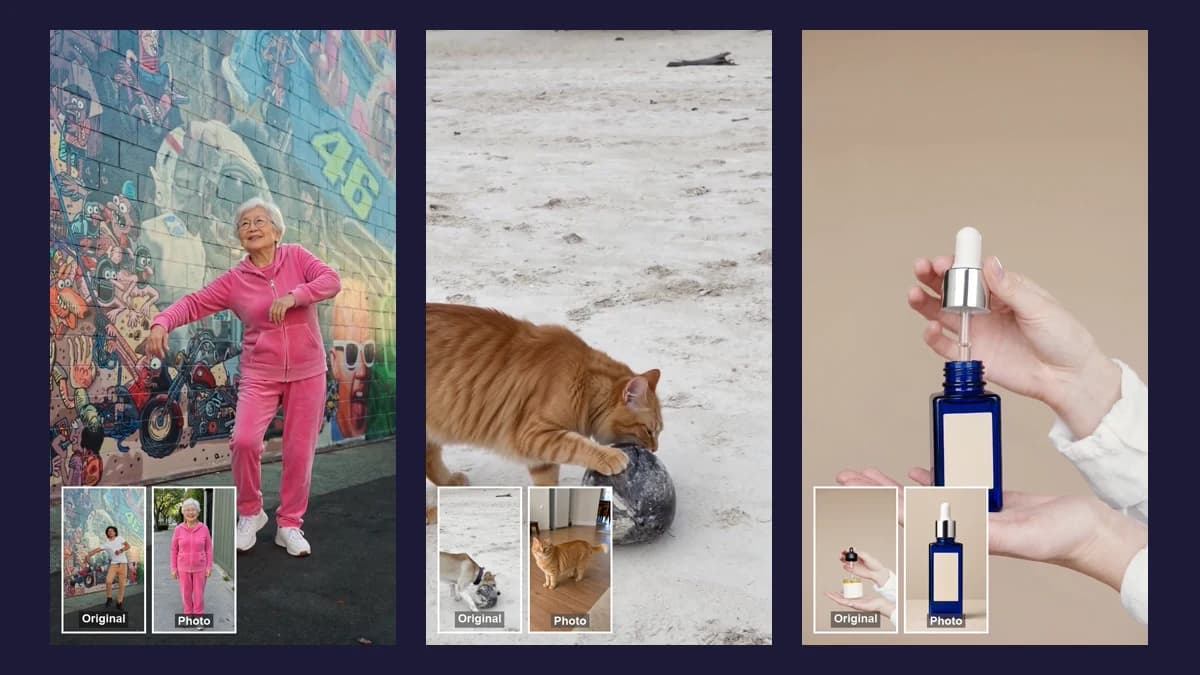
Higgsfield Genjutsu edits a video you already have. You give it a clip and one or more photos, and it keeps the moves, timing and camera work of the clip while it swaps in the person, pet or object from your photos. You don't generate a new scene. You reuse a scene that already works.
The formula: one source clip (the motion) + one photo (the new star) + a short prompt that says which is which = the same video with someone else in it.
Below is how to do that on Higgsfield, what each mode is for and what it costs. After that we show the same edit on our own Genjutsu AI video editor, which runs on different models. ImagesArt is not affiliated with Higgsfield.
Made on ImagesArt from a stock street-dance clip and one photo. The original clip and the photo are in the bottom-left corner.
Try a Genjutsu-style edit →How to use Higgsfield Genjutsu, step by step
We wrote this section from Higgsfield's Genjutsu page, its app and its public API docs as of November 2026. We have not run paid jobs on Higgsfield, so details may change.
Open Genjutsu and sign in
Go to higgsfield.ai/genjutsu and open the video tool. Genjutsu sits in the model list next to Genjutsu Lite, the cheaper version. You need an account to generate.
Upload the clip and your photos
The source clip can be 4 to 30 seconds long. Lite only uses the first 15 seconds. Then add the photos you want in the result: the app takes up to 30, and the API 1 to 8.
Pick a mode and write the prompt
Choose Motion Transfer, Object Swap or Restyle (see the next section). The prompt is optional, but it helps to say which photo replaces what, and you can tag your uploads with @ in the prompt.
Pick a quality and generate
Choose 480p, 720p or 1080p. 720p is the default. The cost depends on the length of your source clip and the quality, so trim the clip first. The result keeps the clip's shape and its sound.
What each Genjutsu mode does
- Motion Transfer keeps only the movement. The person or pet in your photo performs the moves from the clip, usually in the photo's own setting. Use it for dances and reactions.
- Object Swap replaces one thing in the shot: a product, a drink, a prop, a car. Hands, people and camera stay the same. Use it for product ads and UGC remakes.
- Restyle keeps the clip and changes its whole look with one of Higgsfield's preset styles.
Swapping a character, an outfit or a location is done through these modes plus the prompt. Higgsfield describes it as swapping "characters, outfits, locations, and objects."
How much Higgsfield Genjutsu costs
Higgsfield charges credits per second of the source clip. These are the rates its app showed in early November 2026:
| Credits per second | 480p | 720p | 1080p |
|---|---|---|---|
| Genjutsu | 3 | 7 | 20 |
| Genjutsu Lite (Motion Transfer) | 1 | 2 | 4 |
| Genjutsu Lite (Object Swap) | n/a | 2 | 4 |
So an 8-second clip at 720p is 56 credits on Genjutsu and 16 on Lite. Higgsfield credits cost roughly $0.03 to $0.07 each, depending on the plan. The app also has a free Genjutsu generation for eligible accounts; we could not confirm who gets it or what it covers.
The same edit on ImagesArt
Our Genjutsu AI video editor does the same kind of edit with two models you can switch per clip: Seedance 2.0 Mini (the default, lower cost) and Wan 3.0 (closest to the original clip in our tests). It is a separate tool, not Higgsfield's model.
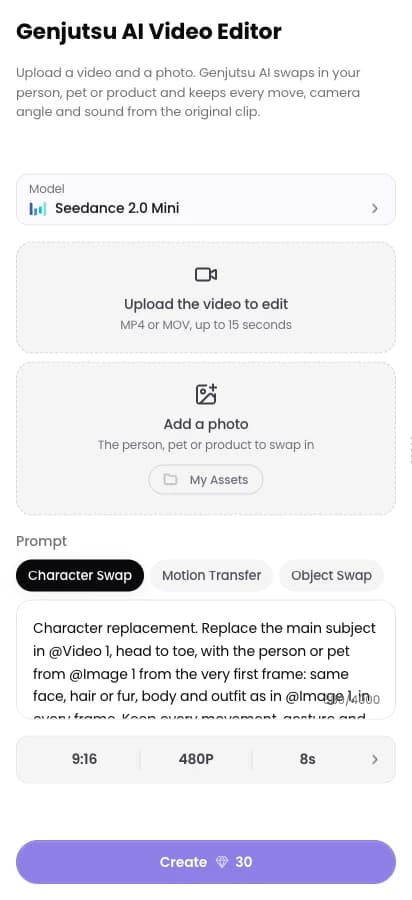
Upload the video and a photo
Drop in the clip you want to edit, up to 15 seconds, MP4 or MOV. Then add a photo of the person, pet or product to swap in. A clear, full-body photo works best.
Pick an edit mode
Click Character Swap, Motion Transfer or Object Swap above the prompt box. Each one fills in a ready-made prompt you can edit. The length and shape follow your video automatically.
Create and download
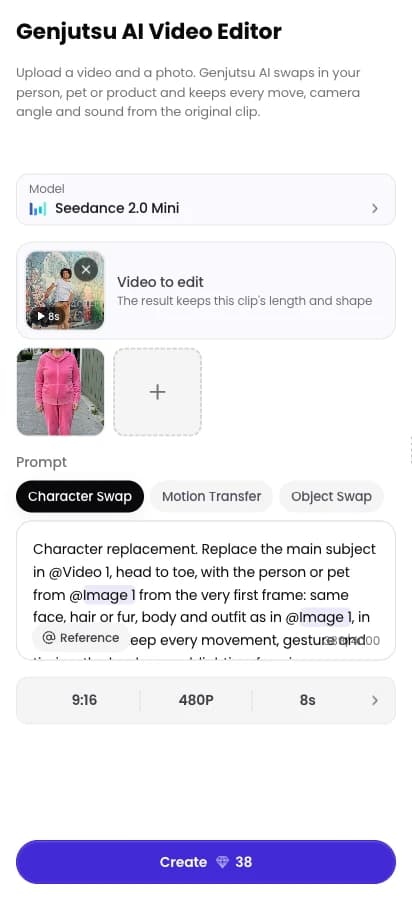
Click Create. Our three example edits took between 3 and 4 minutes each at 720p. Download the MP4 or find it later in My Assets.
On Seedance 2.0 Mini at 480p, a 4-second edit costs 19 credits and an 8-second edit 38 credits. The same 8 seconds on Wan 3.0 is about 128 credits. 720p needs a Starter plan, and 1080p on Wan 3.0 needs Pro.
One prompt, line by line
This is the Character Swap prompt the editor fills in. Each sentence has a job:
Character replacement. Replace the main subject in @Video 1, head to toe, with the person or pet from @Image 1 from the very first frame: same face, hair or fur, body and outfit as in @Image 1, in every frame. Keep every movement, gesture and timing, the background, lighting, framing, camera move and original sound from @Video 1. The original subject never appears. No text or watermark.
- "Character replacement." names the task up front, so the model treats the clip as the base and doesn't build a new scene.
- "Replace the main subject in @Video 1, head to toe…" says what goes and what comes in. "Head to toe" stops it from swapping only the face.
- "from the very first frame" helps avoid a fade where the original person shows for a second before the swap.
- "same face, hair or fur, body and outfit as in @Image 1, in every frame" keeps the new star consistent. "Fur" lets the same prompt work for pets.
- "Keep every movement… camera move and original sound" lists everything that must not change. Leave something out and the model may change it.
- "The original subject never appears." covers the moments when the dancer turns around or leaves the frame.
Here is the same prompt with a pet. The source was a husky pushing a ball on the beach:
Left: Character Swap with a cat photo. Right: Object Swap, a hand-held dropper bottle replaced by a blue serum bottle from one product photo.
Common mistakes
- Uploading a long video. Our editor takes up to 15 seconds, and on Higgsfield every second costs credits. Cut the clip to the part you need first.
- Using a group photo. The model can't tell who should go in, and faces blend. Use one person or pet per photo.
- Using a tiny photo. Small images lose the face. Wan 3.0 rejected a 360 × 203 photo in our test until we used a bigger one.
- Picking the wrong mode. Motion Transfer puts the moves into your photo's setting. If you want to keep the clip's background, use Character Swap.
- Mixing very different bodies. A cat can replace a dog easily. A cat doing a human breakdance is harder, so keep the moves simple when the body changes.
- Editing people without permission. Only use faces and clips you have the right to use.