A Una Foto: How to Add Elements to a Photo
ImagesArt.ai
10/31/2026
What if the hardest part of editing a una foto isn't choosing a tool, but finishing the sentence? Add what, exactly, and where? Most failed edits start with that missing verb. Once you name the element, its position, and what must stay unchanged, the workflow becomes manageable with almost any AI editor.
Table of Contents
- What A Una Foto Usually Means for Photo Editing
- Permissions and Disclosure Before You Post a Changed Photo
- Pick the Format and Length Before You Generate
- How to Add an Element to a Photo Step by Step
- Checks That Catch Hidden Mistakes Before You Publish
- Fixes for Floating Objects, Face Drift and Garbled Text
- Test One Edit on a Spare Photo Before Your Next Post
What A Una Foto Usually Means for Photo Editing
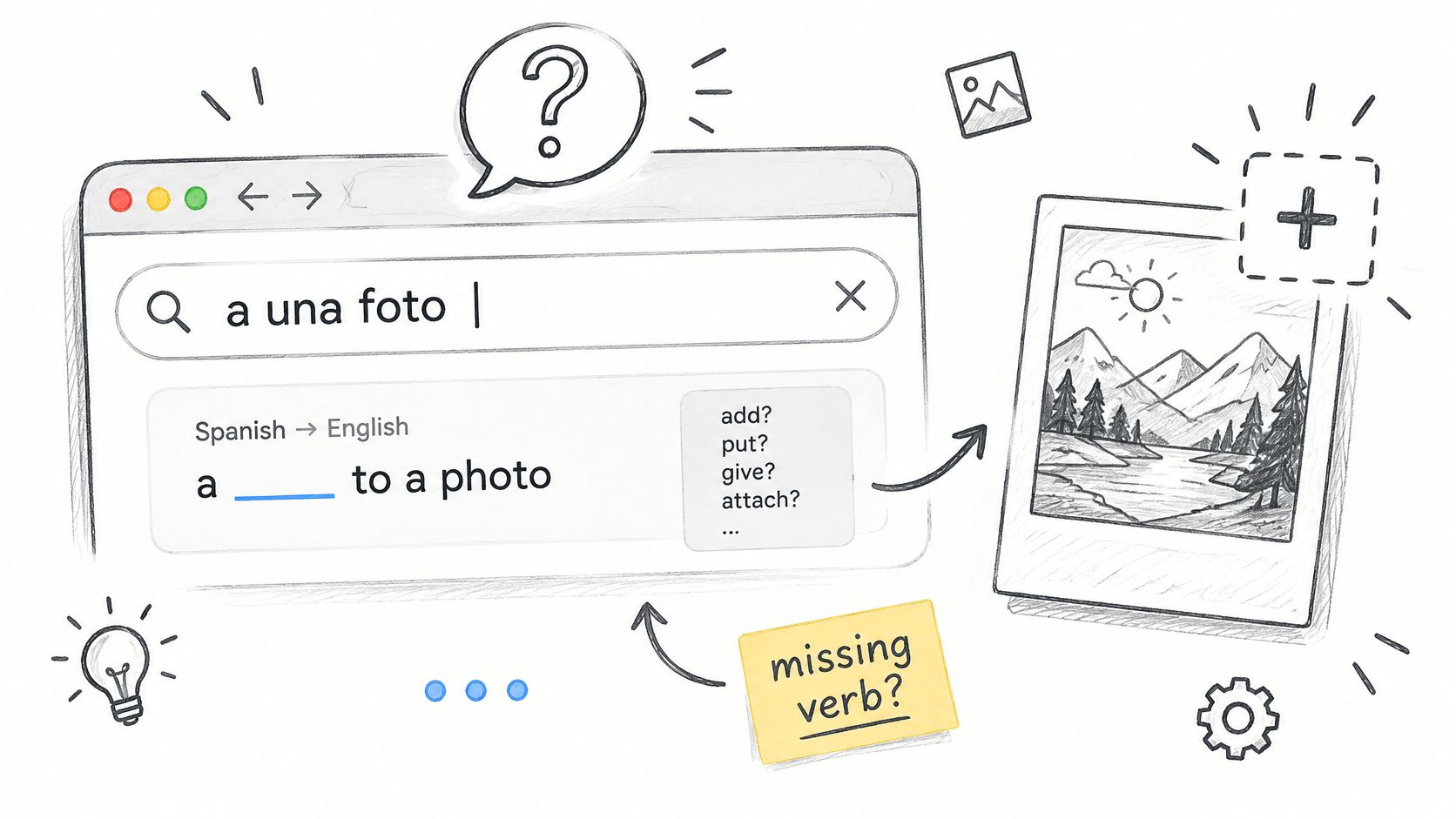
A una foto is Spanish for "to a photo," so the search is incomplete. It doesn't say whether you want to add, remove, move, or animate something. Most readers aren't looking for grammar. They want to change an existing picture.
Five Tasks Hide Behind One Phrase
| Likely Meaning | Typical Goal | What You Need |
|---|---|---|
| Add a person or pet to a scene | Place a subject into an existing shot | Source scene photo, clear photo of the subject, and placement notes |
| Add an object or product | Insert a prop or item that fits the light | Photo of the object from a similar angle and a prompt with position and size |
| Add text, a logo or a sticker | Overlay branded or decorative marks | Exact text or artwork file, style notes, and a clear safe area |
| Change the background | Swap what sits behind a subject | Clean subject edge or mask, plus a background description |
| Animate a still photo | Turn one image into a short clip | One clear photo, one motion instruction, and a set duration |
Run a quick self test before you open anything. What's the element? Where should it sit in the frame? If you can't answer both in one sentence, you're not ready to generate.
Say your answer is, "Add our blue bottle on the table, left of the model's hand, at table height." That's a workable brief. If your goal is motion instead, the same discipline applies, because you're still protecting identity, edges, and lighting while one thing moves. Readers who also need to clean up a weak source file first can compare approaches in guides to AI enhancement workflows with MyImageUpscaler, then return with a sharper starting photo.
Permissions and Disclosure Before You Post a Changed Photo
Before editing, check what the source photo contains and how you plan to use the result. Permission to alter an image and permission to publish it are separate questions. A clear label can explain an edit, but it cannot grant rights you do not have.
Check Four Permissions Separately
- Copyright in the source photo: Use a photo you own or have a written license for. Check whether the license allows AI editing.
- Consent for identifiable people: Get permission to use a person's likeness, especially for customers, employees, or influencers.
- Trademark and design rights: Check whether visible logos, packaging, or product designs are cleared for your intended use.
- Client or employer permission: Review your agreement before uploading campaign files to an outside tool. It may restrict where those files can be processed.
Commercial-use terms for an AI-generated result do not automatically cover the photo you upload. The source image has its own rights and permissions.
Before uploading, read the tool's data terms, including where files are processed and how long they are retained. Keep confidential product shots, unreleased designs, and private people's photos out of tools whose terms you have not checked. Remove metadata you do not need, and keep a record of the source and the changes made.
Run the Disclosure Test
Ask: Could a viewer reasonably mistake this altered photo for documentary reality? If the answer is yes, consider a clear label and keep the original available.
The main risk is whether viewers could reasonably take the changed scene as real.
For EU use, ICTRecht's overview of generative AI and disclosure discusses Article 50 of the EU AI Act and transparency obligations for certain AI-generated or manipulated content, including visible disclosure for realistic deepfake material. Consider the intended use, audience, jurisdiction, and degree of alteration. Retain provenance metadata when it is available.
| Use Case | Viewer Likely Reads It As | Required Action |
|---|---|---|
| Product photo with an added bottle | Illustrative mockup | Label it as illustrative or AI edited, and confirm logo and product rights |
| Customer placed into a testimonial | Documentary proof of a real customer | Get a signed release and add a visible label. Do not present the image as a real result |
| Influencer or real person's likeness | Personal endorsement | Get written consent to use the likeness and add a visible label |
| Before and after visual | Real measured result | Keep the untouched original and label any material change |
| Synthetic background behind a real subject | A real place, if the scene looks photographic | Label it if viewers could mistake it for a real scene, and keep the original |
For endorsements and sponsored posts, consider disclosure obligations separately from AI labels. Review the FTC guidelines for general information about endorsement disclosures. Health, finance, and political advertising may require local legal review; a generic AI label may not address every applicable rule.
Pick the Format and Length Before You Generate
Decide the placement first, because changing aspect ratio later can move your added element and force a fresh round of candidates. Write down format, duration, and placement before you open the tool.
- Reels and Shorts: Use 9:16 vertical. Put one clear action in the first second and keep the added element out of the bottom third, where captions and buttons sit.
- Feed ads: Use 4:5 or 1:1. Leave open space for headline copy and keep one focal element, so the eye lands in one place.
- Product demos: Use 16:9 or 1:1. Keep the product at a consistent scale and supply reference views from two or three angles.
Keep first tests short, around four to six seconds for a single motion, and render at lower resolution before the final export. A short test shows you whether identity and edges hold without spending credits on length you may trim anyway. Prompt structure matters here too, and the principles in this guide to writing stronger image prompts carry over when you describe size, position, and light.
Use Start-End Frame when a clip must open on your approved photo and close on a designed frame. Use Reference, up to 7 images, when the same product or person must match across shots.
How to Add an Element to a Photo Step by Step
This workflow works whether you're adding a bottle to a table, a pet beside its owner, or a new background behind a portrait. Each step prevents a specific, common failure.
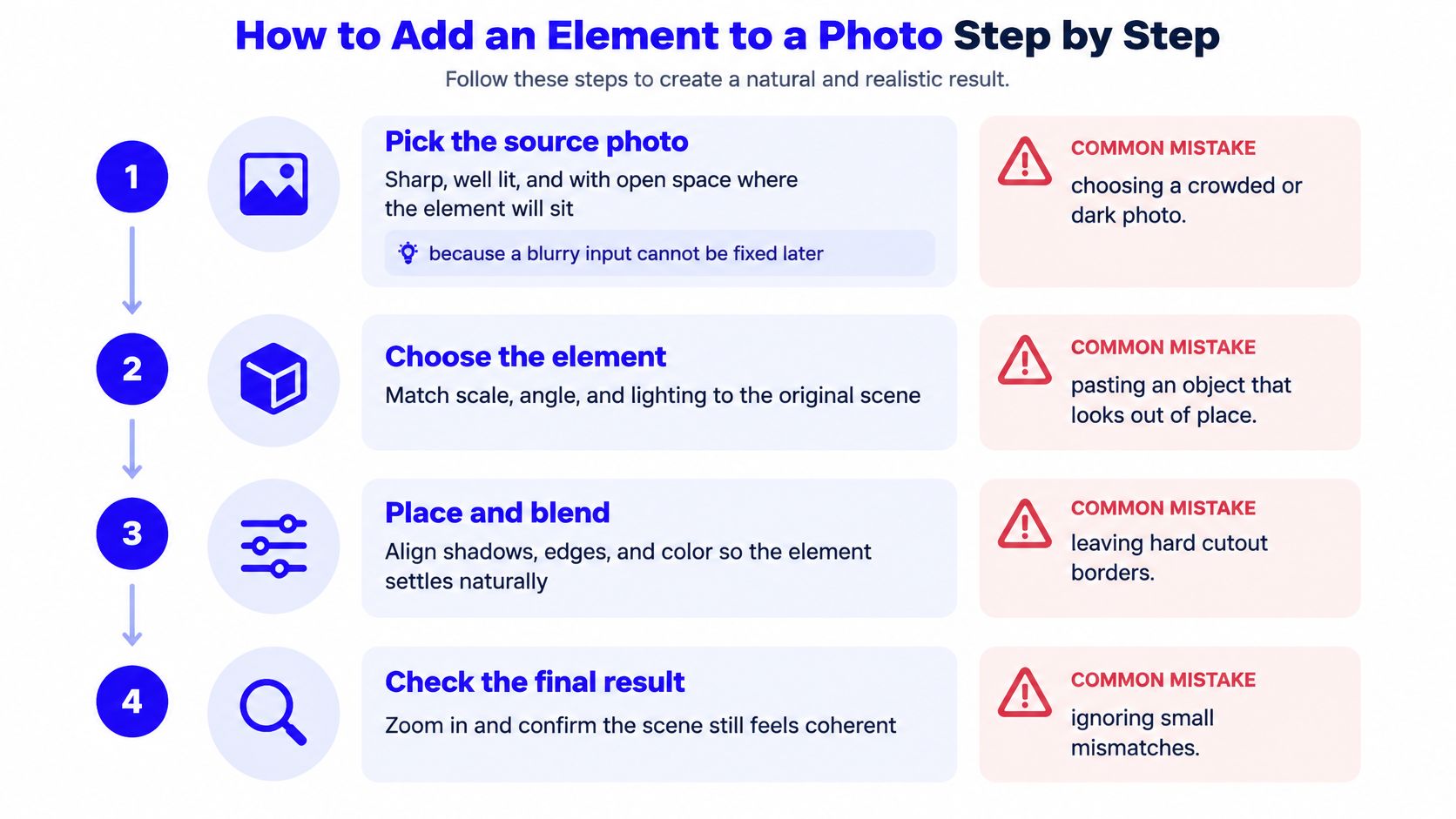
The visual summary below shows the core sequence before you work through it in detail.
Prepare the Input and the Instruction
- Pick the source photo. Choose a sharp, well lit image with open space where the element will sit. A blurry or crowded input can't be fixed by prompting, because the model has to invent the details you're asking it to preserve.
- Define the element in one sentence. State what it is, where it goes, how large it should look, and which way it faces. "A small dog" is vague. "A small brown dog sitting on the rug, facing camera, paws at floor level" gives the model something testable.
- Choose the mode. Use an image edit for a single still, such as an image to image workflow for transforming an uploaded photo. Use a reference image when the same item must match across versions, and choose image to video only when motion matters.
- Write a constrained prompt. Specify one primary action, one camera stance, and explicit limits. That approach reflects the workflow described in evaluation research on temporal consistency and text video alignment, which separates visual quality, motion quality, temporal consistency, and alignment instead of treating a clip as one vague score.
A prompt you can copy and adapt looks like this.
Add a matte blue bottle on the table, left of the hand, same height as the glass. Match warm window light from the right and add a soft contact shadow. Preserve subject identity, proportions, text, and lighting; no new objects; no scene change.
Those final limits do real work. They tell the model what not to improve, restyle, or decorate while it makes the one change you asked for.
Generate, Compare, and Export
- Generate low cost candidates first. Choose a mode, write a prompt or upload an image, click Create, and download the result. Make three or four candidates before you spend credits on a final render, because the first output is a test of your instructions, not a finished asset.
- Compare at full size and change one variable. Pick the strongest candidate, then adjust only position, lighting, motion intensity, or wording on the next try. If you rewrite everything, you won't know which change fixed the problem.
- Export and keep the pair together. Save the final at full resolution and store the untouched original beside it. That pair is your evidence of exactly what changed if a client, platform, or customer asks later.
If you're animating the result, watch the first and last seconds separately. End of clip degradation is a common reason to shorten an otherwise good take, and hands, joints, clothing boundaries, and facial features deserve a frame by frame look.
The short walkthrough below shows the upload, prompt, and create sequence in practice.
A clean result is easy to recognize. The element sits at a believable scale, its shadow agrees with the light, and the face, background, and any text still match your source. If you have to argue that viewers probably won't notice a flaw, it isn't clean yet.
Checks That Catch Hidden Mistakes Before You Publish
Start with the rejection rule. Reject any result where a logo, facial structure, hands, or a repeated geometric edge changes, even briefly. A flaw that appears for a few frames still appears in screenshots, pauses, and replays.
The checklist below condenses the review into stages you can run in order.
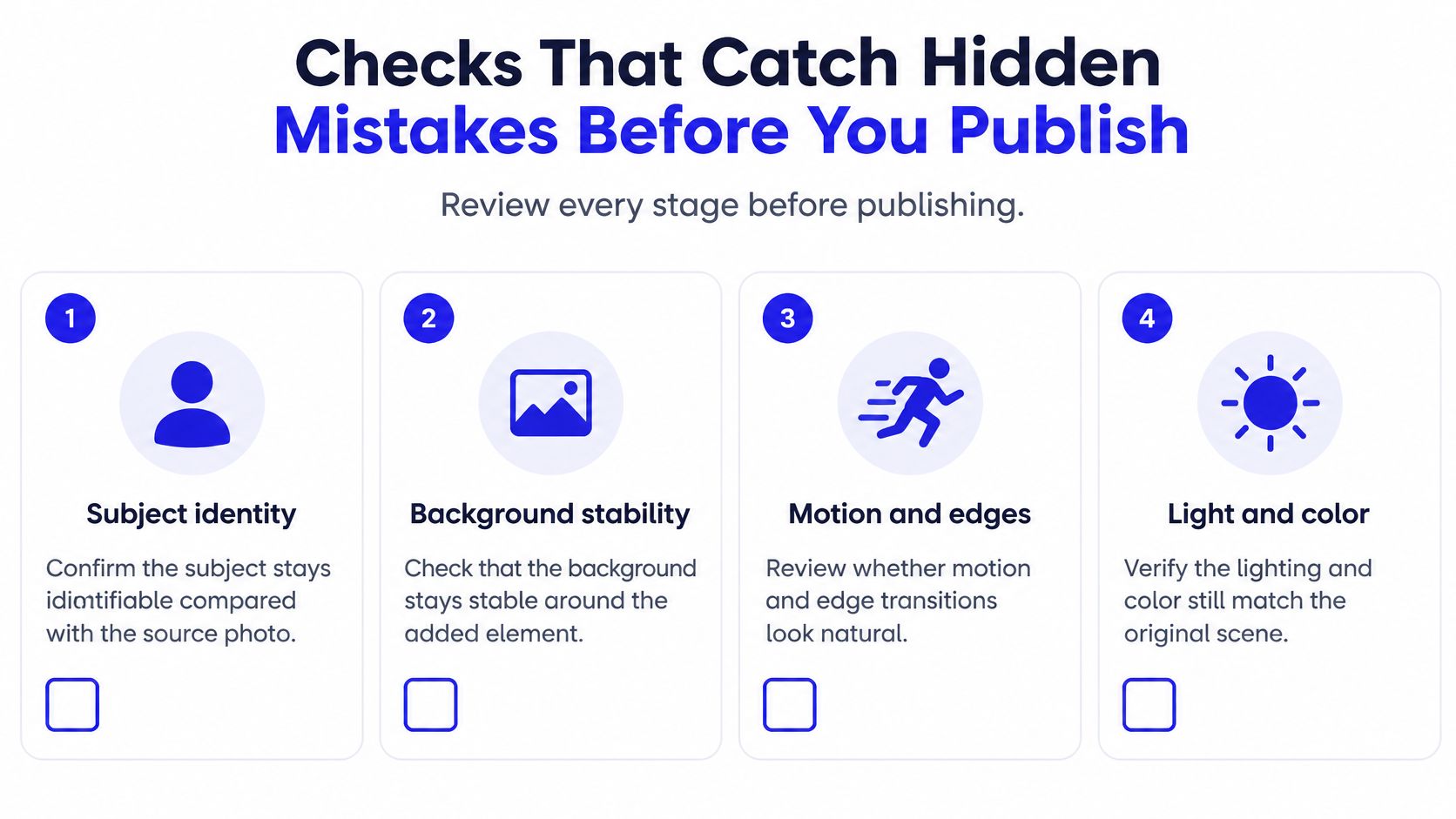
That four stage structure matches AIGCBench's image to video evaluation approach, which separates control video alignment, motion effects, temporal consistency, and overall video quality, and measures adjacent frame consistency with average CLIP similarity. You don't need the metrics to use the logic. You need the order.
Run These Checks in Order
- Subject identity: Does the person or product still look like the source photo, or has the face, label, or shape drifted?
- Background stability: Do walls, shelves, horizon lines, and repeated patterns stay still around the added element?
- Motion and camera: Is movement smooth and purposeful, or does the camera lurch, float, or change the scene geometry?
- Frame to frame flicker: Do edges pulse, textures shimmer, or small details appear and vanish between frames?
Then check the element itself. Shadow direction should match the light source, scale should agree with nearby hands, doors, or the ground plane, and edges shouldn't show a halo or cut out outline. Reflections in glass, water, or polished surfaces should agree with the scene, and any text must be legible and correctly spelled.
An attractive first frame isn't enough. Give the last seconds of a clip their own inspection.
View the result at 200% zoom and again at phone size, side by side with the original. Zoom exposes edge and text errors, while phone size shows what your audience will judge. Small teams publishing across several accounts can find tools for managing social accounts to keep approved versions organized, and anyone restoring older source photos first may find this guide to colorizing a photo with AI useful before adding new elements.
Fixes for Floating Objects, Face Drift and Garbled Text
Most failures repeat for a reason, so treat each symptom as a diagnosis rather than bad luck. Find your problem in the table, apply one fix, and generate again.
| Symptom | Likely Cause | Fix |
|---|---|---|
| Object looks pasted on | Light direction and shadow do not match | Name the light direction in the prompt and add a contact shadow in an editor |
| Face or identity drifts | Motion too strong or no identity limit | Add a preserve identity phrase and lower motion intensity |
| Extra objects appear | Prompt left the scene open | Add "no new objects" and restrict the change to one area |
| Background warps around the element | Camera movement too large | Reduce or remove camera movement and retry |
| Text is garbled or misspelled | Model renders letters poorly | Add the text as an overlay in an editor after generation |
| Hands or limbs distort | Complex pose or small scale in frame | Use a closer crop or a simpler pose reference |
| Halo or cut out edge | Tight mask or low resolution source | Feather the mask edge and re-export from a higher resolution photo |
Change One Variable at a Time
Keep the rest of the prompt fixed while you test a fix. If face drift improves when you lower motion, you've learned something reusable. If you also changed the camera direction and rewrote the lighting, you've learned nothing you can repeat.
Three candidate rule: If the same failure appears in three candidates, suspect the input photo or the prompt, not chance.
Some fixes belong outside the generator. Add exact headlines, prices, and logos in a design editor after generation, where spelling and alignment are fully under your control. Feather a mask edge by a few pixels to soften a cut out look, and crop closer when hands are a tiny, distorted part of a wide shot.
Source quality sets a ceiling on all of this. If your photo is small or heavily compressed, re-export it at higher resolution from the original file before generating again. Prompting harder won't recover detail that isn't in the pixels.
Test One Edit on a Spare Photo Before Your Next Post
A spare photo gives you room to learn without putting a client deadline at risk. Choose one image you have permission to edit and one task from the five formats. Run the workflow once, then review the result before making another attempt.
Record the prompt, the one variable changed on each retry, and which checks each result passed or failed. This turns your next attempt into a comparison: you can see whether changing the prompt or source image improved the outcome.
ImagesArt.ai offers AI image generation, editing, description, and prompt extraction, as well as AI video and image creation from text or photos. It brings Seedance, Kling, Veo, and other models into one place. New accounts receive 15 free credits without a credit card, and the Generate button shows the cost before you submit. Check that cost before running a test.
Use a clear decision rule. If the result passes the identity, background, motion, and flicker checks, keep the prompt structure for your next photo. If identity or geometry fails, adjust the source photo or prompt before trying again.
Before publishing, check permissions and consider whether viewers could mistake the edit for documentary reality. If they could, label the image.
Ready to try a controlled edit, such as adding a product to a scene or animating a still for a social post? ImagesArt AI offers Text/Image to Video, Start-End Frame, and Reference mode, which accepts up to seven images. Choose a mode, write a prompt or upload an image, click Create, and download the result.