Can ChatGPT Make GIFs? Yes, Here's How (GPT Image 2.6)
ImagesArt.ai
11/7/2026
Yes. Since OpenAI released Images 2.6 on November 4, 2026, ChatGPT can make an animated GIF from a text prompt or from a photo you upload. Before that, ChatGPT could only give you still images, or a frame sheet you had to stitch into a GIF yourself.
The short version: ask ChatGPT for a GIF in plain words ("make a GIF of a cat waving hello"), or upload a photo and say what should move. You get a looping GIF that you can speed up, slow down and check frame by frame.
Below is how it works in ChatGPT, how to make the same kind of GIF on our ChatGPT GIF Generator with frame and speed controls, and the prompt habits that make the loop look right. ImagesArt is not affiliated with OpenAI. ChatGPT and GPT Image are trademarks of OpenAI.
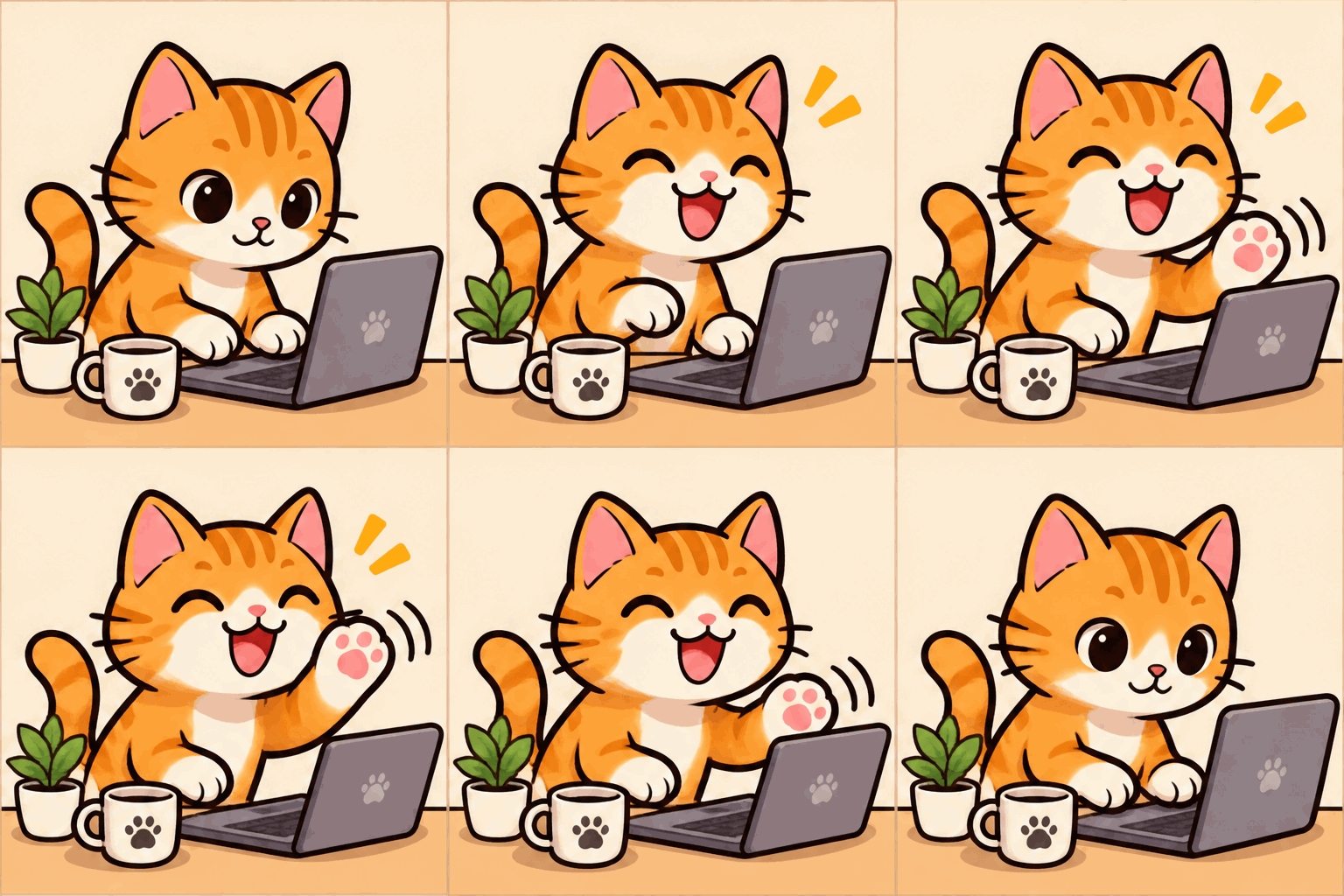
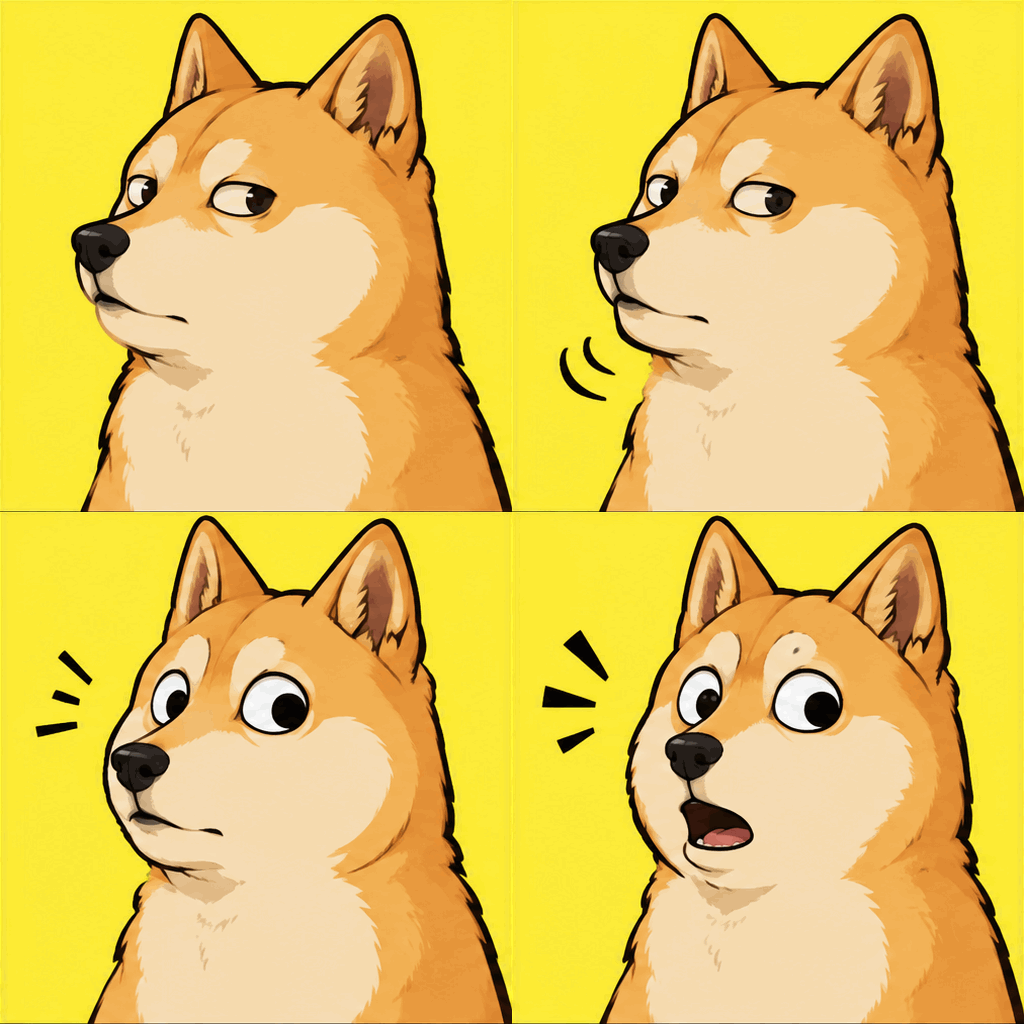
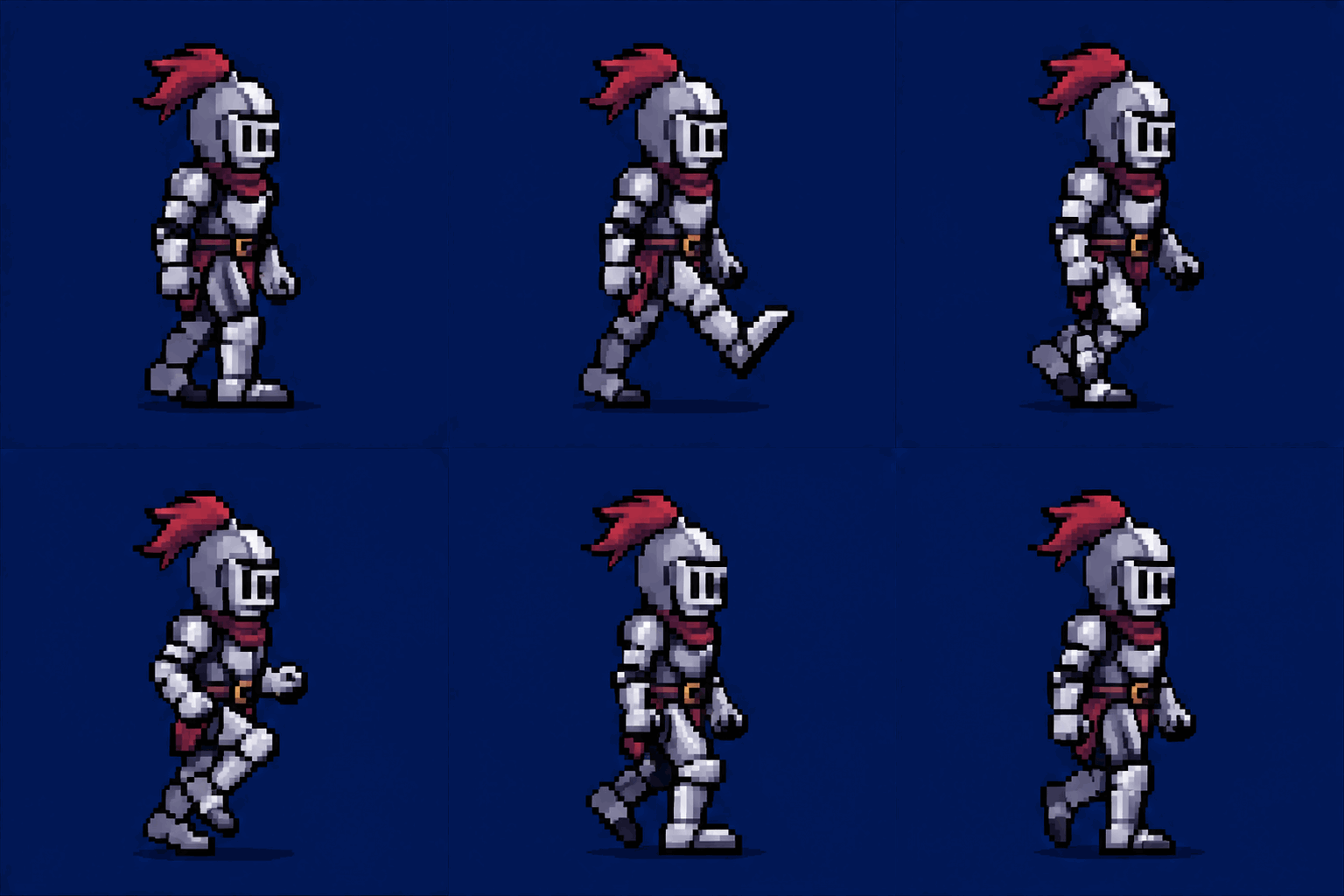
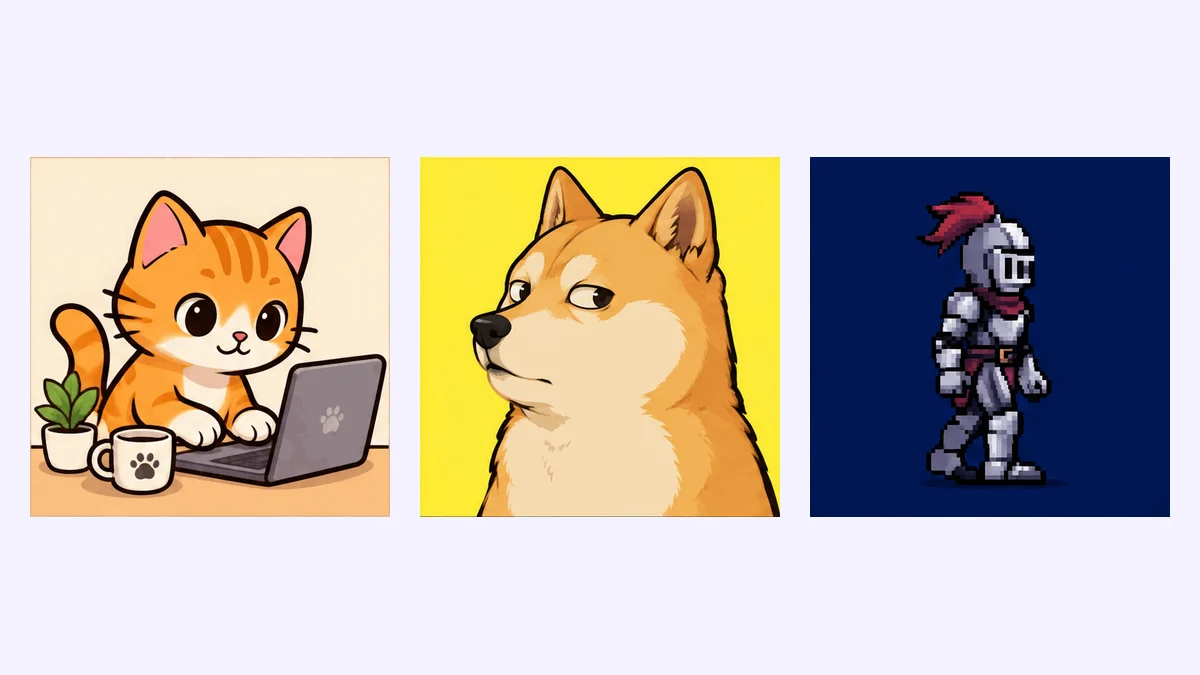
All three GIFs were made with GPT Image 2.6 on ImagesArt from a text prompt only, at Standard (9 frames) and Normal speed.
Make a GIF with GPT Image 2.6 →What changed on November 4, 2026
OpenAI's Images 2.6 announcement added GIFs to ChatGPT, Codex and the API at the same time. The parts that matter for GIFs:
- Who gets it: OpenAI says Images 2.6 is available globally "across all subscription tiers" on desktop, mobile and web. We could not confirm how many GIFs a free account can make per day.
- What you can start from: a text prompt, a photo, or even a rough sketch that the model turns into an animated character.
- What you can do after: The Verge reports you can change the playback speed, view and edit single frames, and share the GIF.
- What it is not: a video generator. Each frame is drawn as an image, so motion steps from frame to frame like a classic GIF. OpenAI pitches it for reactions, memes, brand mascots and storyboards "before video production."
In the API the model is called GPT-Image-2.6 Flare (fast) and Sunburst (higher quality). Third-party tools, ours included, run GIFs through the API.
How to make a GIF in ChatGPT
- Open ChatGPT on the web, desktop or mobile app and start a new chat.
- Ask for a GIF in one sentence: who is in it, what they do, and the style. For example: "Make a GIF of a cartoon shiba doing a shocked double take, flat yellow background."
- To animate your own picture, attach the photo first, then say what should move: "Make this photo a GIF where the dog blinks and wags its tail."
- When the GIF appears, use the speed control or step through the frames. Ask for changes in the same chat ("make it slower", "keep the background still").
- Download the GIF from the image menu.
We wrote these steps from OpenAI's announcement and press coverage as of November 7, 2026. ChatGPT's menus change often, so the exact buttons may look different.
How to make a ChatGPT-style GIF on ImagesArt
Our ChatGPT GIF Generator runs the same GPT Image 2.6 model through the API. The difference is that you pick the frame count and speed before you create, and you don't need a ChatGPT plan.
Write the motion, or pick a preset
Type what should move: the character, the action and the style. Or click a preset like Reaction meme, Wave hello or Pixel sprite to load a prompt that already works.
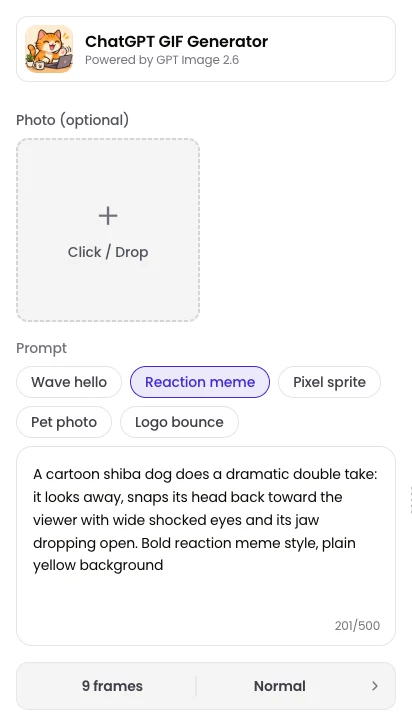
Add a photo if you want to animate it (optional)
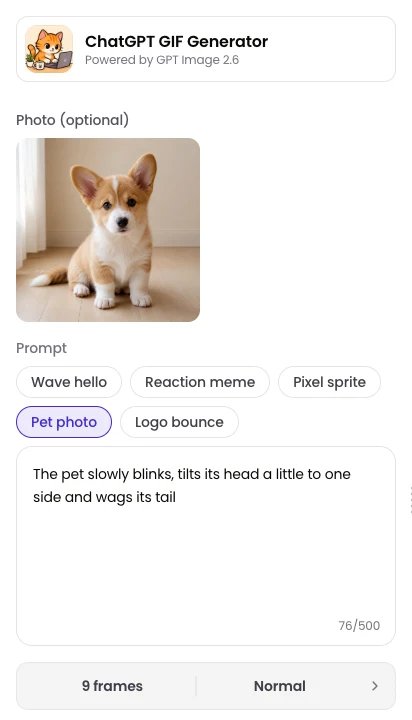
Upload one photo to turn it into a GIF. The Pet photo and Logo bounce presets are written for this: the photo stays the same and only the part you describe moves. Square photos work best. Wide or tall photos are cropped to a square.
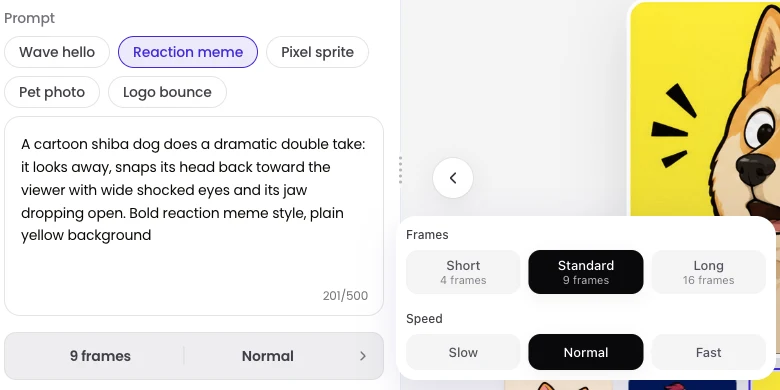
Set frames and speed, then create
Choose Short (4), Standard (9) or Long (16) frames, and Slow, Normal or Fast speed (400, 200 or 100 ms per frame). Click Create. A GIF is usually ready in about 20 seconds.
Each GIF is 512 × 512 pixels and usually under 1.5 MB, and it loops forever. A text-to-GIF at Standard costs up to 15 credits, and you're refunded what isn't used. A photo-to-GIF at Standard is a fixed 22 credits. A new account gets 15 free credits, enough for one Standard text-to-GIF. Free downloads carry an ImagesArt.ai watermark.
Here are the two photo GIFs from our examples, with the photo that went in:
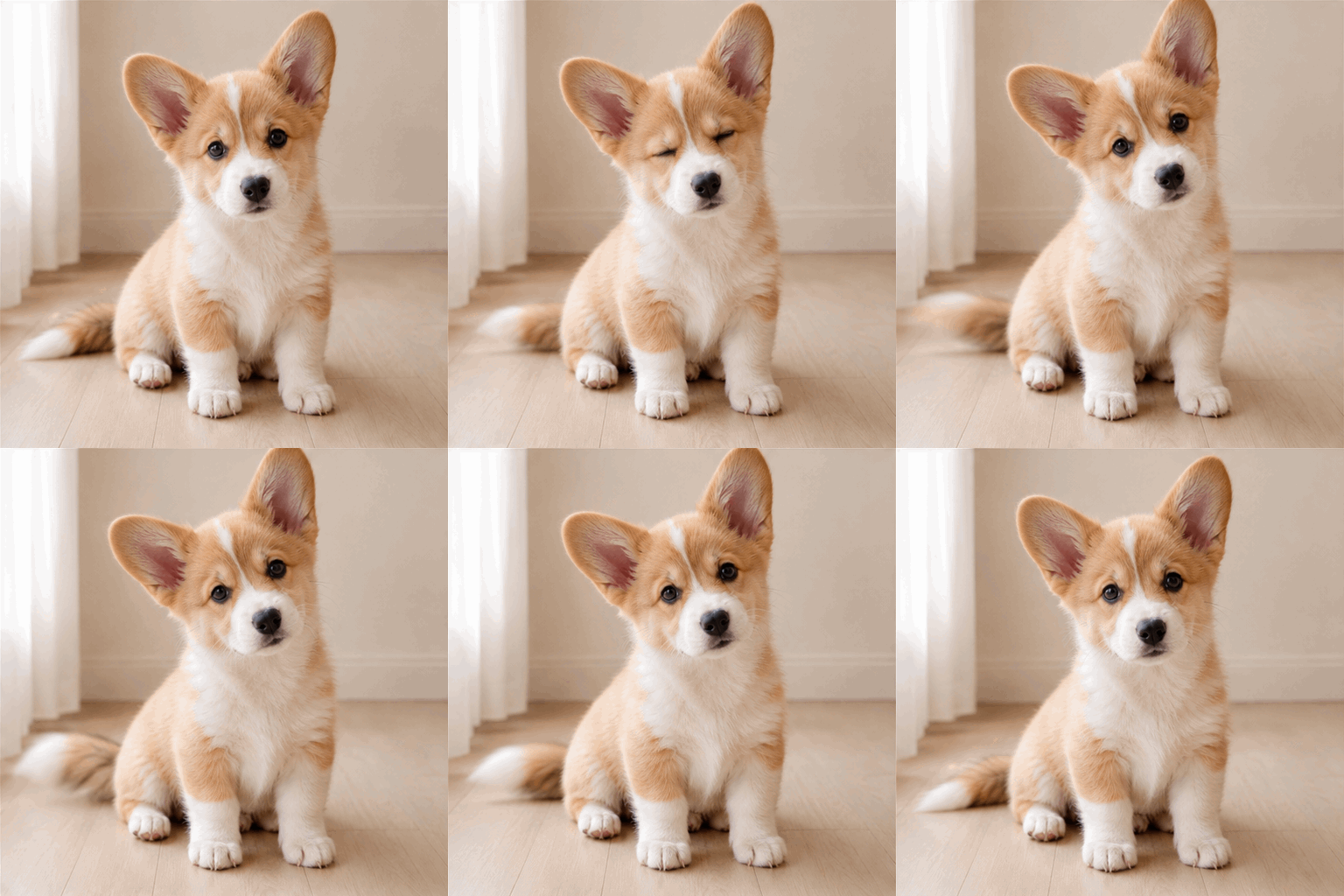
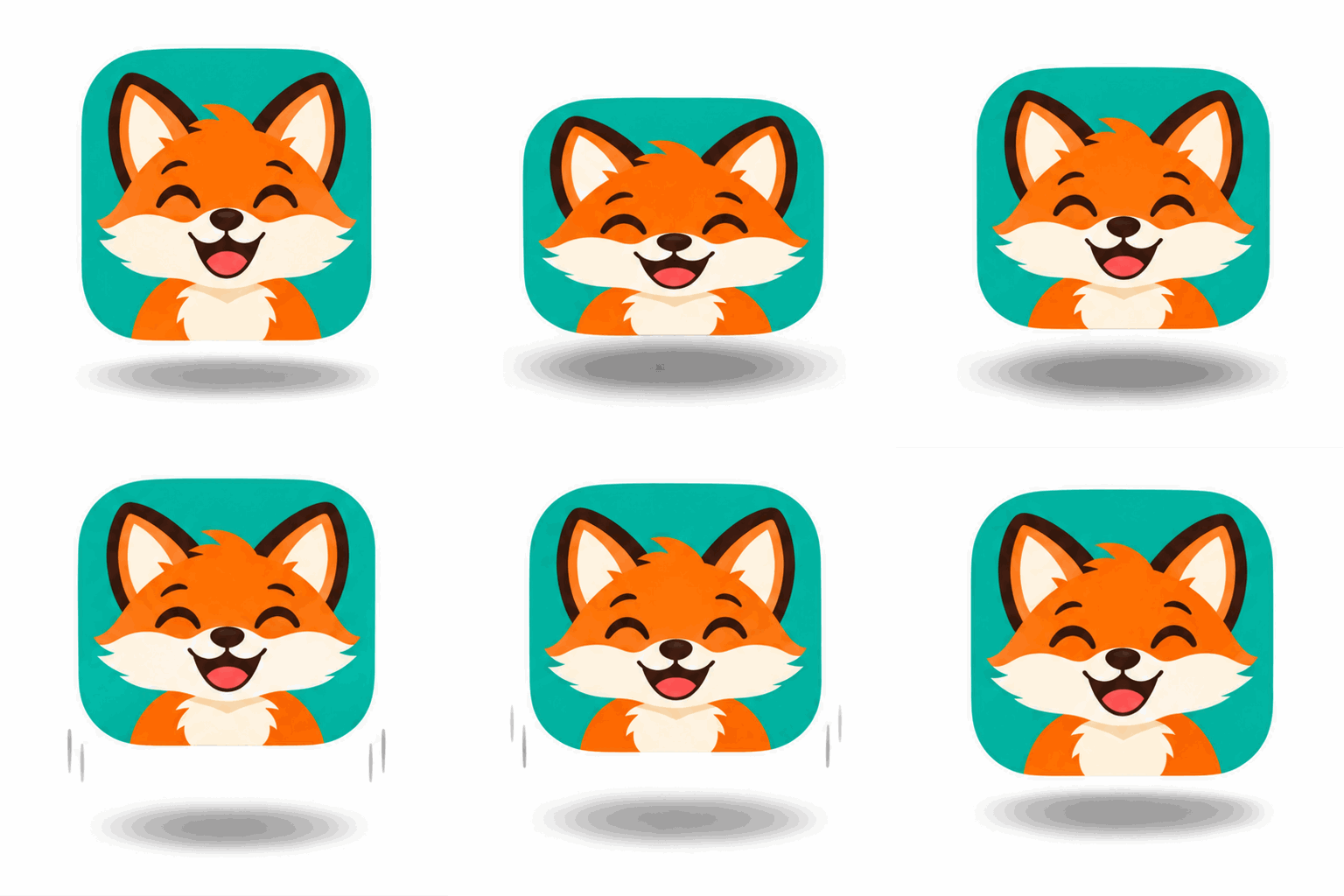
Left: "The pet slowly blinks, tilts its head a little to one side and wags its tail." Right: "The logo squashes down, springs up in a little hop and lands back in place, with a soft shadow below that shrinks as it rises and grows as it lands."
ChatGPT vs ImagesArt for GIFs
| ChatGPT | ImagesArt GIF Generator | |
|---|---|---|
| Model | Images 2.6 | GPT Image 2.6 Flare (API) |
| Start from | Text, photo or sketch | Text or one photo |
| Frame count | Not set by you up front (not confirmed) | 4, 9 or 16 |
| Speed | Adjust after it's made | Slow, Normal or Fast before you create |
| Edit single frames | Yes | No, create again instead |
| Size | Not confirmed | 512 × 512 |
| Cost | Your ChatGPT plan; free-tier limits not confirmed | Credits; 15 free on sign-up |
Use ChatGPT if you already pay for it and want to fix single frames by chat. Use our generator if you want a set frame count and speed every time, or you don't have a ChatGPT plan.
One GIF prompt, line by line
This is the Reaction meme preset from our generator:
A cartoon shiba dog does a dramatic double take: it looks away, snaps its head back toward the viewer with wide shocked eyes and its jaw dropping open. Bold reaction meme style, plain yellow background
- "A cartoon shiba dog" names one clear subject. One subject per GIF keeps every frame consistent.
- "does a dramatic double take: it looks away, snaps its head back…" lists the action as a sequence of beats. Frames are drawn in steps, so a short chain of 2 or 3 big beats reads better than one vague verb.
- "wide shocked eyes and its jaw dropping open" gives the last beat a strong pose, so the GIF has a clear "punchline" frame.
- "Bold reaction meme style" sets the look. Flat, bold styles change less between frames than realistic ones.
- "plain yellow background" keeps the background still. Busy backgrounds tend to shift from frame to frame.
On ImagesArt you don't need to add "loop" or "same character in every frame": the generator adds that for you. In ChatGPT it helps to say it. OpenAI's own example prompts ask for a fixed camera, the same character and setting in every frame, and a last frame that leads back into the first.
Common mistakes
- Asking for tiny motion (steam, bubbles, blinking lights) → with 4 to 16 frames, small changes are almost invisible. Pick big actions: waving, jumping, turning, walking.
- Writing a whole story → a GIF lasts about 1 to 3 seconds. Three scenes in one prompt get squeezed into a blur. Keep it to one action.
- Asking for text in the GIF → letters often change between frames. Add captions afterwards in a GIF editor.
- Expecting video-smooth motion → it's drawn frame by frame, not filmed. For smoother motion pick Long (16 frames). For real video, use an image to video tool instead.
- Uploading a wide photo → it's cropped to a square, and the edges can be cut off. Crop it yourself first so the subject is in the center.