MiniMax H3 Image Edit: How to Edit Photos With Prompts (8 Tests)
ImagesArt.ai
11/15/2026
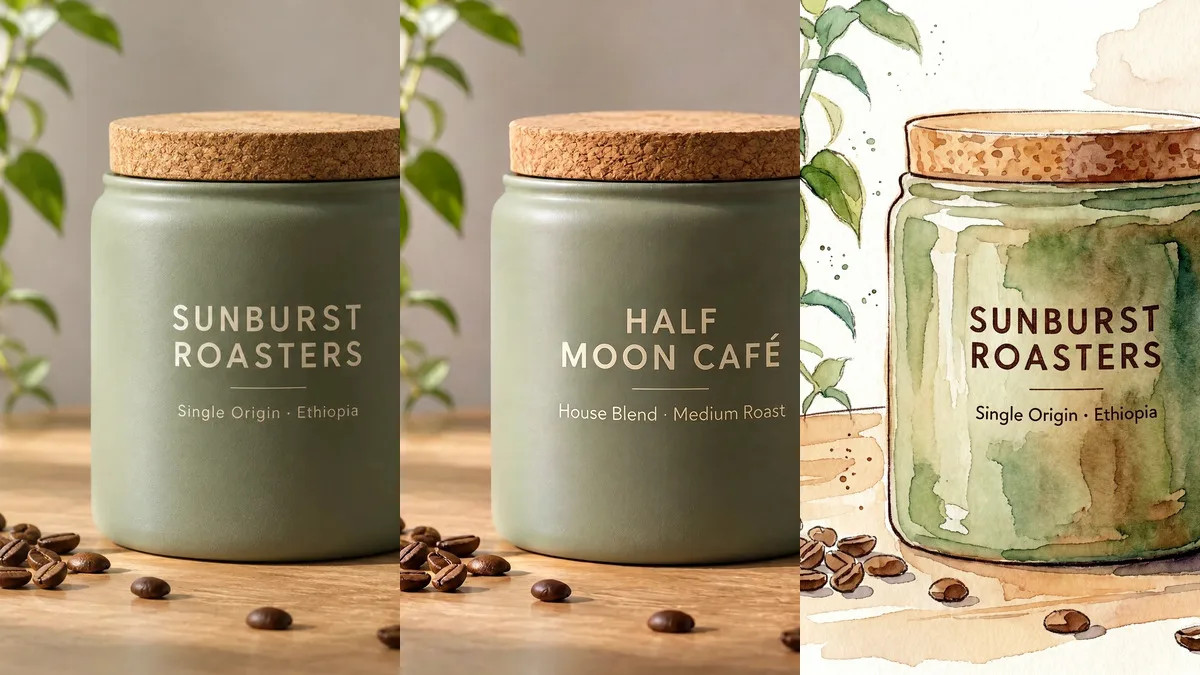
MiniMax H3 Image can edit a photo you upload, not just make new images. You describe the change in plain words, and it redraws the picture with that change. We ran eight edits on our MiniMax H3 Image generator to see which prompts work and which do not. Every prompt below is the exact text we used.
Quick answer: use this pattern:
Keep [what must not change] exactly the same. Change only [the one thing]. [What the new part should look like, or what fills the gap.]Each edit with one photo costs 3 credits at 1K or 2K (2 for the image, 1 for the reference photo) and took 23 to 31 seconds in our tests.
Edit a photo with MiniMax H3 Image →How editing works
- Open the MiniMax H3 Image page and switch to Image to Image.
- Upload one to five photos. The first is Image 1, the second Image 2, and so on.
- Write what to keep and what to change, pick Auto or an aspect ratio, then 1K, 2K or 4K.
- Click Generate. Each reference photo adds 1 credit to the 2-credit base (6 at 4K).
Auto keeps the shape of your photo. All edits in this guide used Auto at 2K unless we say otherwise.
Most of our tests start from this product photo:
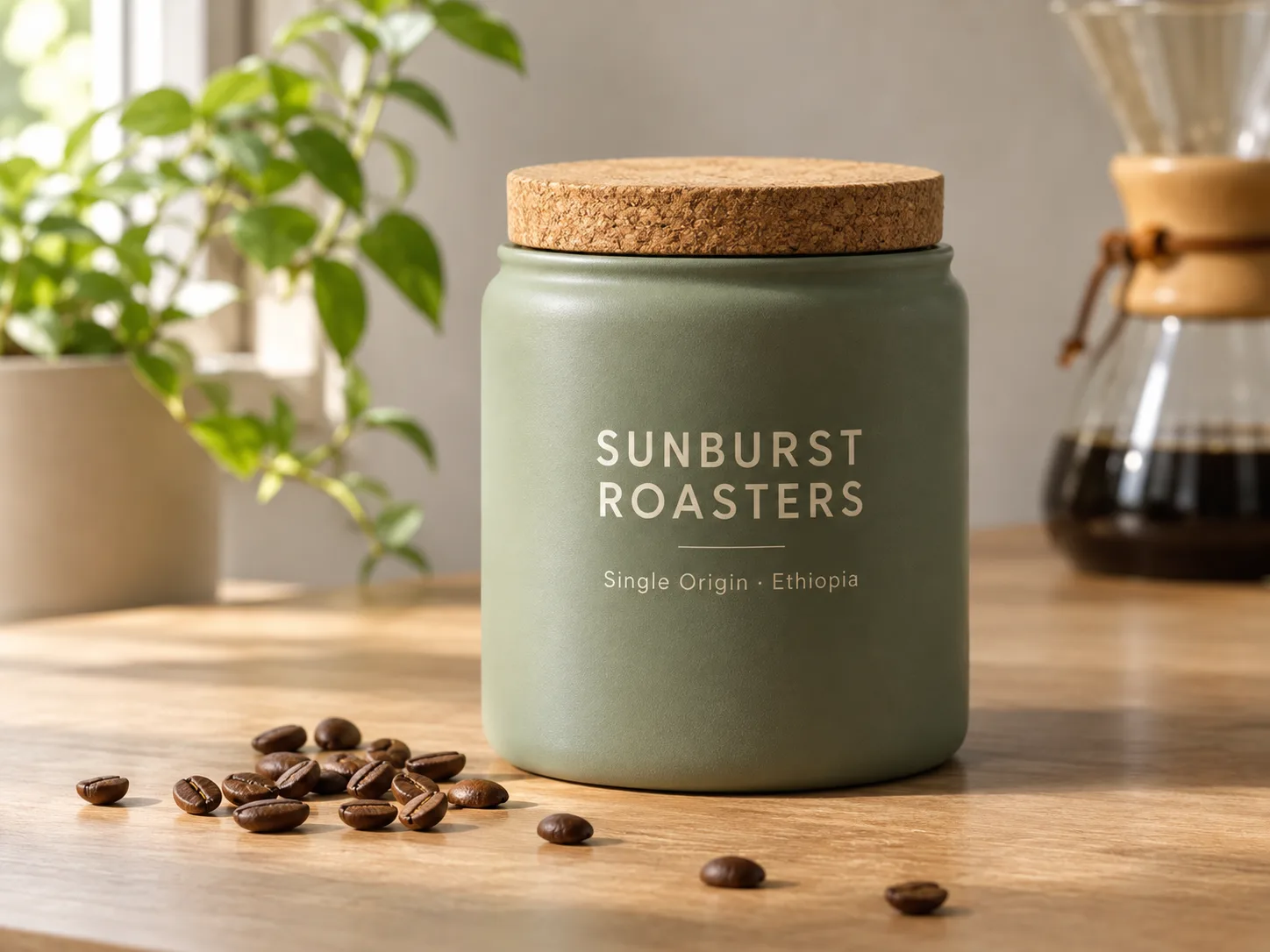
1. Change the background
Keep the canister, its label text and the camera angle exactly the same. Change only the setting: place it on a dark walnut table in a cozy morning kitchen with soft steam rising from a cup of coffee beside it.
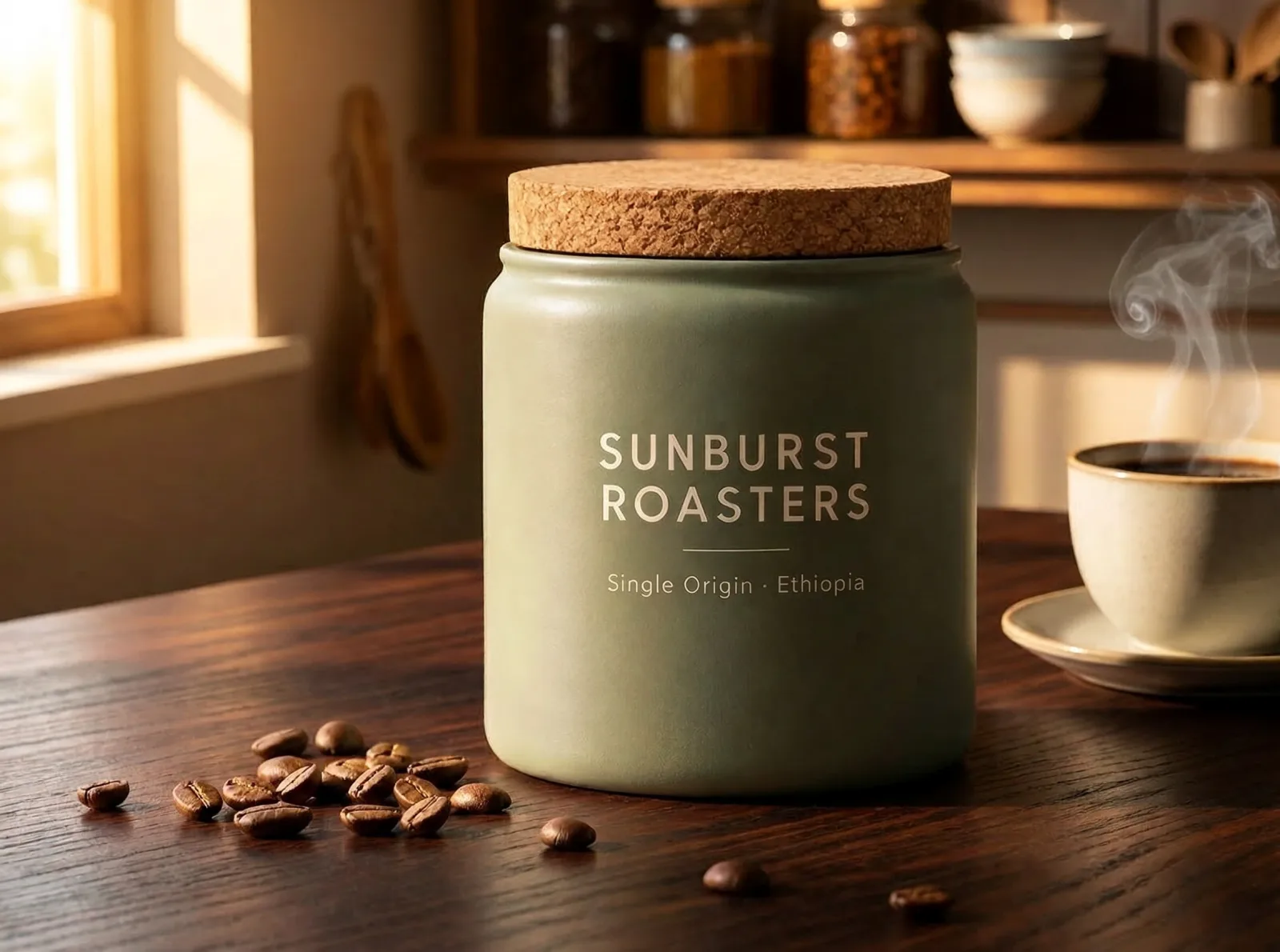
4:3 · 2K · 26 s · 3 credits
The label stayed word for word and the beans stayed in front. H3 Image treated the plant and the coffee maker as part of the "setting" and replaced them. If you want to keep them, name them in the "keep" list.
2. Replace the text on a label
Change only the label text. Replace "SUNBURST ROASTERS" with "HALF MOON CAFÉ" and replace "Single Origin · Ethiopia" with "House Blend · Medium Roast". Keep the same font style and cream color, and keep the canister, cork lid, coffee beans, plant and camera angle exactly the same.
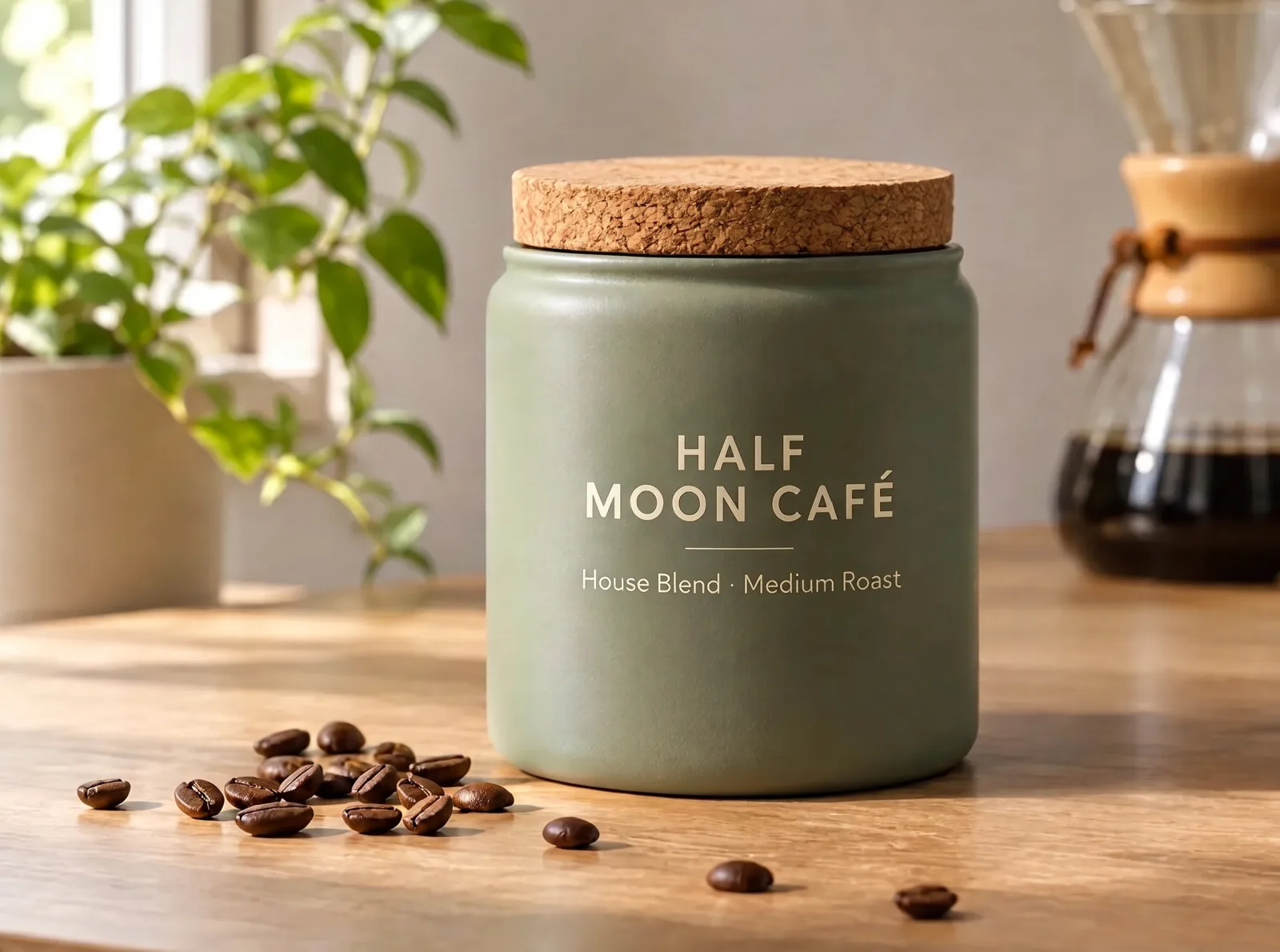
2K · 29 s · 3 credits
This was the cleanest edit in the set. Both lines changed, the accent on "CAFÉ" and the "·" are there, and the font, color, beans, plant and coffee maker did not move. The trick is to quote the old text and the new text, so the model knows exactly which words to swap.
3. Remove objects
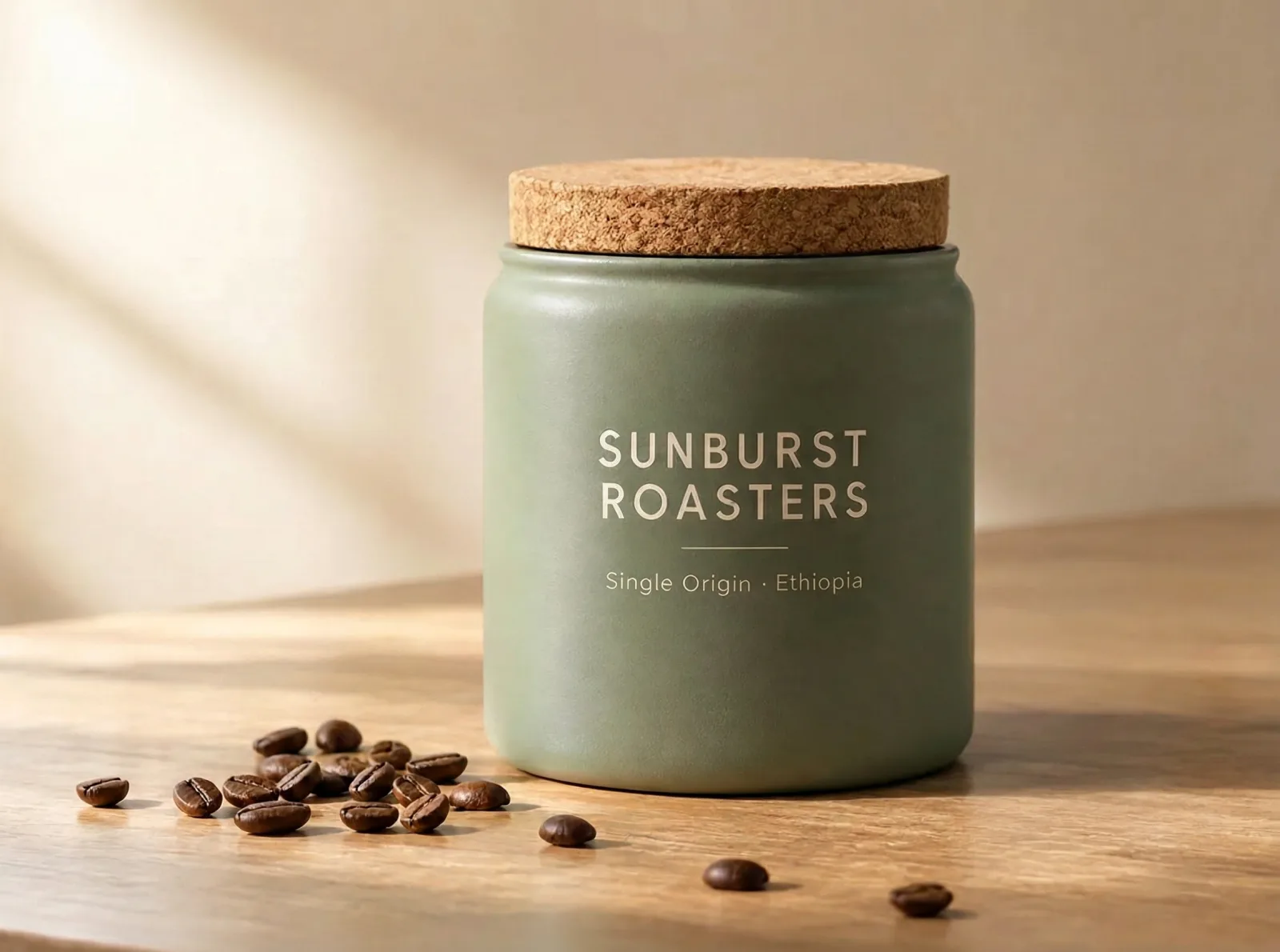
Remove the potted plant on the left and the glass coffee maker on the right. Fill those areas with the same plain wall and soft window light. Keep the canister, its label text, the coffee beans and the camera angle exactly the same.
2K · 23 s · 3 credits
Both objects are gone, and the gap is filled with wall and a soft light streak, as asked. The second sentence matters: if you only say "remove", the model has to guess what goes there, and it may put something new in.
4. Change a color (and what to do when it ignores you)
Our first try did nothing:
Change only the color of the canister from sage green to deep navy blue. Keep the cork lid, the cream label text, the coffee beans, the plant, the coffee maker, the light and the camera angle exactly the same.
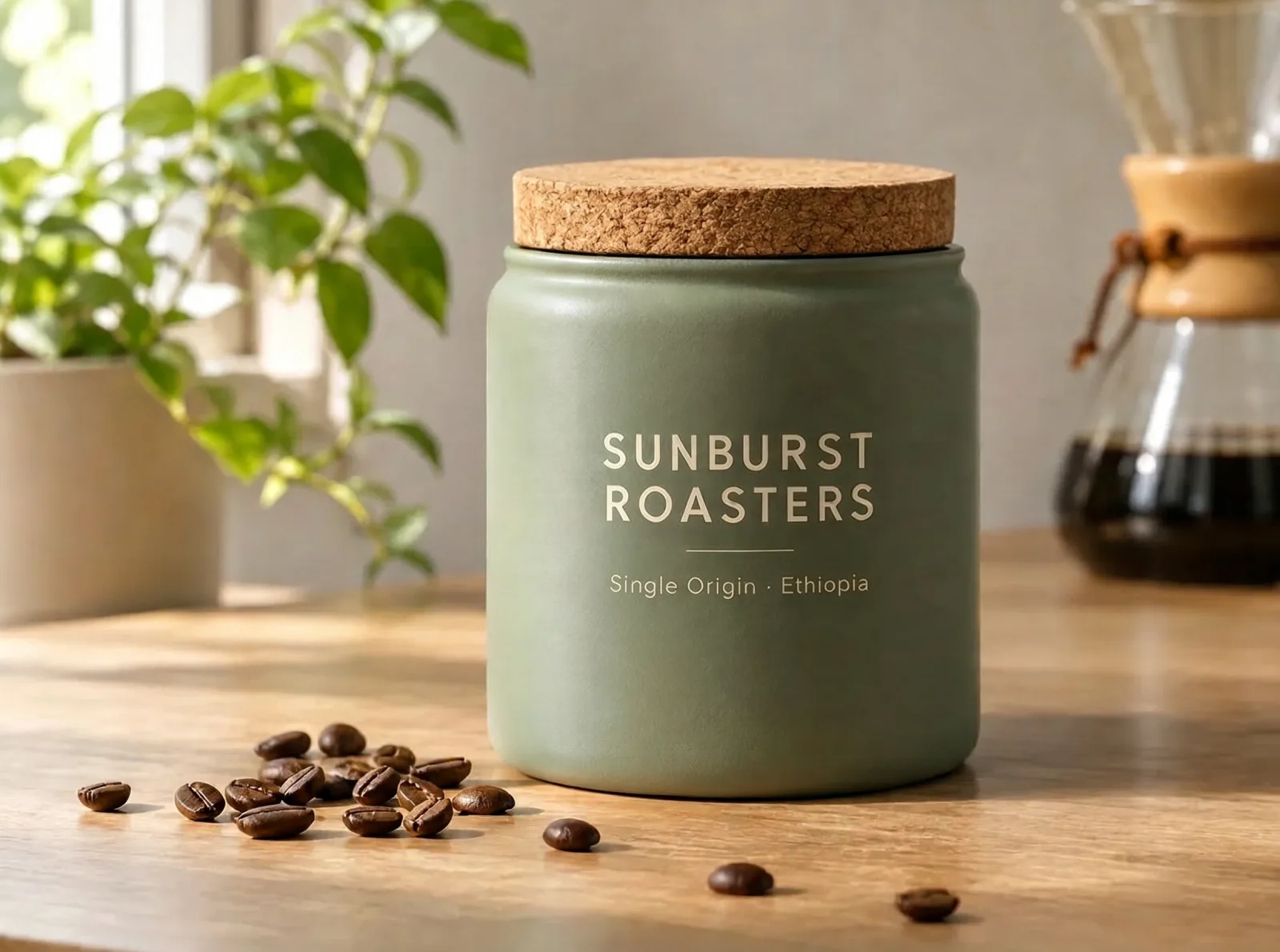
First try · 2K · 31 s · 3 credits · canister still green
The long "keep" list won over the short "change" line. On the second try we described the new object first and said the old color has to go:
A deep navy blue ceramic canister with a matte finish, same shape as the sage green canister in Image 1. Repaint the canister body navy blue; the green color must be gone. Keep the cork lid, the cream label text "SUNBURST ROASTERS" and "Single Origin · Ethiopia", the coffee beans, the plant, the coffee maker and the camera angle the same.
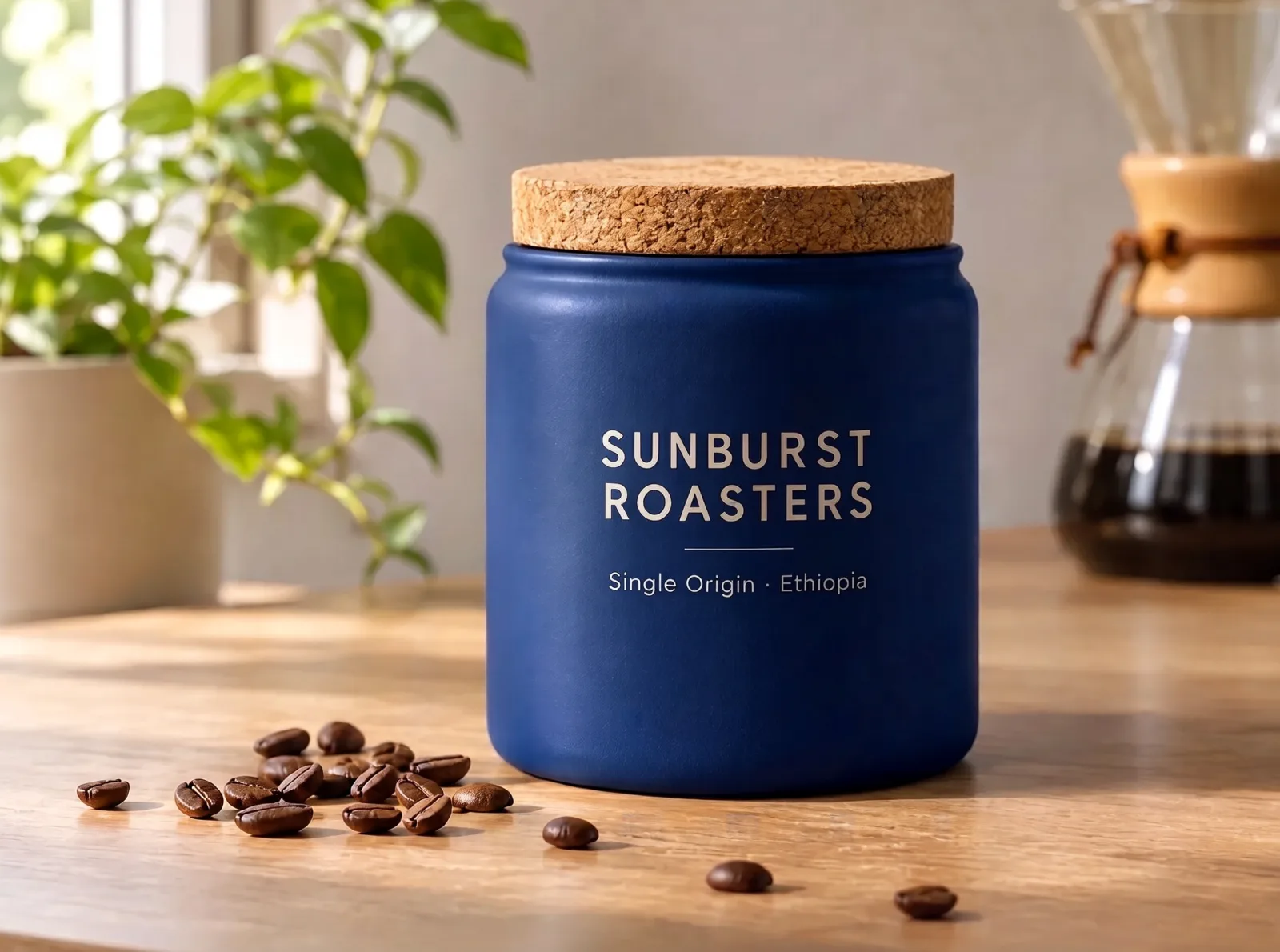
Second try · 2K · 26 s · 3 credits
Now the canister is navy, the label is intact and nothing else moved. If H3 Image hands back your photo almost unchanged, lead with what the result should look like, and say what must disappear.
5. Turn a photo into another style
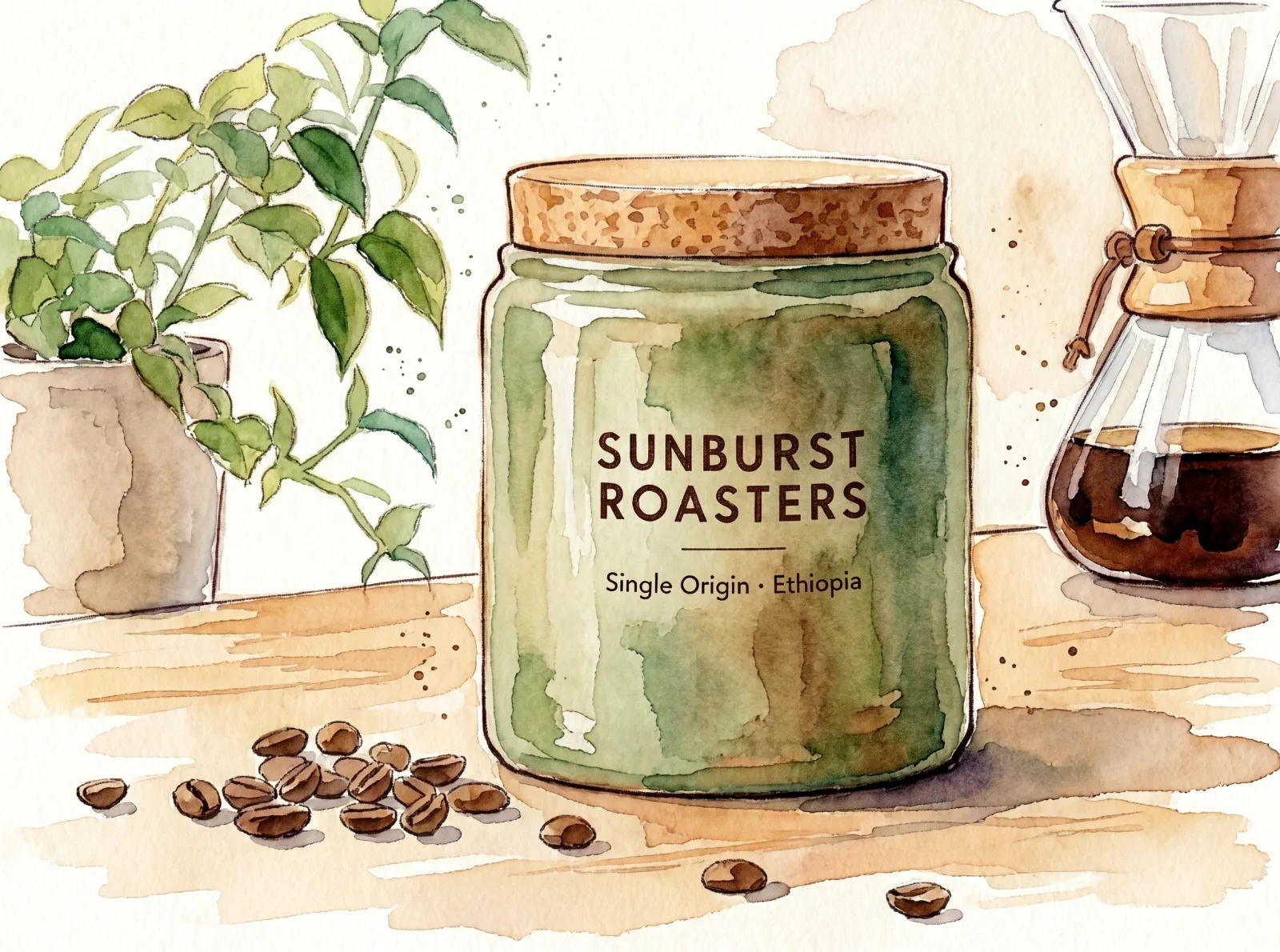
Turn this photo into a loose watercolor illustration on textured cream paper, with soft washes and visible brush edges. Keep the same composition: the canister in the center, the plant on the left, the coffee beans in front. Keep the label "SUNBURST ROASTERS" readable.
2K · 24 s · 3 credits
The layout held, and the label is readable in brown ink. A style change redraws everything, so it is the one case where you should list the layout you want to keep instead of saying "keep everything the same".
6. Same character, new scene
We uploaded the traveler from our H3 Image Examples:
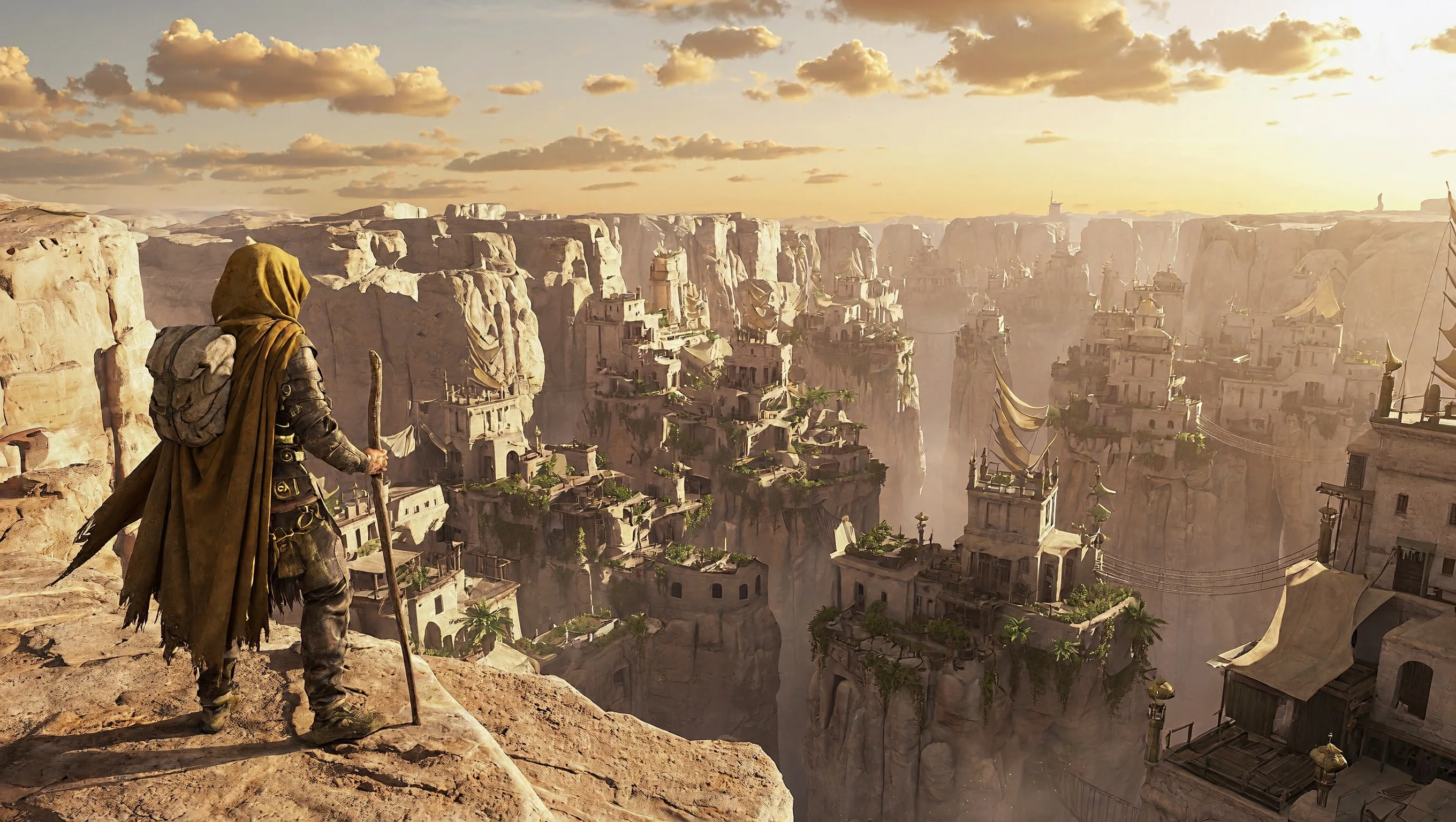
Keep the traveler from Image 1 the same: ochre hooded cloak, gray backpack, wooden walking staff. Show this traveler sitting at a rough wooden table inside a candle-lit desert tavern, seen from the front, face in shadow under the hood, holding a clay cup. Warm lamp light, dust in the air, cinematic game concept art.

16:9 · 2K · 24 s · 3 credits
The cloak, backpack, staff and leather armor all carried over, and the new pose and setting follow the prompt. Listing the three things that make the character recognizable did most of the work.
7. Combine several photos into one
With more than one photo, give each one a job by number. This one is from the Examples on the H3 Image page, with three product photos:
A bright retail shelf photo: place the three products from Image 1, Image 2 and Image 3 side by side on a light oak wall shelf, left to right in that order. Keep each product exactly as it is: same shape, colors and label text. Soft morning window light from the left, a small potted plant at the right end of the shelf, clean white wall behind.
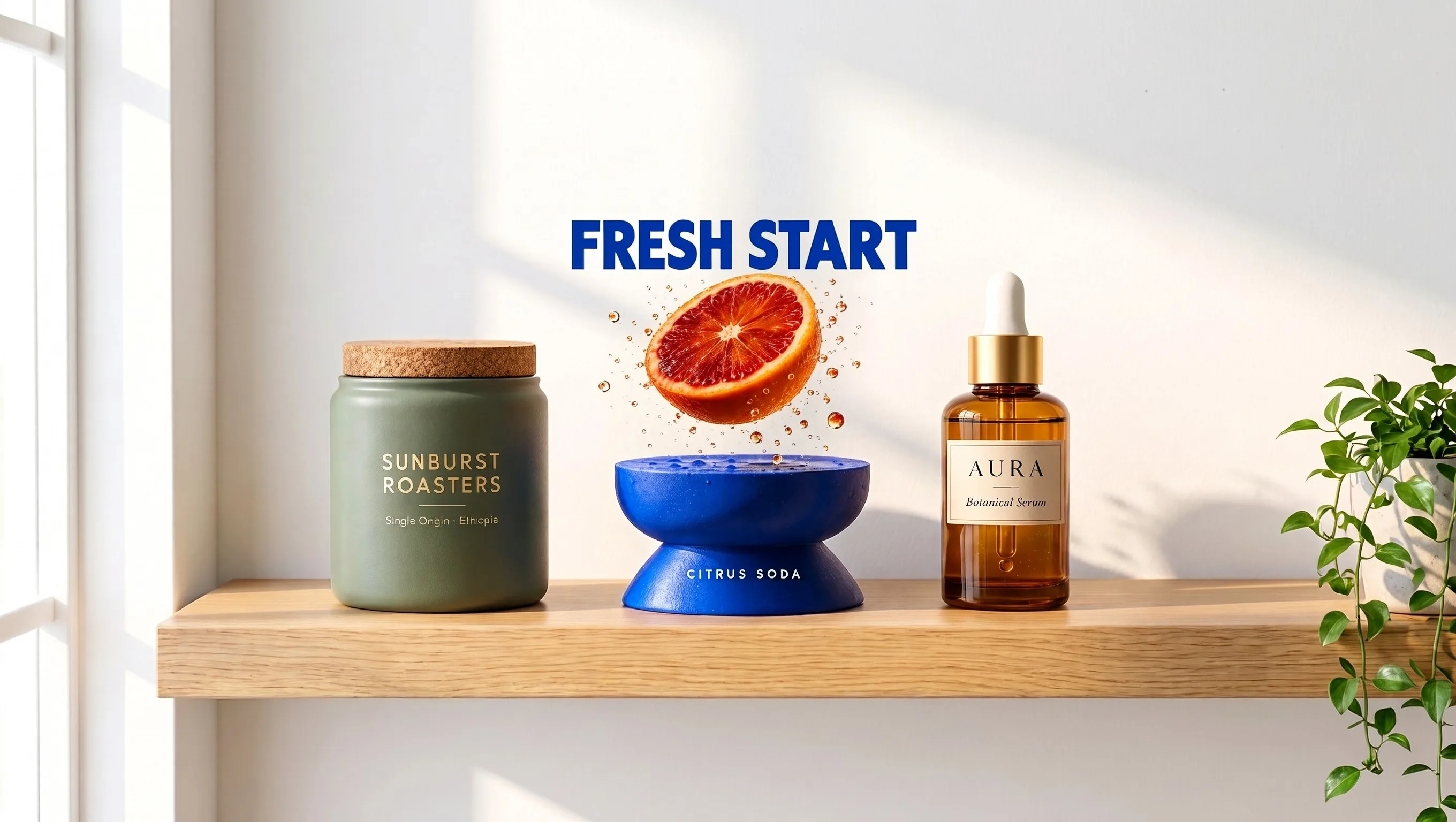
3 reference photos · 16:9 · 2K · 5 credits
They landed in the order we asked for, each with its shape, color and main label. The smallest text on the labels went a little soft at this size, so check fine print before you use a composite for print.
8. What a vague prompt does
For contrast, here is the same photo with a prompt that does not say what to keep:
Make it look more premium.
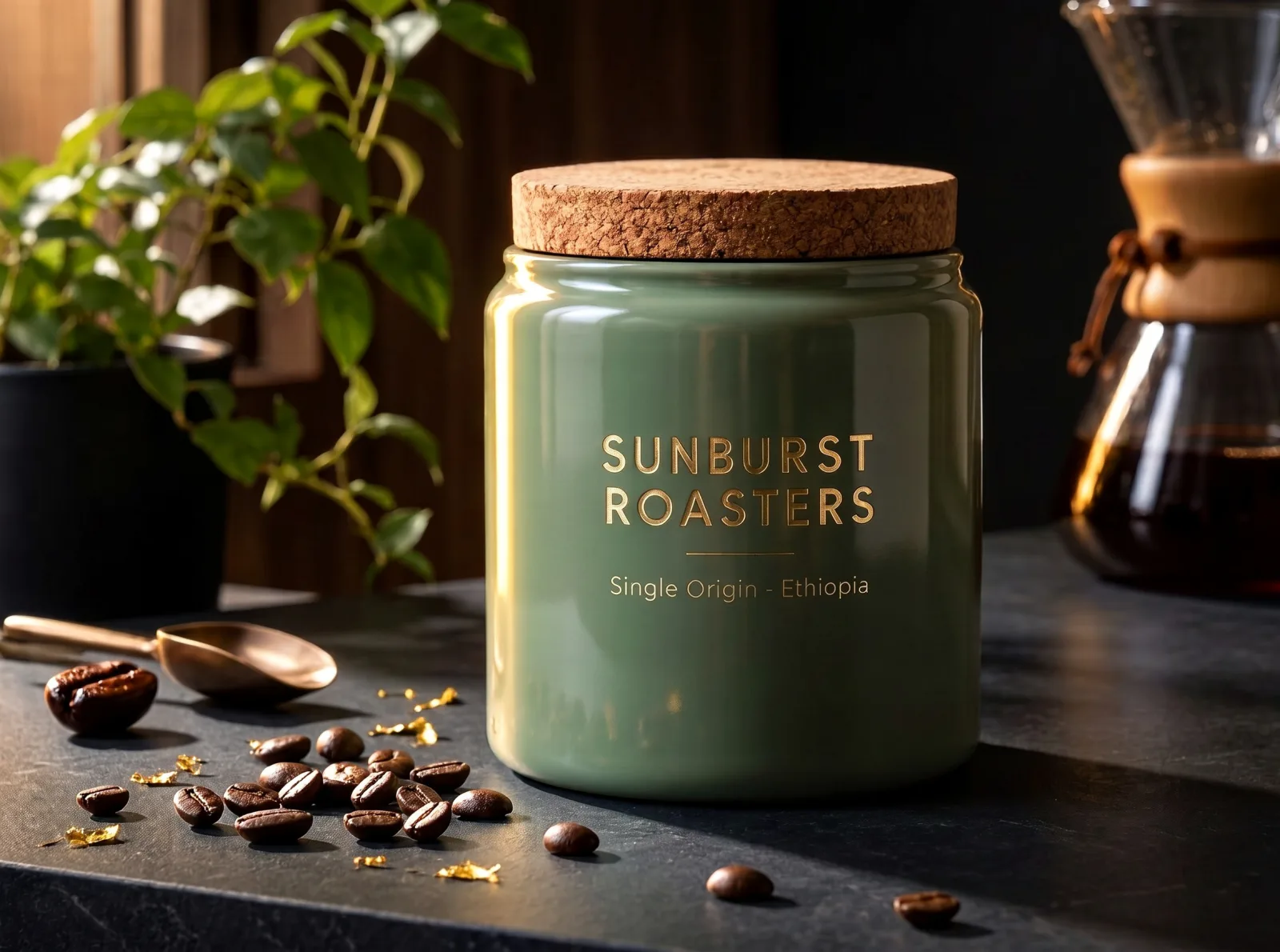
2K · 27 s · 3 credits
H3 Image changed almost everything: a glossy finish instead of matte, gold lettering, a dark slate counter, gold flakes and a copper scoop. It is a nice picture, but it is no longer your product shot. If you like that direction, rewrite it as a specific change, such as "change only the label text color to metallic gold".
One prompt, line by line
Here is why the label-text prompt from test 2 worked:
| Part of the prompt | What it does |
|---|---|
| "Change only the label text." | Says up front that this is a small, local edit. |
| Replace "SUNBURST ROASTERS" with "HALF MOON CAFÉ" … | Quotes the old words and the new words, line by line, so nothing is guessed. |
| "Keep the same font style and cream color" | Stops it from restyling the type while it rewrites it. |
| "keep the canister, cork lid, coffee beans, plant and camera angle exactly the same" | Names everything that must not move. |
Common mistakes
- Saying only what to change → the model also changes things you liked, as in test 8. Always add what to keep.
- A long "keep" list and a short "change" line → it may return your photo almost untouched, as in test 4. Lead with the change and say what must go.
- Removing without saying what fills the gap → it invents something new to put there. Say "plain wall", "more of the table" and so on.
- "The first photo" or "the other one" with several uploads → products swap places. Use Image 1, Image 2 and Image 3.
- Chaining many edits on the same image → colors drift. In our three-round test, a golden-hour lighting edit turned the sage canister mustard and it stayed that way. Go back to your original photo when a color starts to slide.
- Asking for a transparent background → you get a painted checkerboard in a normal JPG. Use a background remover afterwards.
Related reading
How does H3 Image stack up against other models on the same edits? Read MiniMax H3 Image vs Nano Banana 2.1, GPT Image 2.6 and Seedream 5.5.