10 Animate Photo App Options for Short Clips
ImagesArt.ai
11/22/2026
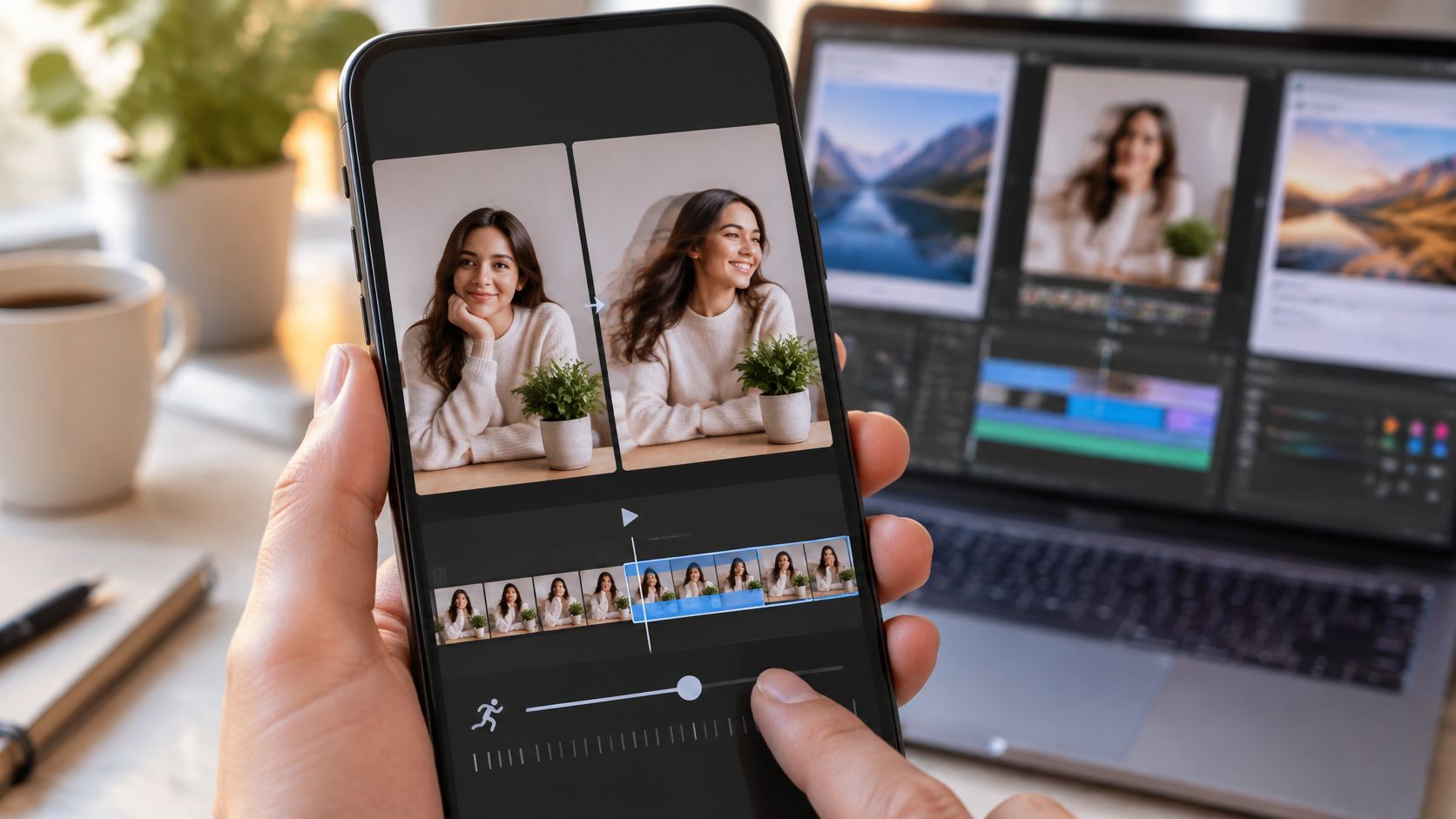
You've got a product photo, a Reel deadline, and no time to organize a shoot. What you need isn't a full film studio. It's a short clip that keeps the product recognizable, a way to steer the motion, and a clear understanding of what your account will let you download.
The right animate photo app depends on the job. A subtle camera move around a perfume bottle needs different controls from a talking portrait. A family photograph needs a different approach from an illustration you want to transform for a social post. Choosing by the most dramatic demo can leave you paying for effects you can't publish.
Short-form distribution makes these choices relevant beyond novelty content. Ampere Analysis reported that 63% of global online users use algorithmic, swipe-based short-form video daily, according to TV Tech's coverage. But motion alone isn't a marketing strategy. The connection between a clear product message and a useful clip matters more, especially when considering how video ads drive e-commerce growth.
Start with the clip you need:
- Product demo: Prioritize recognizable packaging, restrained motion, and export quality.
- Social experiment: Favor fast effects and inexpensive iteration.
- Talking portrait: Choose speech and lip-sync controls.
- Family photo: Favor simple facial animation and careful consent.
These options serve those jobs differently.
Table of Contents
- 1. ImagesArt AI
- 2. Runway
- 3. Adobe Firefly
- 4. Pika
- 5. Luma Dream Machine
- 6. Kling AI
- 7. Hailuo AI
- 8. Canva
- 9. HeyGen
- 10. MyHeritage Deep Nostalgia and LiveMemory
- How These Photo Animation Tools Compare
- Pick the Tool by the Job
1. ImagesArt AI
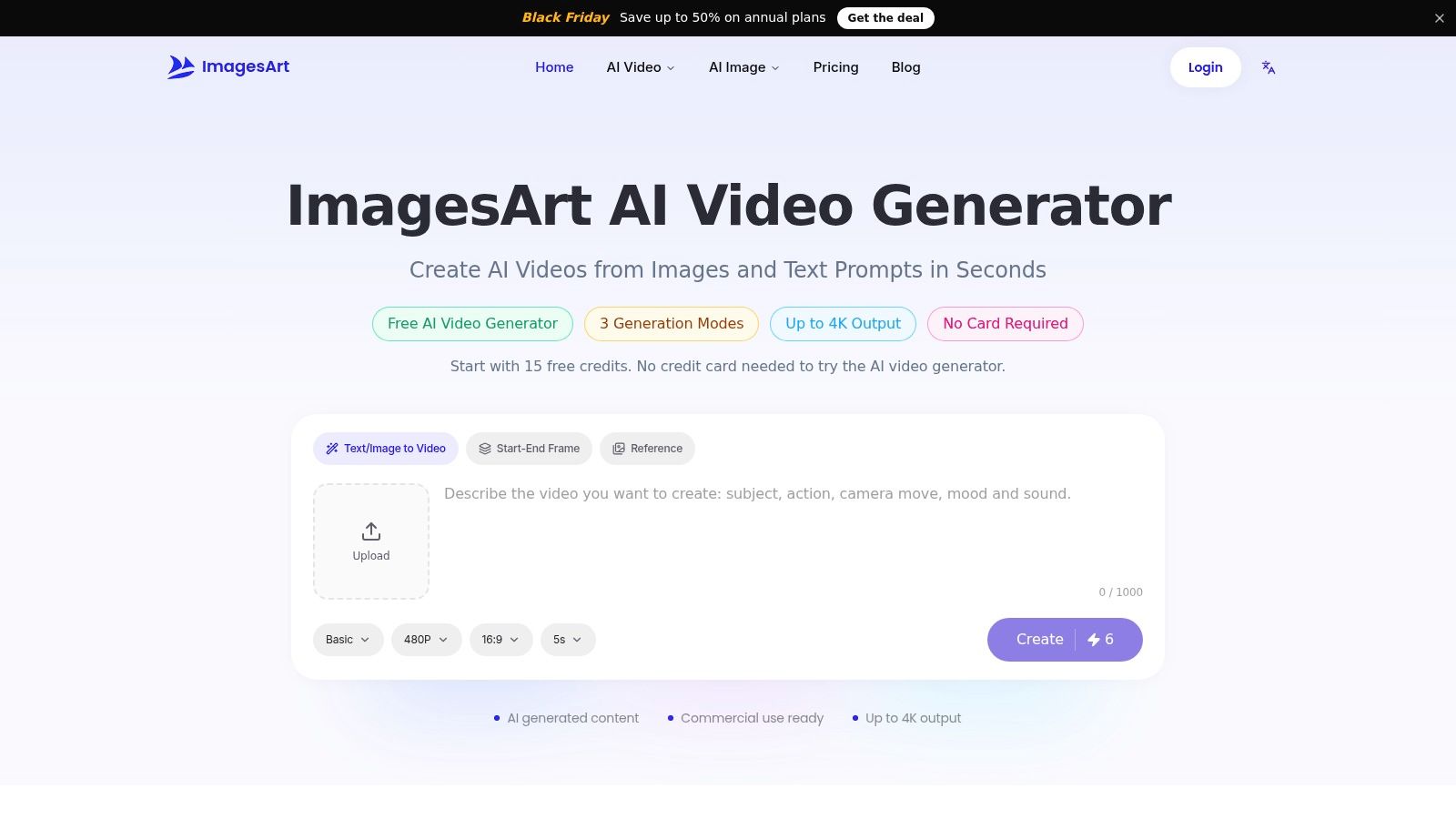
ImagesArt AI fits teams testing several creative directions from the same photograph. Our web workspace combines Text/Image to Video, Start-End Frame, Reference, and image-editing tools. Models including Seedance, Kling, Veo, Grok Imagine, MiniMax, and Wan share an account and asset library.
Use image-to-video generation for a single product shot. Choose Start-End Frame when you already know the opening and closing composition. Reference mode accepts up to seven images, which helps guide scenes involving a particular person, product, or setting.
A Controlled Product Draft
- Upload a clean photograph with space around the product.
- Describe a slow push-in, a stable package, and subtle background movement.
- Generate a draft, then compare the label, silhouette, and final frame against the source.
- Change the motion instruction before spending credits on higher-resolution output.
A useful prompt is: Create a vertical product clip with a slow push-in. Preserve the package shape, logo, colors, and label. Keep the product fully visible. Add gentle background movement without extra objects or text.
Our clips run 1–15 seconds, with output up to 4K and native audio depending on the model and plan. New users receive 15 free credits without a credit card; free-tier video is capped at 480p. The generation button shows the credit cost before submission.
The trade-off is variability. Models differ in available settings, generation cost, and interpretation of the same prompt. Start-End Frame guides a transition, but it doesn't guarantee exact intermediate movement.
Budget rule: Compare draft motion before paying for final resolution. A sharper render won't repair a distorted product.
Our generated assets can be previewed, downloaded, and managed together, and commercial use is permitted subject to our terms.
2. Runway

A generated shot often needs more work before it belongs in an ad. Runway suits creators who want photo animation inside a broader creation and revision workflow, rather than as an isolated effect.
Its image-to-video and text-to-video tools sit alongside sound, voice, image generation, upscaling, projects, and asset storage. Access to Runway and partner models lets you explore different visual treatments without treating every generation as a finished deliverable.
Say you're animating a running-shoe photograph. Start with a restrained camera move around the shoe, choose the most faithful result, then build the surrounding edit. Don't ask the opening generation to handle camera movement, changing scenery, animated typography, and a complex product demonstration simultaneously.
Where the Extra Controls Pay Off
- Motion control: Useful when you expect to revise the shot and compare treatments.
- Export workflow: Check the selected model's duration and output settings before generating, then confirm your account's download options.
- Access: A free account includes a one-time credit allocation, but repeated attempts consume that allowance.
The main cost isn't just subscription access. It's the number of rejected generations required to get a usable shot. Runway makes more sense when you'll use its broader toolset; it can feel unnecessarily involved if you only want a quick blink or a preset social effect.
Keep a short generation log with the prompt, model, and reason for rejection. That makes the next revision deliberate rather than another random attempt.
3. Adobe Firefly
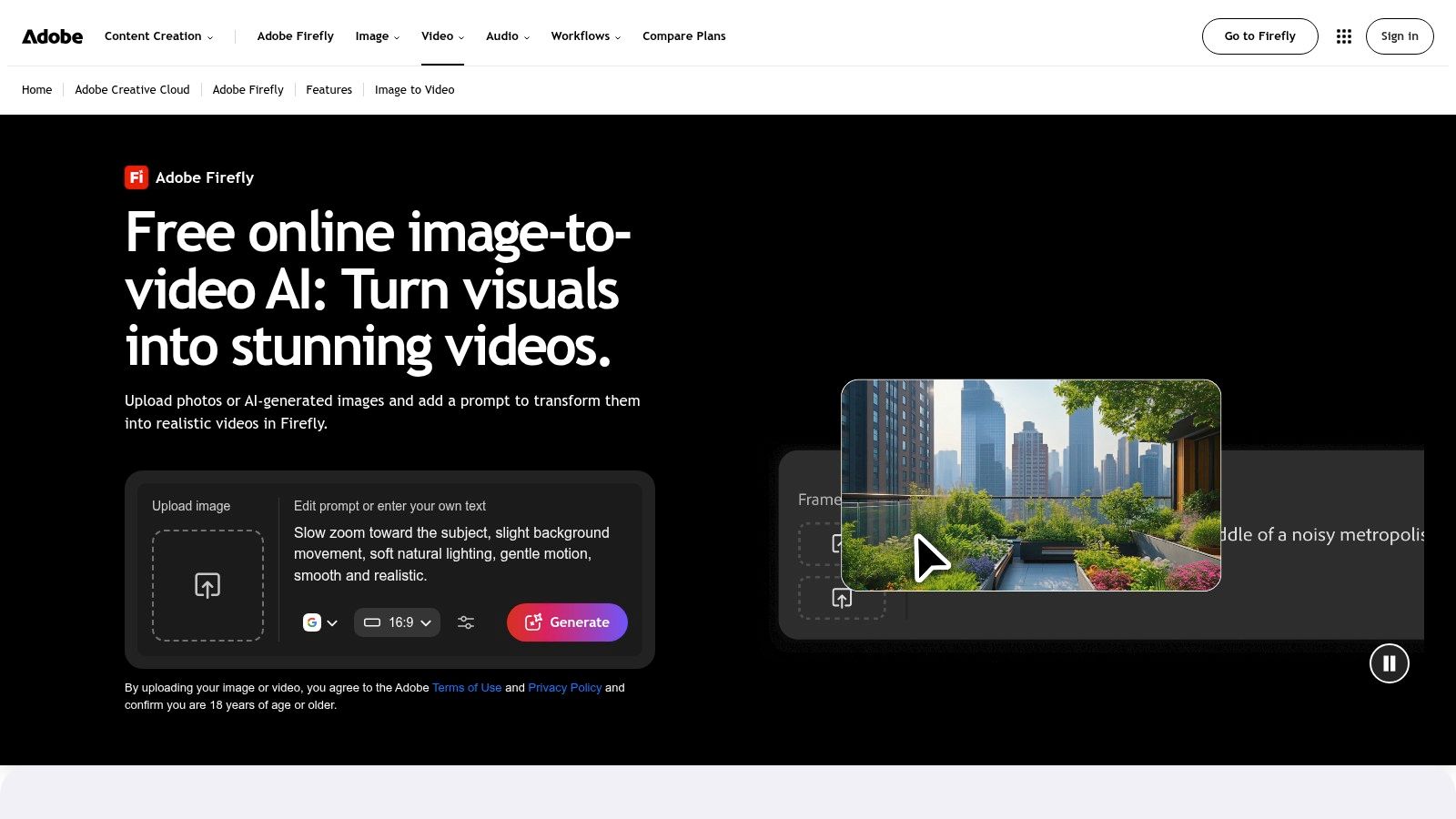
Choose Adobe Firefly when camera direction matters and the clip will continue into an Adobe-centered workflow. The Firefly image-to-video tool uses an uploaded image and a text prompt, with camera-motion and aspect-ratio controls.
That makes it a practical option for animating a still-life photograph, a campaign illustration, or a product scene that needs a gentle zoom or pan. The advantage is directing the shot before bringing it into a larger edit. It isn't precise frame-by-frame animation of the original pixels.
For a skincare campaign, keep the bottle stationary and describe the camera movement separately from environmental movement. A slow push-in with a soft background light change is a more controlled starting point than asking the bottle to rotate while liquid splashes around it.
Use this sequence:
- Compose first: Prepare the crop so the subject has room to remain visible during the move.
- Set the camera: Select an appropriate motion control, then keep the written instruction consistent with it.
- Review continuity: Inspect the cap, label, reflections, and edges throughout the clip.
- Finish separately: Add approved typography and brand assets during editing.
Access and generation limits depend on the applicable plan and credits. Before committing to a campaign workflow, verify that your account supports the output you need.
Firefly is convenient when the generated shot is one ingredient in a designed sequence. For exact product rotation or mechanically accurate demonstrations, use controlled animation or footage instead.
4. Pika
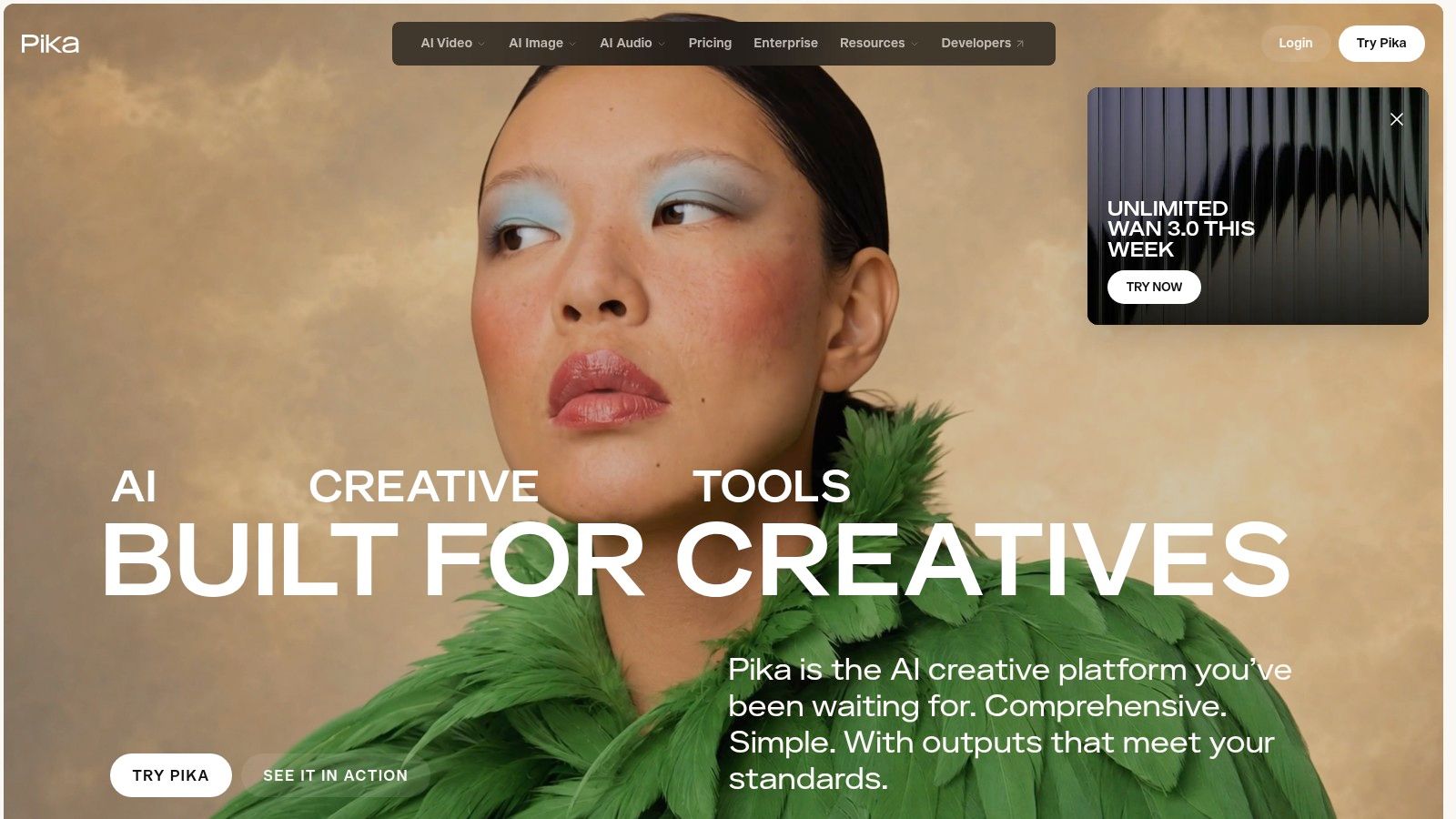
A poster that melts, an illustration that transforms, or a playful visual interruption can suit Pika better than a restrained product-demo workflow. Its image-to-video and effect-oriented modes favor expressive short-form experiments.
That strength comes with a real compromise: high-impact transformations can change the source details. A distorted mascot might support the concept. A distorted ingredient label probably won't.
Use Pika when the transformation is the message, not when the viewer needs an exact record of an object. A bakery could animate an illustrated cupcake into a playful scene while keeping the actual product photograph untouched in the closing layout.
Keep the Effect Separate From the Claim
- Choose an image whose transformation won't misrepresent the product.
- Apply the effect or describe a clear motion.
- Check faces, text, and object boundaries after generation.
- Add factual product information and the call to action in an editor.
An effect can be successful entertainment and still be the wrong footage for a product demonstration.
A free tier provides a way to test the service. Credit costs and output settings vary by generation type, duration, and resolution, so compare the selected mode before submitting.
Pika is less suitable when portrait identity or packaging fidelity is nonnegotiable. For social experimentation, though, its effect-led approach gives you a distinct production job: create the visual hook, then assemble the message elsewhere.
5. Luma Dream Machine
Atmosphere is a good reason to consider Luma Dream Machine. Its image-to-video and text-to-video workflows suit camera-led concepts, mood pieces, and product scenes where lighting and movement matter.
A candle photograph, for example, can become a campaign concept with a gentle camera drift and moving background shadows. That's different from demonstrating how the candle burns. Keep the distinction clear when presenting the clip to a client.
Generated camera movement can expose areas that weren't visible in the original photograph. The model must infer those details, so ambitious moves can introduce invented surfaces, backgrounds, or product geometry.
Match the move to the evidence in the image:
- Flat product photograph: Start with a push-in rather than a wide orbit.
- Room scene: Inspect newly revealed furniture edges and architectural lines.
- Illustrated artwork: Decide whether invented details are acceptable before generating.
- Client concept: Identify the clip as a treatment, not a finished product demonstration.
Luma's plans distinguish personal exploration from commercial work. Paid tiers provide a route to watermark-free output and commercial rights; generation costs depend on the model, duration, and resolution.
The free tier is better treated as an evaluation route than an assumed production license. For paid work, confirm the applicable rights and export conditions before building a campaign around the footage.
6. Kling AI
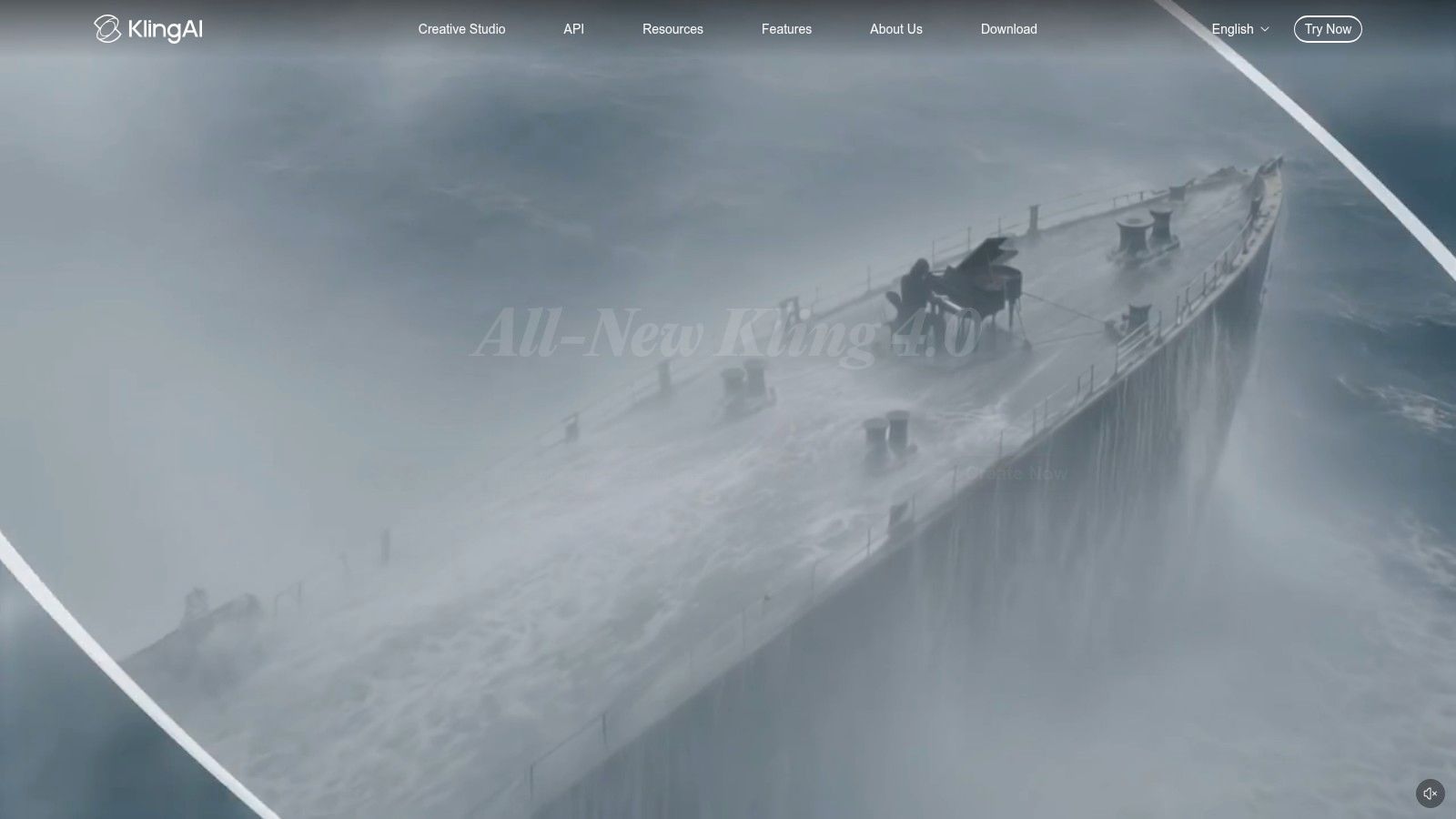
A still frame of a ship beside a piano calls for controlled movement, not motion for its own sake. Kling AI offers image-to-video and text-to-video modes, plus reference-based generation and video extension on supported models. Its free allowance is small, so use the initial credits deliberately.
Kling suits scenes that need several ways to guide generation rather than a single animation preset. Available models, controls, output options, and credit requirements vary by account and interface.
For a character-led campaign, prepare a clear reference image and specify one simple gesture. Review the clip before adding complexity. Extending a flawed result usually gives you more footage to assess, not a cleaner scene.
Test Identity Before Complexity
- Reference input: Use clear images with consistent clothing and unobstructed subjects.
- Motion instruction: Describe the action separately from the camera move.
- Export requirement: Confirm HD availability on your plan before promising a delivery format.
- Credit planning: Measure cost by usable results, not by the number of attempts.
Kling's flexibility comes with a trade-off: controls and credit use can differ between models. For product clips, check logos and proportions against the original asset. Reference guidance can communicate the intended scene, but it does not guarantee that product details remain accurate.
7. Hailuo AI
A character image may need an expression, a head turn, or a small gesture rather than a dramatic scene transformation. Hailuo AI, from MiniMax, is an option for testing expressive portrait and character motion.
It supports image-to-video and text-to-video generation with model options for different needs. Free access lets you evaluate the workflow, while paid plans provide credits and queue benefits.
Start with a portrait where the face and shoulders are visible. Ask for a subtle expression change and natural head movement while keeping the camera still. If the face holds together, introduce a more active gesture in a separate attempt.
Portrait judgment: Believable movement isn't enough. The person must remain recognizable, and the gesture must fit what they agreed to portray.
Access affects publishability:
- Free downloads: Include a watermark.
- Paid downloads: Watermark-free access is available according to the service terms.
- Subscription credits: Expire monthly and don't roll over.
- Plan selection: Check the available model, queue priority, and credit allowance at checkout.
Hailuo suits expressive scenes more naturally than a precise instructional demonstration. Watch the eyes, mouth, hairline, hands, and clothing edges during playback.
Don't buy a larger allowance before testing your actual source material. A polished example portrait doesn't establish how your heavily cropped illustration or partially obscured face will animate.
8. Canva
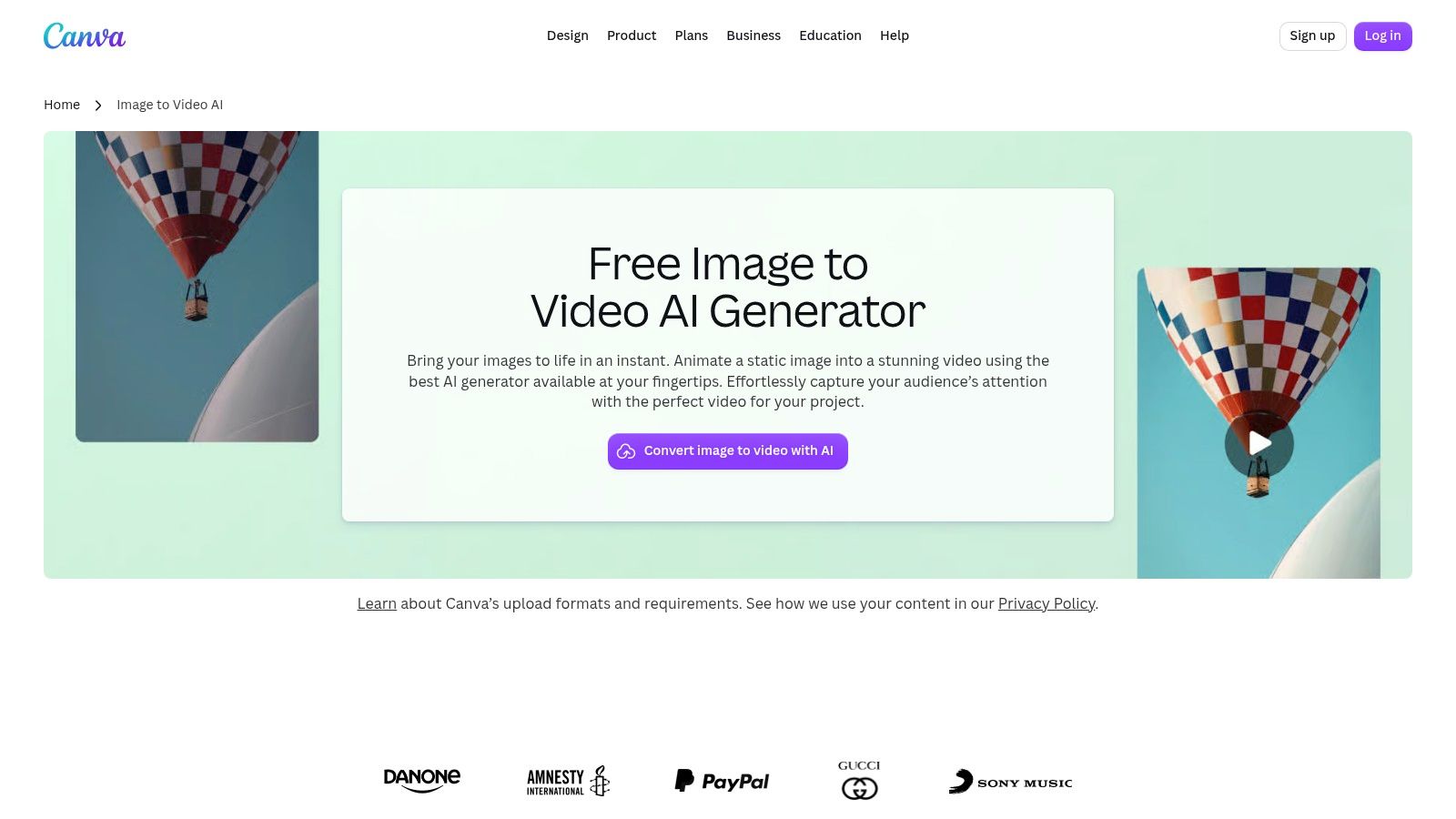
Sometimes the photo only needs light motion inside a finished post. Canva's Image to Video tool fits that layout-first job, particularly when you're already building ads, presentations, and social assets in Canva.
You can choose automatic motion or describe custom motion, then place the short generated clip into a design with text, music, overlays, and transitions. That reduces the need to move between a generator and a separate layout tool.
The practical distinction is between generating the footage and designing the message. Keep offer text, prices, and logos as editable layout elements rather than asking the video model to redraw them.
Build the Post Around the Clip
- Prepare the intended social canvas.
- Animate the clean source photo with restrained movement.
- Place the generated clip in the design.
- Add readable text, audio, and a closing call to action.
- Preview the downloaded result on a phone.
Generated clips are short, and availability depends on the account's AI allowance. Some tools and workflows can differ between mobile and desktop, so test the device you'll use for production.
Canva is less appropriate when you need precise keyframed motion or detailed model comparisons. Its advantage is finishing a designed asset. For a small team making a sale announcement, that can matter more than generating an elaborate camera move.
9. HeyGen
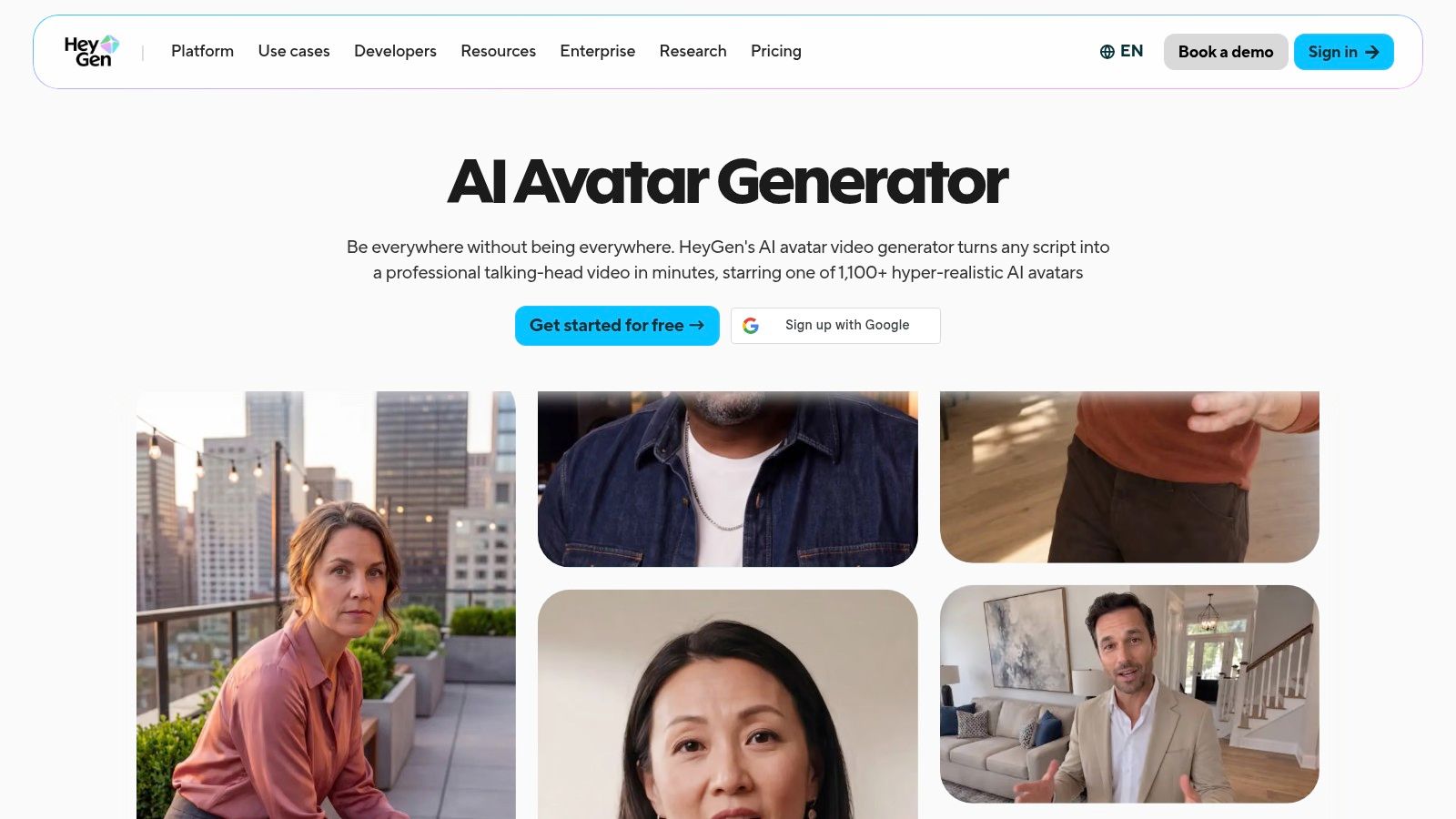
A speaking portrait is a different production category from general photo animation. HeyGen's Photo Avatar workflow turns a front-facing portrait into a presenter using a script or audio, with speech and lip-sync generation.
Choose it for announcements, explainers, and training content where a face delivers the message. Don't choose it to animate an outdoor scene or demonstrate how a physical product works.
Prepare the script before generating. Use short sentences, spell out unfamiliar names phonetically when needed, and listen to the voice before approving the full presentation. Review lip-sync around pauses and difficult words, not just the opening sentence.
A practical presenter workflow includes:
- Permission: Use a portrait and voice you're authorized to animate.
- Source quality: Start with a clear, front-facing face.
- Script review: Remove unsupported claims and awkward spoken phrasing.
- Final review: Check pronunciation, mouth movement, captions, and disclosure.
Free access is available for testing, while paid generation uses credits. Confirm the applicable export and usage limits before promising a client a finished presenter video.
For a separate portrait-animation route, the AI talking photo tool addresses the same basic starting point: a still face that needs to speak.
What matters most is whether the avatar communicates naturally enough for the task. A convincing head movement won't rescue a stiff script or incorrect pronunciation.
10. MyHeritage Deep Nostalgia and LiveMemory
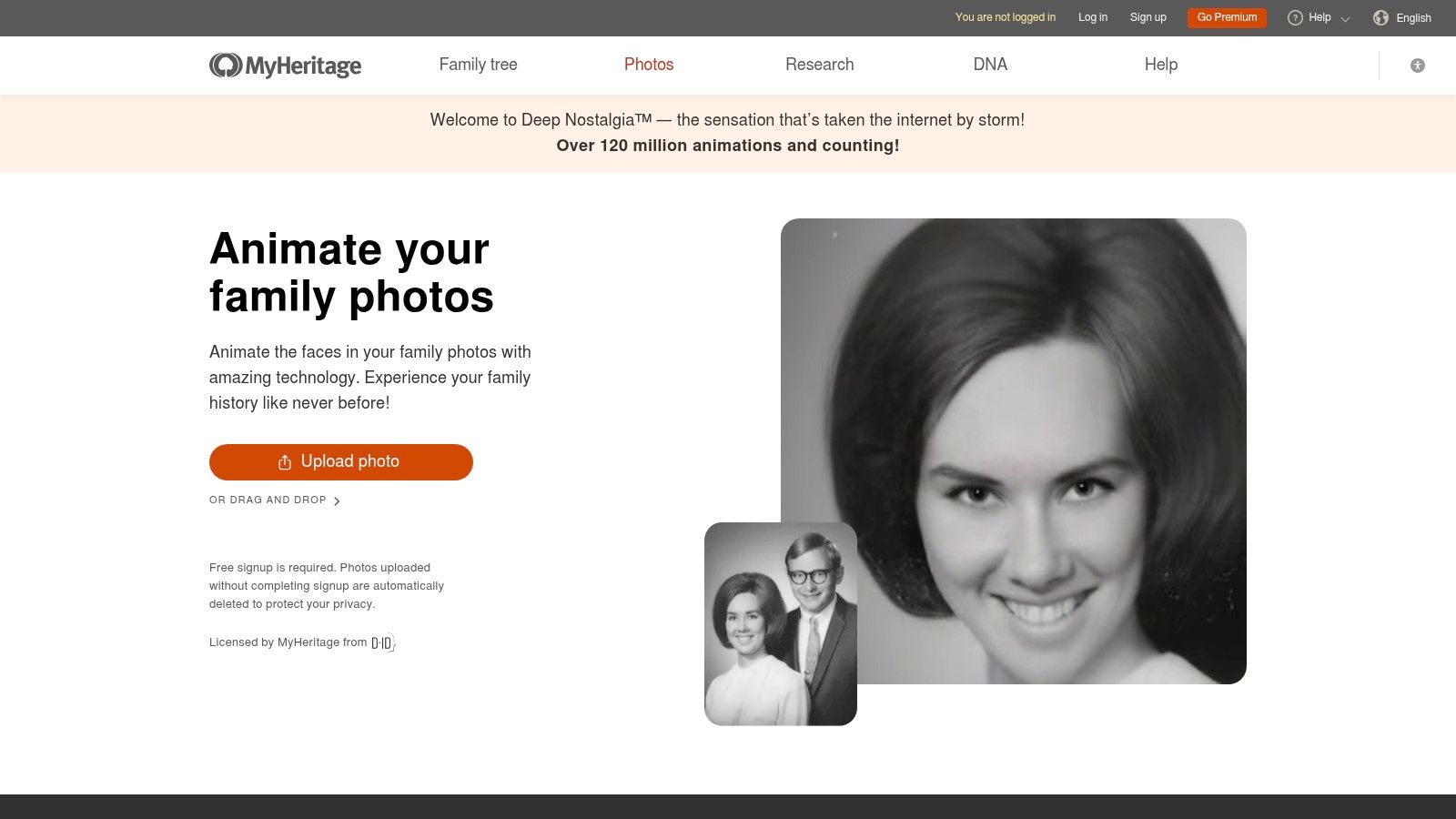
Family photographs usually benefit from a focused workflow, not extensive prompting. MyHeritage Deep Nostalgia animates a selected face with preset gestures such as blinking, smiling, and turning the head. LiveMemory, available through the mobile app, animates a broader scene.
Deep Nostalgia is the more direct choice when the face is the subject. In a group photograph, selecting the person to animate helps keep the task clear. Photo enhancement can be applied before animation, but compare the enhanced face with the original before proceeding.
Preserve the Photograph's Meaning
- Face animation: Choose Deep Nostalgia for a portrait-focused result.
- Scene animation: Consider LiveMemory when the surrounding moment matters.
- Creative control: Expect preset facial motion rather than custom prompt direction.
- Access: Some animation options or unlimited use require a subscription, and non-subscribers may receive watermarked output.
For a deliberately imagined interaction rather than archival-style facial motion, an AI hug video generator serves a different purpose. Treat that result as a synthetic scene, not recovered footage.
Consent and context matter even when the intention is affectionate. A survey discussed in The Conversation found that 7% of surveyed adults in Australia, the United Kingdom, and the United States reported being victims of non-consensual sexual deepfakes.
Ask living relatives before animating or sharing their likeness. Label historical animations clearly, and retain the untouched photograph alongside the generated clip.
How These Photo Animation Tools Compare
Choose a tool by the motion the job requires, then check how access and export settings affect delivery. The table separates motion control from export limits. Where the available details do not establish a specific cap, the cell describes the limit without inventing a number.
| Item | Best for | Motion control | Access model | Export limits |
|---|---|---|---|---|
| ImagesArt AI | Comparing models and creating varied clips in one workspace | Prompts, camera direction, and up to seven reference images | 15 free credits; paid plans and credit packs | Clips 1–15 seconds; up to 4K on eligible models and plans; free video capped at 480p |
| Runway | Creating and revising video in a broader creative workflow | Image- or text-to-video with tools for further editing | Free account with one-time credits; repeated generations use credits | Generation limits depend on credits and settings |
| Adobe Firefly | Animating images within an Adobe workflow | Camera-motion controls such as zoom and pan | Plan- and credit-dependent | Limits depend on plan and credits |
| Pika | Expressive experiments and short social clips | Multiple effects and transformation modes | Free tier; credit-based generation | Output settings vary by mode, duration, and resolution |
| Luma Dream Machine | Cinematic, camera-led visual concepts | Camera movement guided by image or text prompts | Limited free access; paid tiers and possible credit top-ups | Output depends on model, duration, and resolution |
| Kling AI | Reference-guided generation and varied video workflows | Image or text prompts, references, and video extension on supported models | Limited free access; subscriptions and credits | HD and other output options depend on plan and settings |
| Hailuo AI | Expressive portrait and character animation | Image- or text-to-video with model options | Limited free access; paid plans include credits | Free downloads are watermarked; paid plans allow watermark-free downloads under service terms |
| Canva | Social posts and designed content | Automatic or custom-described motion | Feature limits may depend on the user's AI allowance | Generated clips are short; limits depend on AI allowance |
| HeyGen | Speaking-avatar explainers and announcements | Script- or audio-driven speech and lip-sync | Free access for testing; paid generation uses credits | Limits depend on credits and plan |
| MyHeritage Deep Nostalgia and LiveMemory | Animating family and historical photos | Preset facial gestures; LiveMemory animates broader scenes | Some options and unlimited use require a subscription | Non-subscribers may receive watermarked output; options vary by subscription |
Pick the Tool by the Job
The best animate photo app is the one that fits your production task without adding unnecessary revision work. Choose Canva for motion inside a designed post, HeyGen for a scripted presenter, and MyHeritage for focused family-photo animation. Consider Runway, Firefly, Luma, Kling, or Hailuo when the generated shot needs more scene or camera direction.
Use a multi-model workspace when you need to compare product treatments, reference-guided scenes, or start-to-end transitions. Use Pika when the transformation itself is the creative idea. Don't confuse a dramatic effect with a useful product demonstration.
Prepare the Frame Before Generating
For vertical social work, compose the source before adding motion. The Instagram publishing specifications summarized by OpenNolan recommend 9:16 to avoid cropping or blank space. Keep the product or face away from edges where platform controls and captions could obstruct it.
For TikTok advertising, the specifications summarized by Captain Hook recommend vertical framing and list a minimum vertical ad size of 540 × 960 pixels. Treat those as delivery constraints, not a reason to generate an unsuitable crop and fix it afterward.
Use a repeatable production sequence:
- Define the job, such as a product hook, presenter message, or atmospheric background.
- Prepare a clean source image and the intended composition.
- Generate a low-resolution draft with restrained movement.
- Inspect identity, labels, hands, edges, and the closing frame.
- Spend higher-resolution credits only on the version worth publishing.
- Add editable typography, reviewed captions, and licensed audio in the final edit.
Judge the Export, Not the Preview
An attractive preview isn't the deliverable. Download the file, play it at normal speed, and inspect whether compression, cropping, watermarks, or audio problems affect the result. Keep a still-image alternative when movement isn't necessary to understand the message.
Accessibility also requires review. A study published by ACM found that participants valued captions but could find automatic captions distracting when timing, spelling, pauses, or cultural nuance were wrong. Correct the text, check contrast, and make sure the message still works without sound.
For another way to compare photo-based video workflows, consult the VideoTour.ai app comparison. Make your final choice with your own source photograph, a realistic prompt, and an actual downloaded export, not a showcase clip.
Turn your next product photo or illustration into a controlled motion test with ImagesArt AI. Use Text/Image to Video, Start-End Frame, or reference-guided generation to compare directions, check the credit cost before creating, and use the free introductory credits to evaluate your first draft.