The 10 Best Background Remover Tools for Creators (2026)
ImagesArt.ai
11/3/2026
Your small team needs 40 product cutouts by Friday. The background remover that handled one Instagram photo now asks for a subscription, and nobody's checked whether its downloads are large enough for the storefront. Meanwhile, a fluffy sleeve, a transparent bottle, and a thin handbag strap keep disappearing into the mask.
The best background remover is the one that fits the work after the cutout. For a single image, start with ImagesArt AI or Adobe Express. For recurring product work, Photoroom makes sense when you also need shadows and layouts, while Removal.AI deserves a look when folder processing or an API matters more.
Don't choose from the preview alone. Check edge quality, supported formats, batch capacity, download resolution, commercial-use terms, and export allowances before committing a catalog. A free preview isn't necessarily a free production-ready file.
Buying rule: Test a difficult image and download the result before paying. A convincing thumbnail can hide missing handles, white halos, and reduced resolution.
These ten options serve different jobs: occasional cutouts, product-image production, editing inside an existing design workspace, and automated processing. Their limitations matter just as much as their removal buttons.
Table of Contents
- 1. Free AI Background Remover | Remove Backgrounds Online
- 2. Photoroom
- 3. Adobe Express
- 4. Canva
- 5. Pixlr
- 6. Clipdrop
- 7. Fotor
- 8. Removal.AI
- 9. Erase.bg
- 10. Slazzer
- Best background remover tools compared (2026)
- How to Choose, Plus Workflows Worth Copying
1. Free AI Background Remover | Remove Backgrounds Online
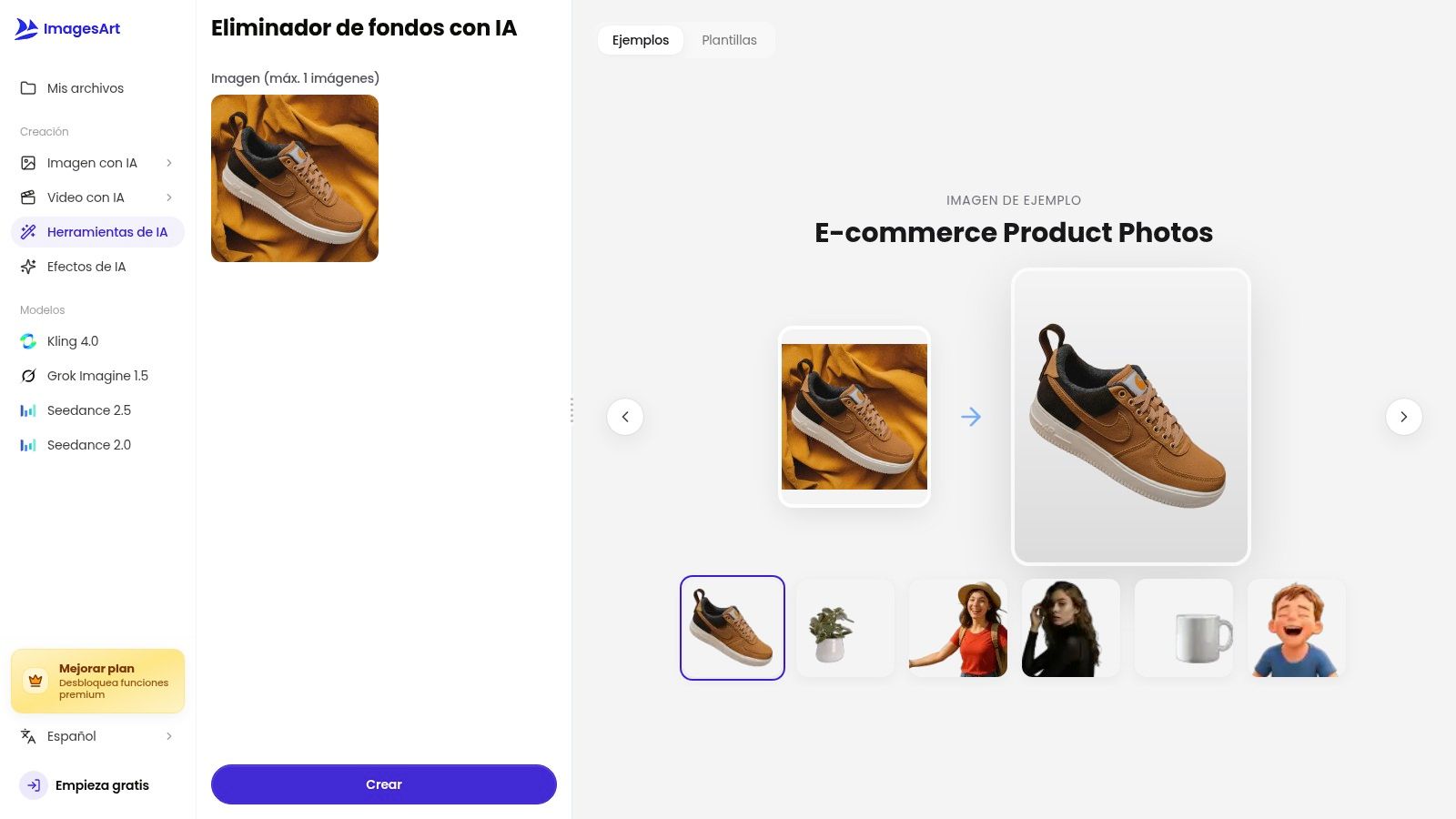
Best for an uncomplicated cutout you'll reuse elsewhere. ImagesArt AI's free online background remover isolates a person, product, or object without requiring desktop editing software. It supports common image formats and provides a transparent PNG download for layouts, presentations, product imagery, and social posts.
The practical advantage is separation: you can prepare the subject without deciding its final setting. Keep that transparent master, then create a white-background listing image, a colored promotional graphic, or a product-demo starting frame.
A useful first-image workflow
- Upload the original: Choose the sharp source photograph rather than a compressed screenshot.
- Run automatic removal: Let the tool identify the subject before making further creative changes.
- Inspect delicate details: Review hair, fur, straps, and gaps between the subject and its surroundings.
- Download transparency: Open the PNG over a contrasting background to confirm the removed area is transparent.
The tool is designed to preserve fine edges such as hair and fur, but that isn't a guarantee for every photograph. Low-contrast boundaries and translucent materials still deserve close inspection.
The limitation is operational clarity. Published details don't specify upload-size caps, maximum output resolution, or usage allowances. Don't assume unlimited catalog processing because a single-image workflow is available.
I'd use it for occasional cutouts and for preparing assets that will continue into image or video creation. For recurring bulk work, establish the practical upload and download limits before making it your production dependency.
2. Photoroom
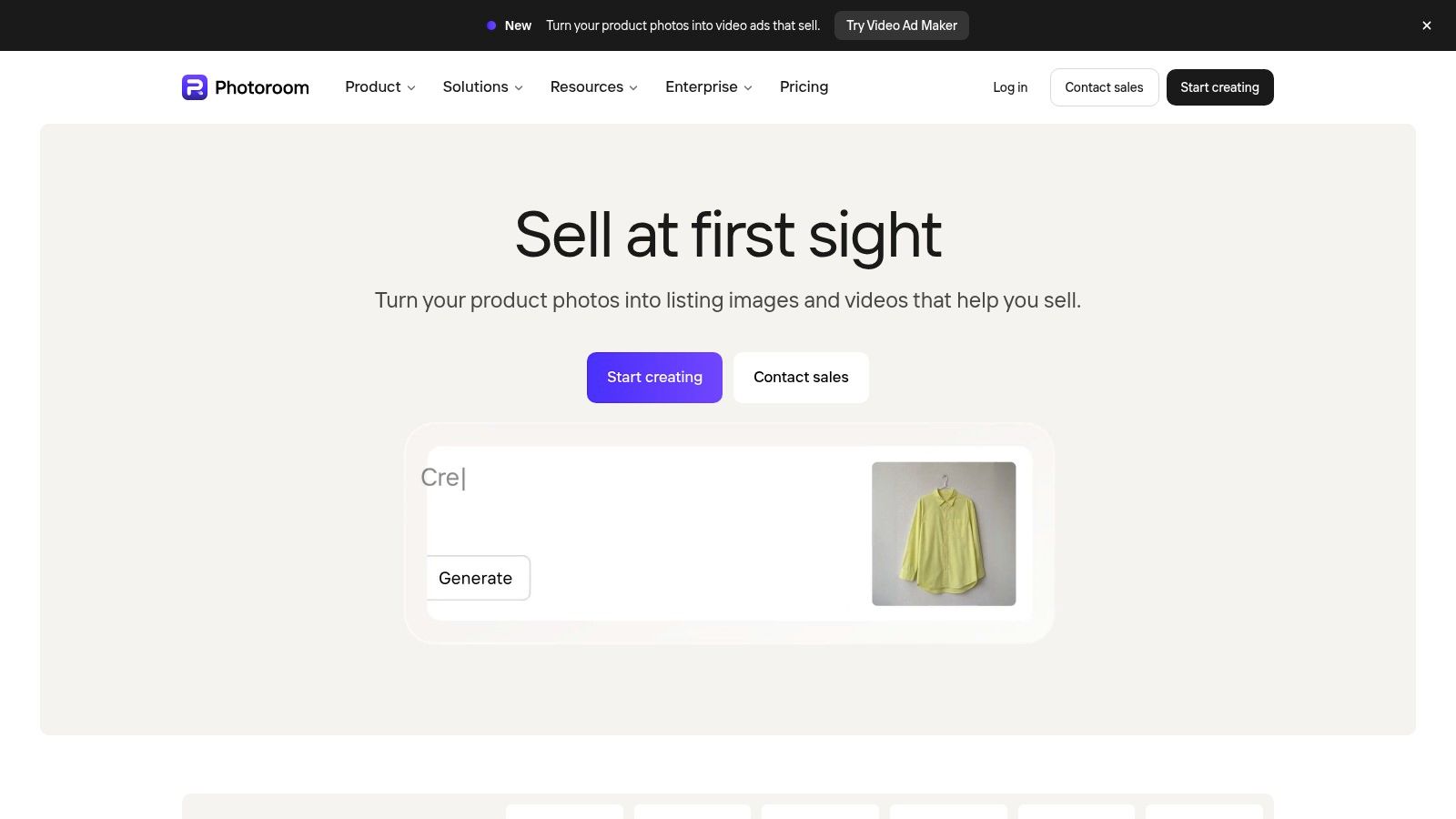
A seller preparing product listings usually needs more than an empty background. Photoroom fits the remove, retouch, add shadow, resize, and publish workflow, with web and mobile apps plus batch and API options.
The Photoroom website lists Pro annual-billing equivalents starting at $7.50 per month with 1,000 monthly exports. Background removal doesn't consume AI credits on the listed paid plans, but some advanced generation and video features use credits or require higher plans.
Count exports, not just removals
An export allowance matters when the same product needs several finished assets. Before adopting Photoroom, establish how its current plan counts the outputs your team downloads.
- Strong fit: Sellers who need consistent product presentation, shadows, background replacement, and resizing.
- Main trade-off: You're choosing a broader product-visuals editor, not merely a transparent-PNG utility.
- Production concern: Advanced features can introduce credit costs alongside the export allowance.
For an occasional isolated subject, a straightforward online background remover may be enough. Photoroom becomes more compelling when the cutout is only the beginning of a repeatable merchandising process.
Keep your product's scale and crop consistent across the batch. Attractive backgrounds won't compensate for a catalog in which every item appears at a different visual size.
3. Adobe Express
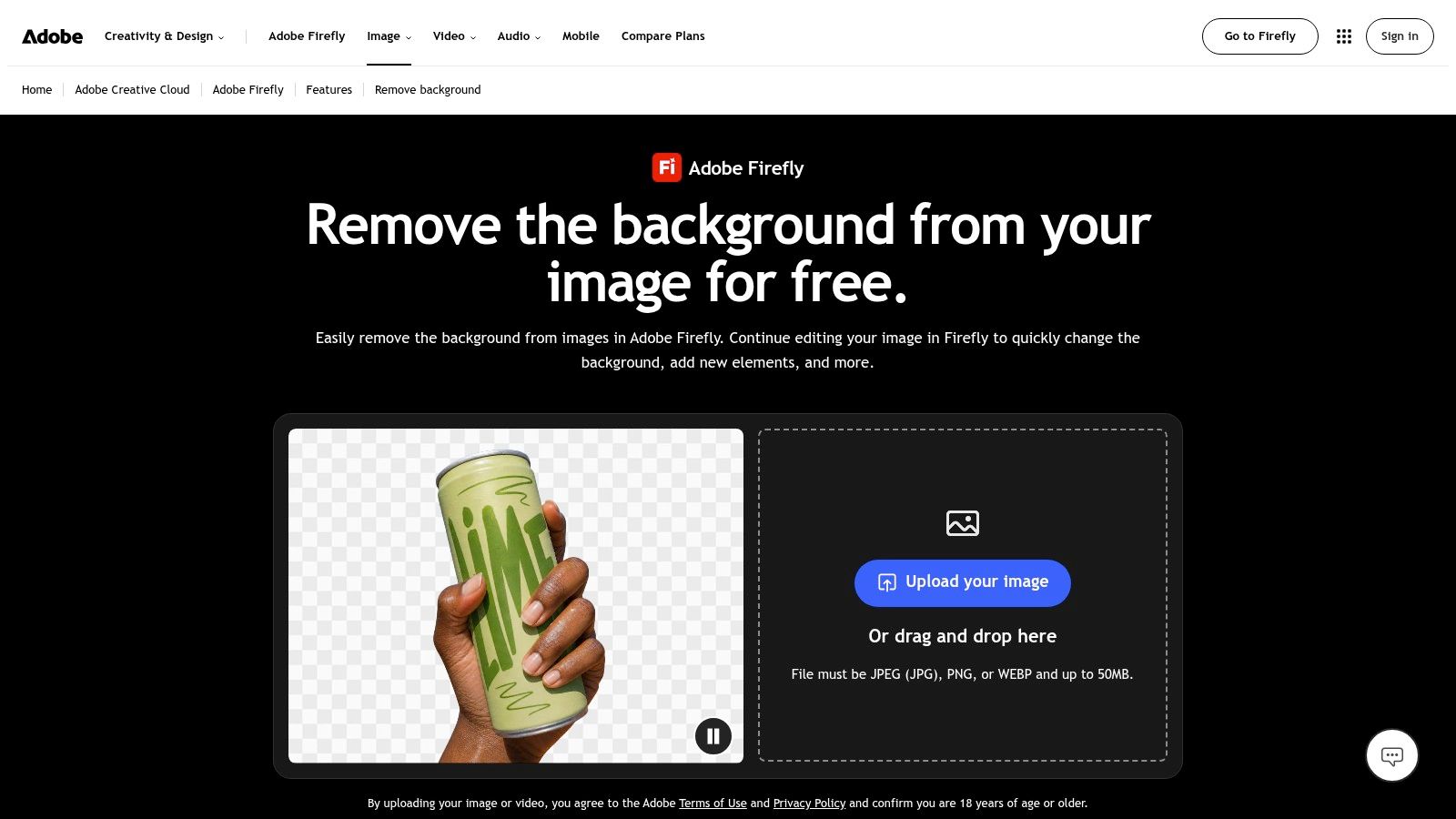
Adobe Express is a sensible first stop for a single image that needs to become a finished design. Its standalone background remover is described as free, lets users get started without an account, and accepts JPG, PNG, and WebP uploads.
You can download the transparent PNG or continue into Express to build a post, flyer, or promotional layout. That direct handoff is more useful than switching applications when you still need headlines, brand colors, and a call-to-action.
Keep the cutout reusable. Download the transparent master before flattening it into a finished promotional graphic.
Adobe's transparent-background guide explains the distinction that matters: PNG preserves transparency, while a standard JPEG replaces it with a solid background. A white-looking preview alone doesn't tell you whether the file contains an alpha channel.
The trade-off is depth and throughput. The standalone action is oriented toward individual images, not a production-scale batch queue. Intricate masking or substantial retouching may require a dedicated editor.
Use Express when the next task is arranging the cutout beside copy and graphics. If your next task is processing a supplier's folder automatically, prioritize a batch-oriented service instead.
4. Canva
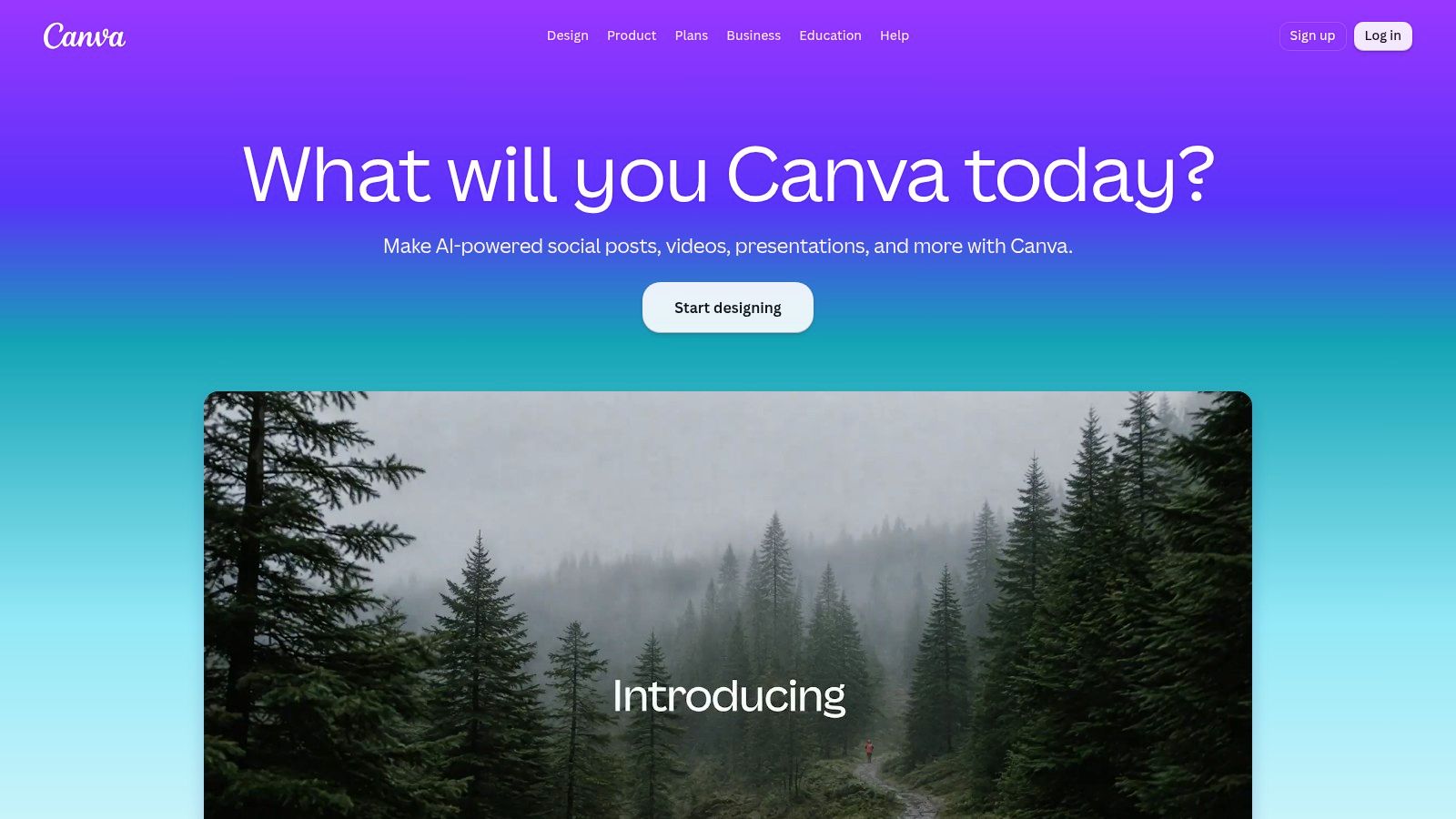
If your brand templates already live in Canva, downloading cutouts from another application may add unnecessary handling. Canva's Background Remover fits teams that want removal, refinement, and layout in the same editor.
The feature includes erase and restore brushes, which matter when automatic removal clips a sleeve or leaves background inside a handle. Canva also offers video background removal in its editor, although photo and video removal should be treated as separate production tasks.
Limits that affect the source file
Canva includes Background Remover with paid plans, supports bulk folder processing for up to 50 uploaded photos, requires photo files under 9 MB, and downscales images over 10 MP after removal.
- Best advantage: Existing brand assets, layouts, and cutouts remain in one design workspace.
- Useful control: Restore brushes let you recover details instead of repeatedly rerunning removal.
- Important constraint: The bulk workflow applies to uploaded photos, not every image appearing in a design.
For social graphics, working inside the final layout makes edge problems easier to judge. A pale halo that disappears on white may become obvious against your brand's dark background.
For large product masters, check the downloaded dimensions before approving the workflow. Convenient layout editing doesn't replace sufficient output resolution.
5. Pixlr
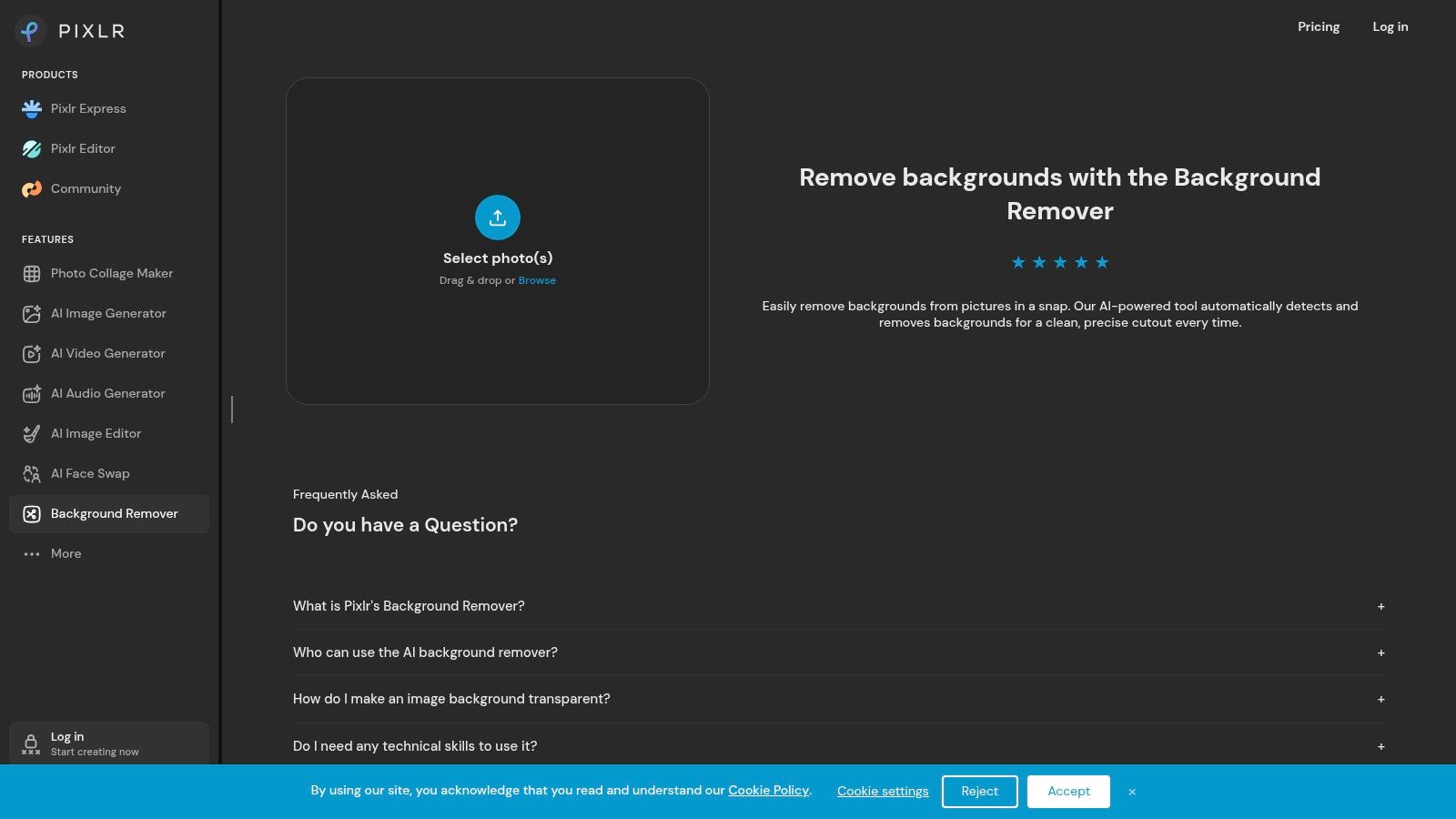
Pixlr suits browser-based cleanup when you want batch handling without immediately adopting a product-commerce editor. Its dedicated background remover is presented as free and supports multiple-image processing with results gathered into a ZIP.
Output options include transparent, black, or white backgrounds. That distinction is practical: choose transparency for a reusable asset, or a solid background when the deliverable is already defined.
Make batch downloads manageable
Before uploading a set, give each source file an identifiable product or campaign name. After downloading the ZIP, compare the outputs against the originals rather than assuming every image received an equally good mask.
- Good fit: Small collections of listing images, portraits, objects, vehicles, or animals.
- Useful extension: Continue editing within Pixlr's broader image-tool family.
- Limit to verify: Free and paid access rules vary across the suite, so don't assume the remover's positioning applies to every editing feature.
Pixlr is less compelling if your main requirement is a documented procurement allowance or an integrated catalog pipeline. Confirm current processing and download restrictions before scheduling recurring high-volume work.
For ambiguous subjects, inspect what the tool decided to keep. A prop touching the product can become part of the cutout even when the outer edge looks clean.
6. Clipdrop
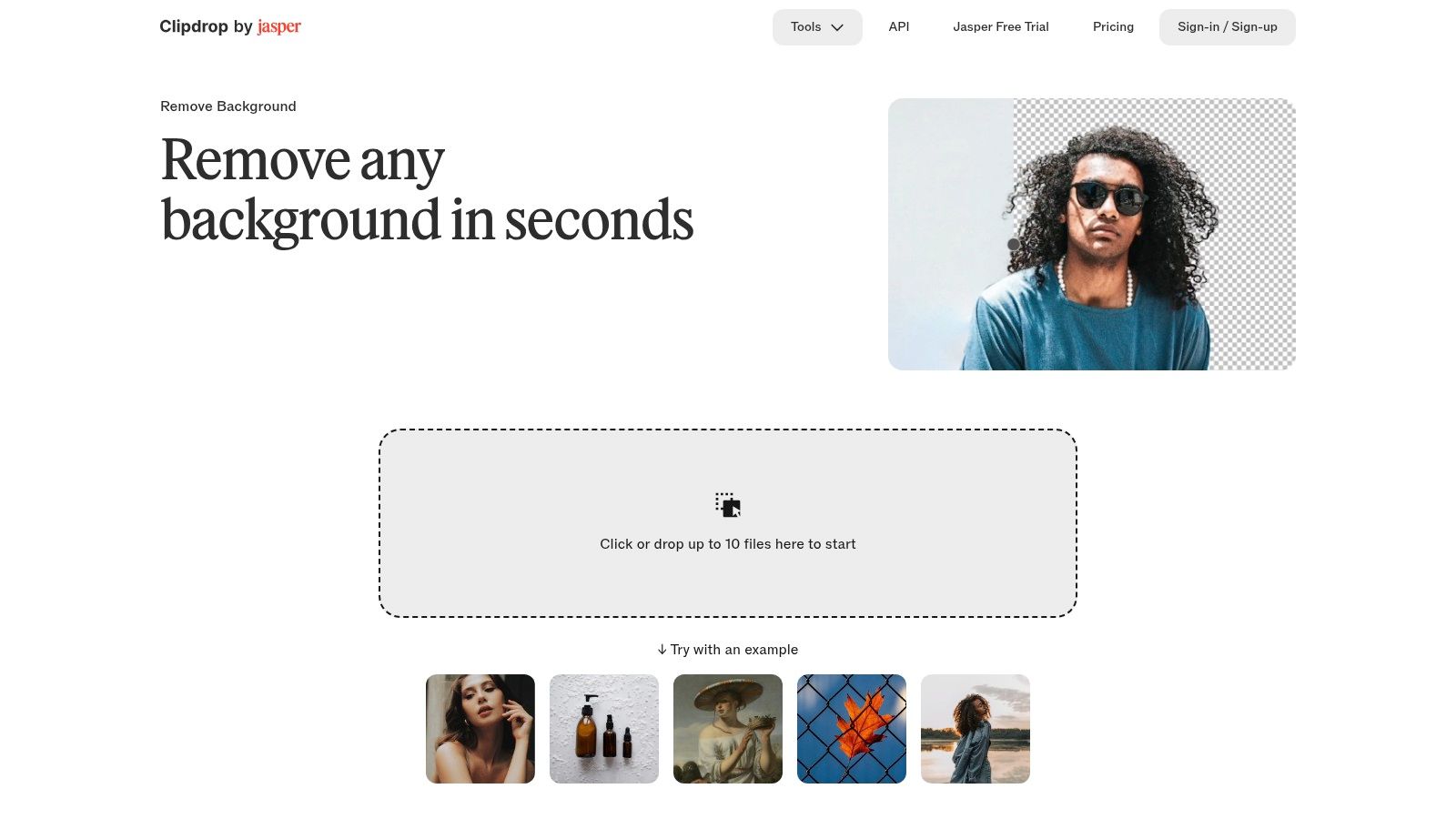
A small campaign often needs several images cleaned up together, not an entire catalog. Clipdrop's background remover accepts up to 10 files in one go, exports transparent PNGs, and offers an API whose documentation describes 100 free credits for development and testing.
Its adjacent tools include cleanup, relighting, background replacement, and upscaling. Those tools are useful when removal exposes another problem, such as distracting reflections or a subject whose lighting doesn't match the intended scene.
Production caution: Removing the background doesn't remove reflections of that background from a glossy product.
Browser work and API work differ
Casual browser use and an API integration have different requirements. API work needs an account, credits, and a plan for failed requests, retries, and output storage.
The public remover page doesn't establish a clear consumer per-image price, so don't turn its upload capacity into an assumed processing budget. Evaluate the current paid options against your actual workflow.
For photo-first creative exploration, the photo-editing workflow guide can help frame what should happen after isolation. Decide whether the next step is a clean cutout, a replacement scene, or a social asset before applying additional edits.
I'd shortlist Clipdrop for compact batches and image preparation, particularly when its neighboring cleanup tools solve a real task.
7. Fotor
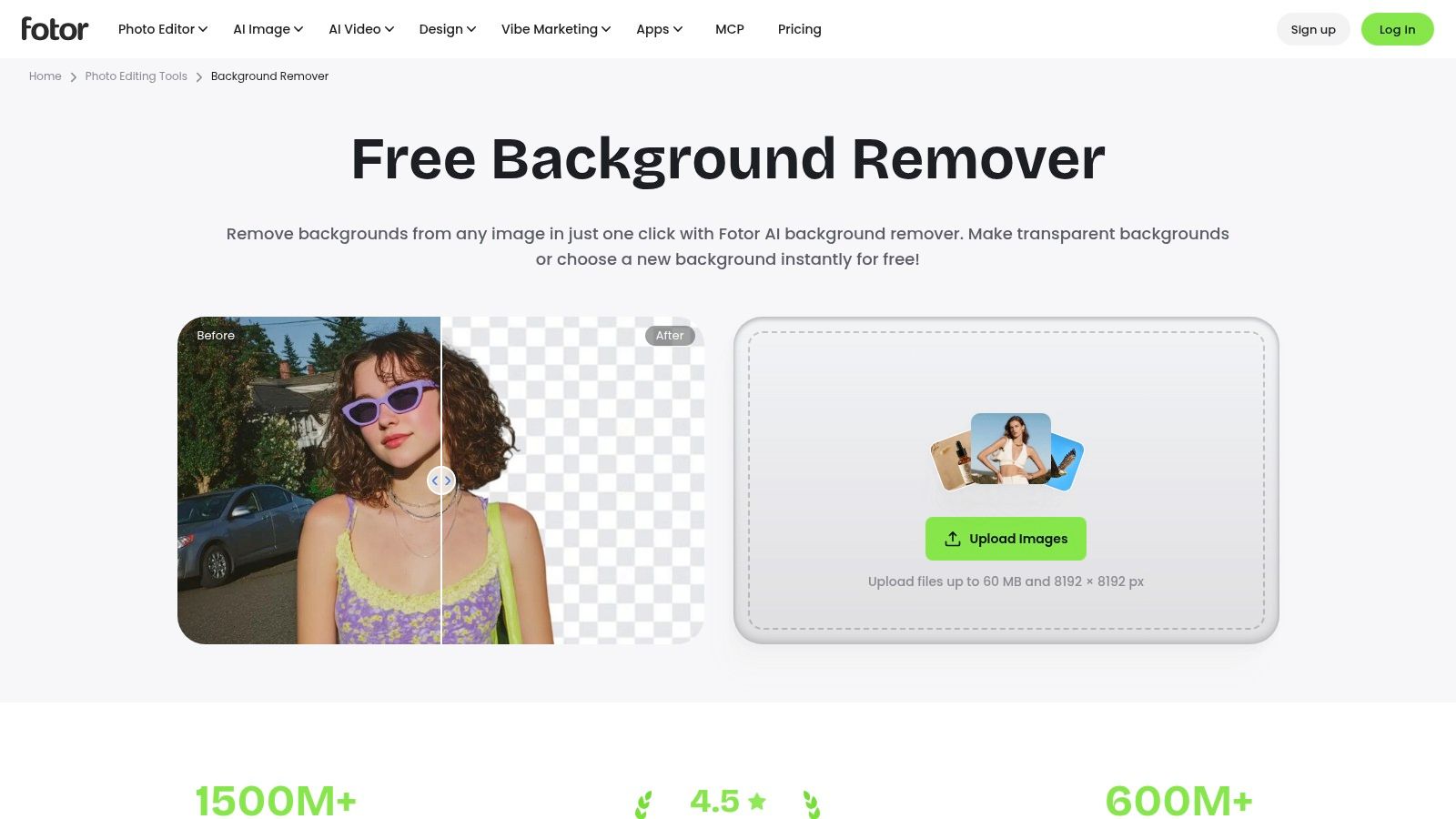
Fotor deserves attention when source-file compatibility is the immediate obstacle. Its background remover supports JPG, JPEG, PNG, HEIF, HEIC, and WebP, and lists uploads up to 60 MB and 8192 × 8192 pixels.
That range can simplify intake when teammates supply phone photographs alongside conventional product images. Fotor also advertises free HD downloads without a watermark or sign-up, with removal and background replacement available in the same editing environment.
Separate single-image access from batch access
The free-download proposition doesn't mean every production feature is free. Batch editing and AI batch background editing are listed with Pro+, so confirm the plan before building a recurring catalog process.
- Choose it for: Varied source formats and removal followed by general photo editing.
- Check before export: Actual downloaded dimensions, transparency, and fine product details.
- Budget separately: Paid batch features and other advanced tools rather than assuming they follow the free remover's terms.
Large upload support is useful, but it doesn't guarantee a flawless mask. A high-resolution photograph of clear packaging can still need manual intervention.
For replacement scenes, avoid changing the product itself. Check labels, color, proportions, and packaging seams against the original before treating the result as a sale-ready image.
8. Removal.AI
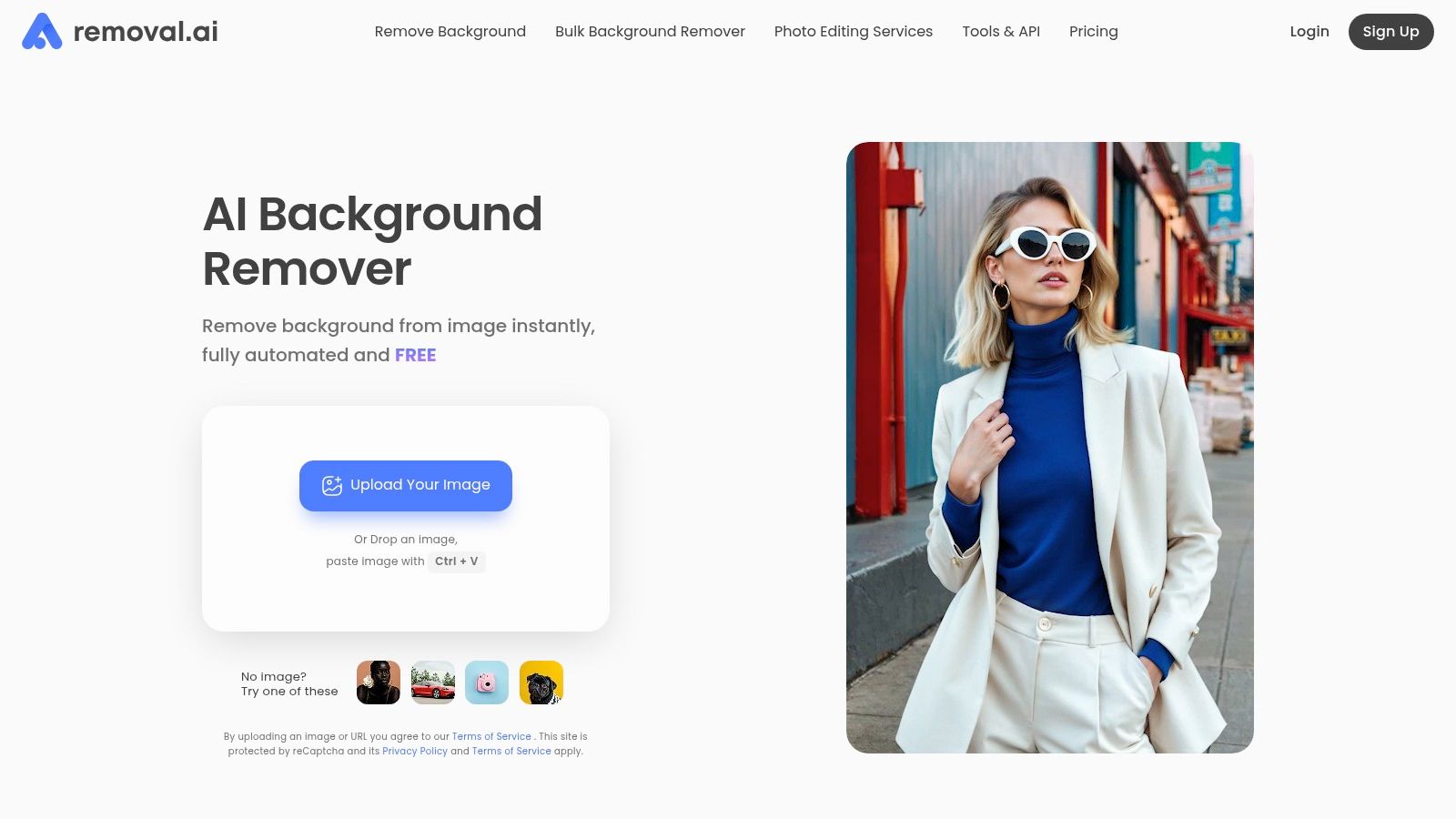
Removal.AI is a workflow shortlist option for recurring listing production. It offers a web remover, desktop folder processing, an API, and manual background-removal services rather than relying on a single browser interface.
Removal.AI lists monthly plans starting at $5.99 for 100 credits, web uploads of up to 100 images, and desktop processing that the company says can handle over 1,000 images in a run. Its FAQ limits web inputs to JPG and PNG files up to 12 MB, while free downloads are lower resolution and full-resolution downloads require credits.
Desktop doesn't mean offline
The desktop application still needs an internet connection because processing happens on the service's servers. That matters for teams working with slow uploads or expecting local-only image handling.
- Operational advantage: Web, folder, and API routes let you choose how images enter production.
- Cost distinction: Free processing is useful for evaluation, but full-resolution delivery belongs in the credit budget.
- Review requirement: Folder throughput doesn't eliminate the need to reject damaged masks.
When comparing AI pricing models, distinguish recurring allowances from the cost of usable final assets. Include review time and any manual correction in that calculation.
I'd favor this style of service when repeatability matters more than designing each image individually. Test mixed product categories before trusting an unattended folder run.
9. Erase.bg
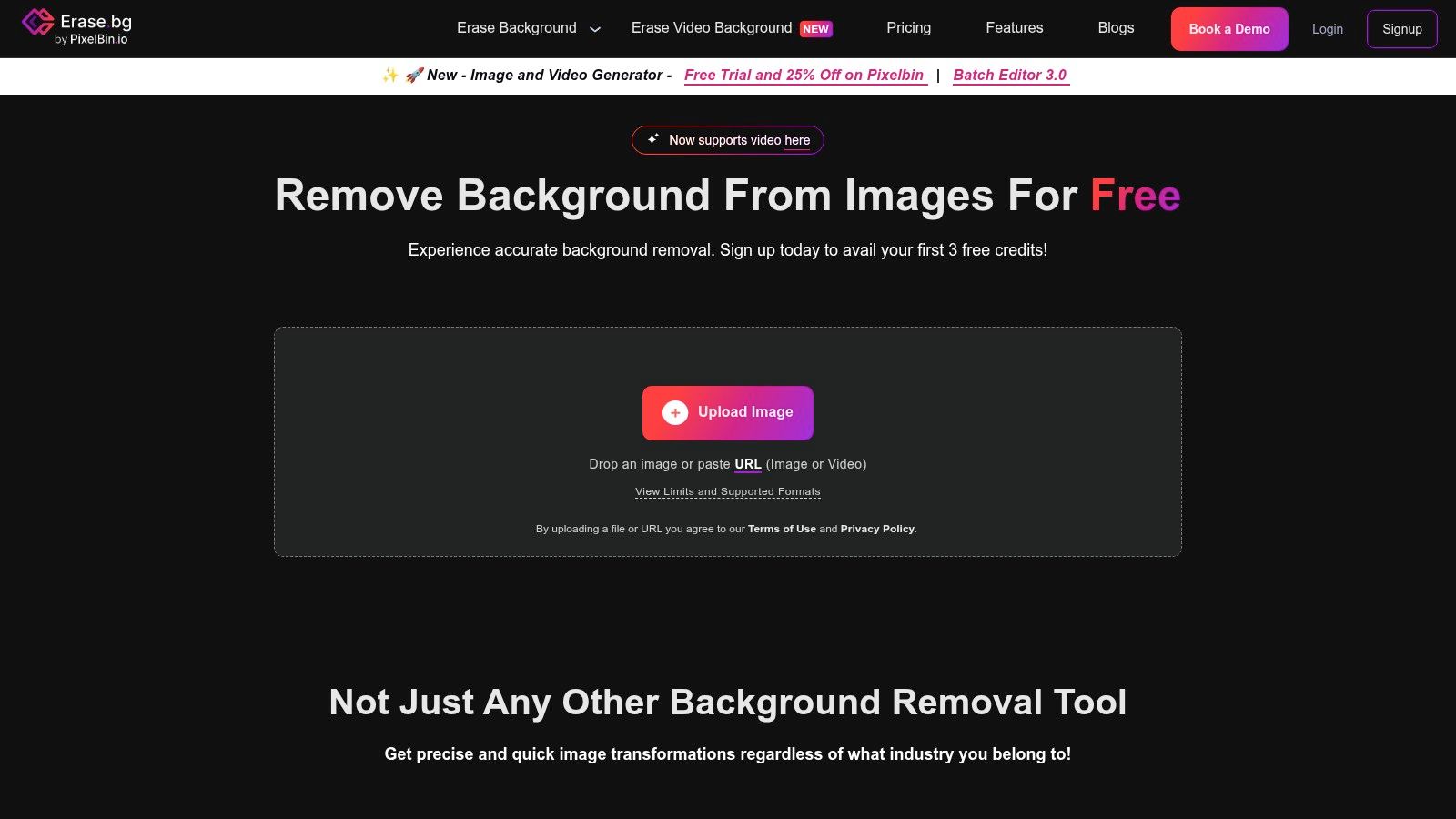
Erase.bg fits straightforward removal and replacement, with bulk and API options for more structured work. You can isolate the subject, then use a different background, color, or pattern.
Erase.bg supports PNG, JPG, JPEG, WebP, and HEIC and lists image dimensions up to 10,000 × 10,000 pixels. Personal-use website processing is described as free, while professional or commercial use may require a subscription.
Usage rights come before convenience
A creator preparing a personal graphic and an agency delivering client advertisements aren't making the same use of a service. Confirm the current commercial terms before treating free access as a client-production allowance.
- Useful fit: Teams receiving mixed phone and camera formats.
- Expansion path: Bulk processing and API access when individual browser uploads become cumbersome.
- Main uncertainty: Current free allowances and paid-plan details need checking before repeated use.
Treat the listed image dimensions as an input specification, not proof of identical output dimensions or edge quality. Download a representative result and inspect it in the destination layout.
For color or patterned backgrounds, preserve a transparent master separately. Otherwise, the next campaign starts with another removal job instead of an already-approved reusable cutout.
10. Slazzer
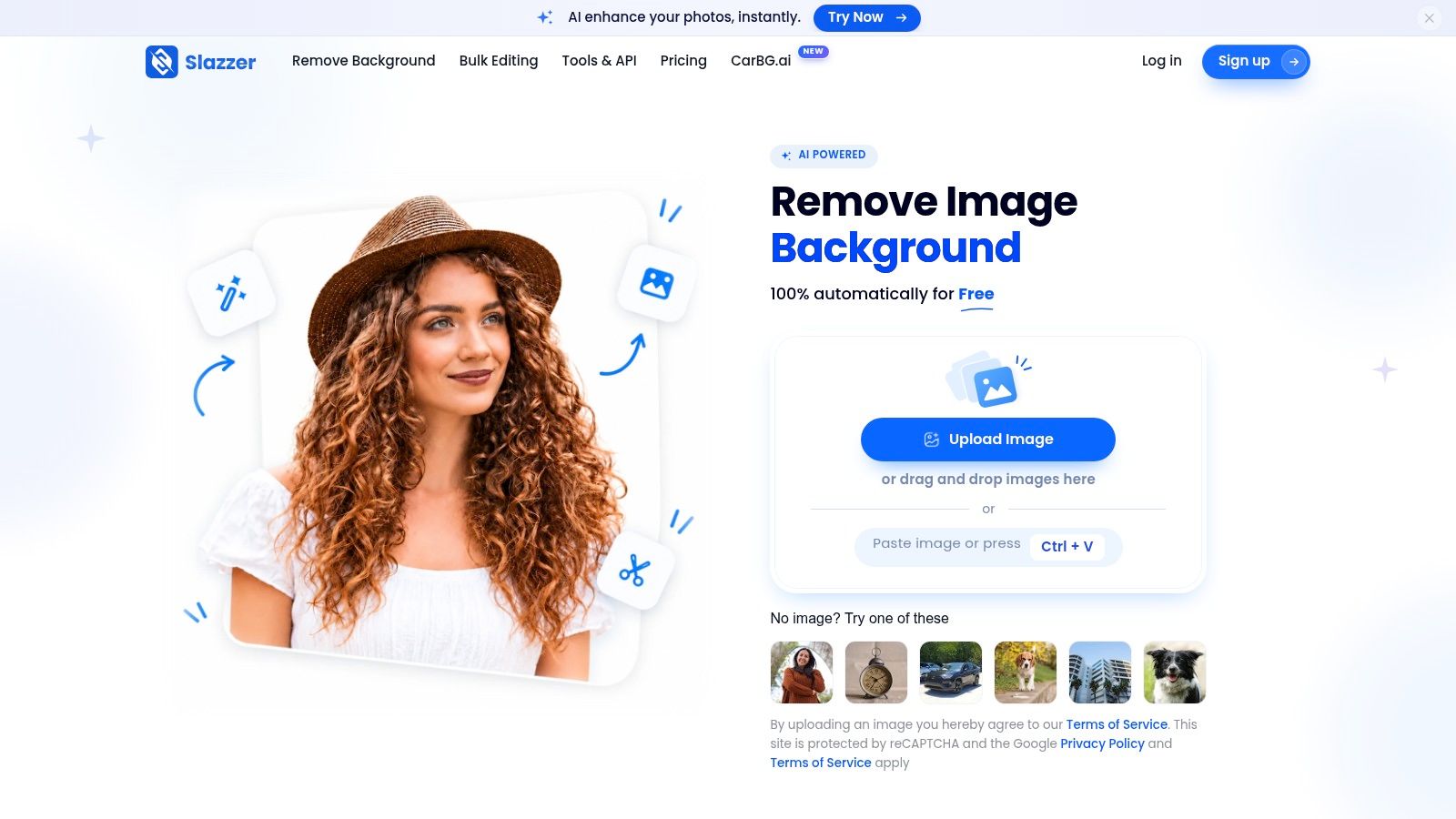
Slazzer is most interesting when background removal needs to enter an existing design or development pipeline. It offers web access, desktop apps for Windows, Mac, and Linux, a REST API, and integrations including Photoshop, Figma, and Sketch.
Slazzer lists a free tier with two credits and unlimited free previews, monthly subscriptions starting at $11 for 100 credits, and commercial use requiring a top-up plan or a subscription of at least 300 credits. Those distinctions matter more than the entry subscription price alone.
Match the plan to the deliverable
Full-resolution downloads consume credits. A preview can help you assess a mask, but it isn't a substitute for testing the actual file you'll deliver.
- Best advantage: Integrations can reduce exporting and reimporting between design tools.
- Payment choice: Subscriptions fit regular work; top-ups provide another route for occasional jobs.
- Critical constraint: Check commercial eligibility separately from basic processing access.
For API adoption, build a review route for uncertain results instead of sending every output directly to a storefront. Keep source filenames associated with outputs so rejected images can be corrected without losing their product identity.
Slazzer makes sense when integration saves real handling time. If you only need a transparent portrait occasionally, a simpler browser tool is easier to justify.
Best background remover tools compared (2026)
| Tool | Free access | Batch processing | Output formats and limits | Best for |
|---|---|---|---|---|
| Free AI Background Remover | Free online use | Treat as a per-file cutout tool | Common image formats; transparent PNG | Quick online cutouts with fine-edge detail |
| Photoroom | Free access available | Batch options available | Pro lists 1,000 monthly exports | Product visuals and broader seller workflows |
| Adobe Express | Free standalone tool; no account required to start | Focused on single-image removal | JPG, PNG, and WebP uploads; transparent PNG output | Quick cutouts that flow into design projects |
| Canva | Paid Canva plan required | Up to 50 uploaded photos per batch | Files under 9 MB; images over 10 MP are downscaled after removal | Canva users making designs or processing small batches |
| Pixlr | Dedicated remover presented as free | Batch removal; ZIP download | Transparent, black, or white backgrounds | Free batch cutouts and follow-up editing |
| Clipdrop | Online access; API includes 100 free credits for development and testing | Up to 10 files at once | Transparent PNG output | Small batches and quick image-preparation tasks |
| Fotor | Free HD downloads without watermark or sign-up | Batch editing is paid | JPG, JPEG, PNG, HEIF, HEIC, and WebP; up to 60 MB and 8192 × 8192 px | Free HD cutouts with editing and replacement options |
| Removal.AI | Free low-resolution processing and downloads | Up to 100 images per web upload; desktop app supports large runs | Full-resolution downloads require credits; web accepts JPG and PNG up to 12 MB | Web, desktop, or API workflows with tiered resolution options |
| Erase.bg | Free for personal use | Bulk processing available | PNG, JPG, JPEG, WebP, and HEIC; up to 10,000 × 10,000 px | Personal-use removal with bulk or API options |
| Slazzer | Two free credits and unlimited free previews | API and app workflows; scale by credits | Full-resolution downloads use credits | Design and developer workflows using integrations or an API |
Read the table by workflow, not by the loudest free claim. A browser cutout tool is enough when the job is one image and a transparent PNG. Product teams feel actual limits in batch size, file weight, and export allowance.
Resolution is the usual trade-off. Free previews and low-resolution downloads are useful for checking edges, while delivery-ready files often sit behind credits, a paid plan, or a commercial tier. For listings and campaigns, test the exact file you will ship: hair, glass, logos, and reflective packaging fail in different ways on light and dark backgrounds.
How to Choose, Plus Workflows Worth Copying
For occasional cutouts, start with ImagesArt, Adobe Express, or Pixlr. Choose Canva or Photoroom when cutouts repeatedly feed branded layouts, and shortlist Removal.AI, Slazzer, Erase.bg, or Clipdrop when batch processing or API access is central.
Compare the cost of usable downloads, not merely free access. Free tiers may restrict resolution or commercial use; credit systems charge for particular operations; export allowances constrain finished deliveries. Confirm current limits and terms on each service's pricing pages before committing.
Product-shot pipeline
- Remove the background: Use the original photograph and retain an untouched copy.
- Approve the subject: Check handles, logos, reflective areas, and translucent packaging against light and dark backgrounds.
- Save the master: Export a transparent PNG before creating flattened derivatives.
- Build the destination image: Place the subject on a clean studio backdrop for listings or campaign layouts, preserving product color and scale.
Adobe's transparent-PNG guidance supports keeping the isolated subject transparent for later placement. Don't flatten your only reusable master into a white-background file.
Social and product-demo pipeline
- Prepare the cutout: Approve its edges before introducing motion.
- Create a scene: Place the subject on a deliberate background rather than assuming a video model will preserve transparency.
- Describe restrained motion: Try: “Slow camera push toward the product on a neutral studio surface. Keep the label, silhouette, and color unchanged.”
- Review the clip: Reject altered packaging, unstable text, or invented product details.
ImagesArt AI pairs background removal with Text/Image to Video, Start-End Frame, Reference mode accepting up to 7 images, and multi-model access. Its credit pricing shows generation costs before submission, and new accounts receive 15 free credits, allowing a cutout to continue into animated-ad or product-demo exploration within the same account.
For difficult edges, image-matting guidance from Ultralytics explains why foreground selection differs from estimating partial opacity. Hair, glass, and sheer fabric need more than a convincing solid silhouette.
Keep the workflow repeatable, but retain human approval for ambiguous subjects. To reduce surrounding production work too, Streamline content workflows with smarter tools.
ImagesArt AI offers background removal alongside image editing and short-video generation, so an approved product cutout can become a listing asset, social concept, or animated ad. Visit ImagesArt AI, start with a challenging source photograph, and check the transparent download before moving it into your next design or video.