How to Make a Santa Video Message (Free, With Your Child in It)
ImagesArt.ai
11/15/2026
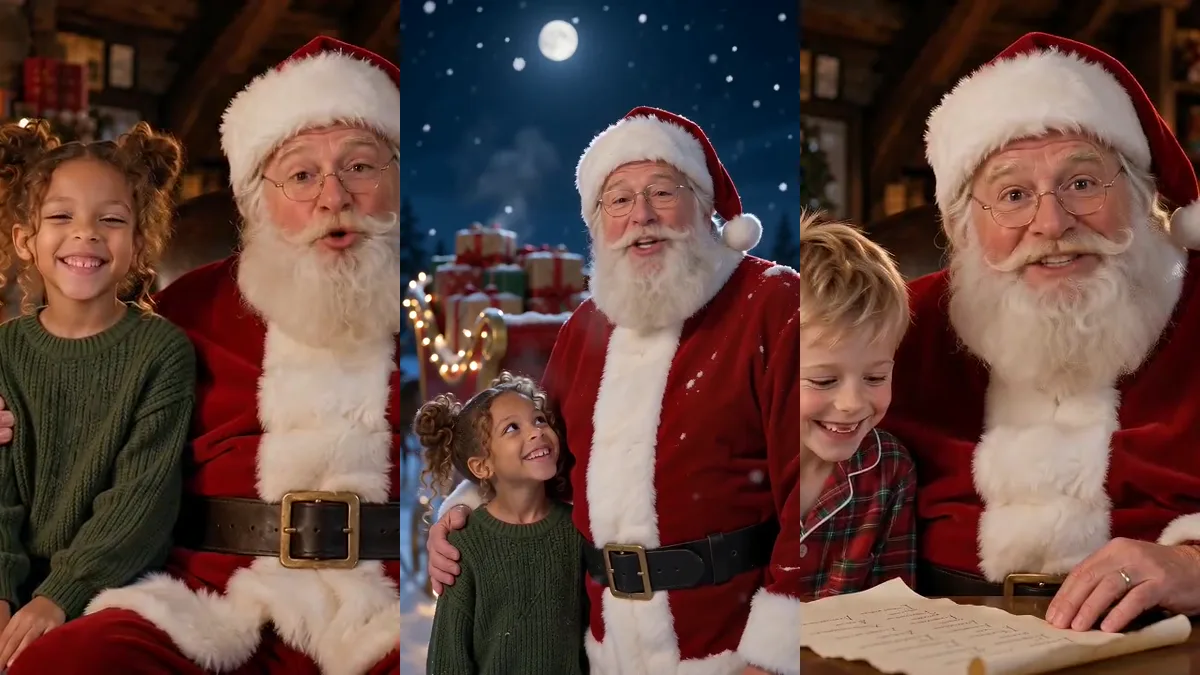
"Ho ho ho! Leo, I just checked my Nice List, and guess what? Your name is right here at the top!" That's Santa at his desk in the North Pole, with Leo standing right beside him. Here's how to make the same Santa video message for your own kid, with their name, their good deeds and, if you want, their face.
Quick answer: open our AI Santa video generator, type what Santa should say, and hit Create. Santa is already in the generator. Add a photo of your child if you want them in the video, and pick one of three scenes: By the Fireplace, Nice List or Snowy Sleigh. Santa says your message word for word, with his lips in sync, and you download the MP4. A 6-second Lite clip costs 14 credits; Standard and HD run 10 or 15 seconds in 16:9 or 9:16. Most clips are ready in one to five minutes. Eligible new accounts may get 15 free credits, enough for one Lite clip.
How to make a Santa video message, step by step
Pick a scene and add your child's photo (optional)
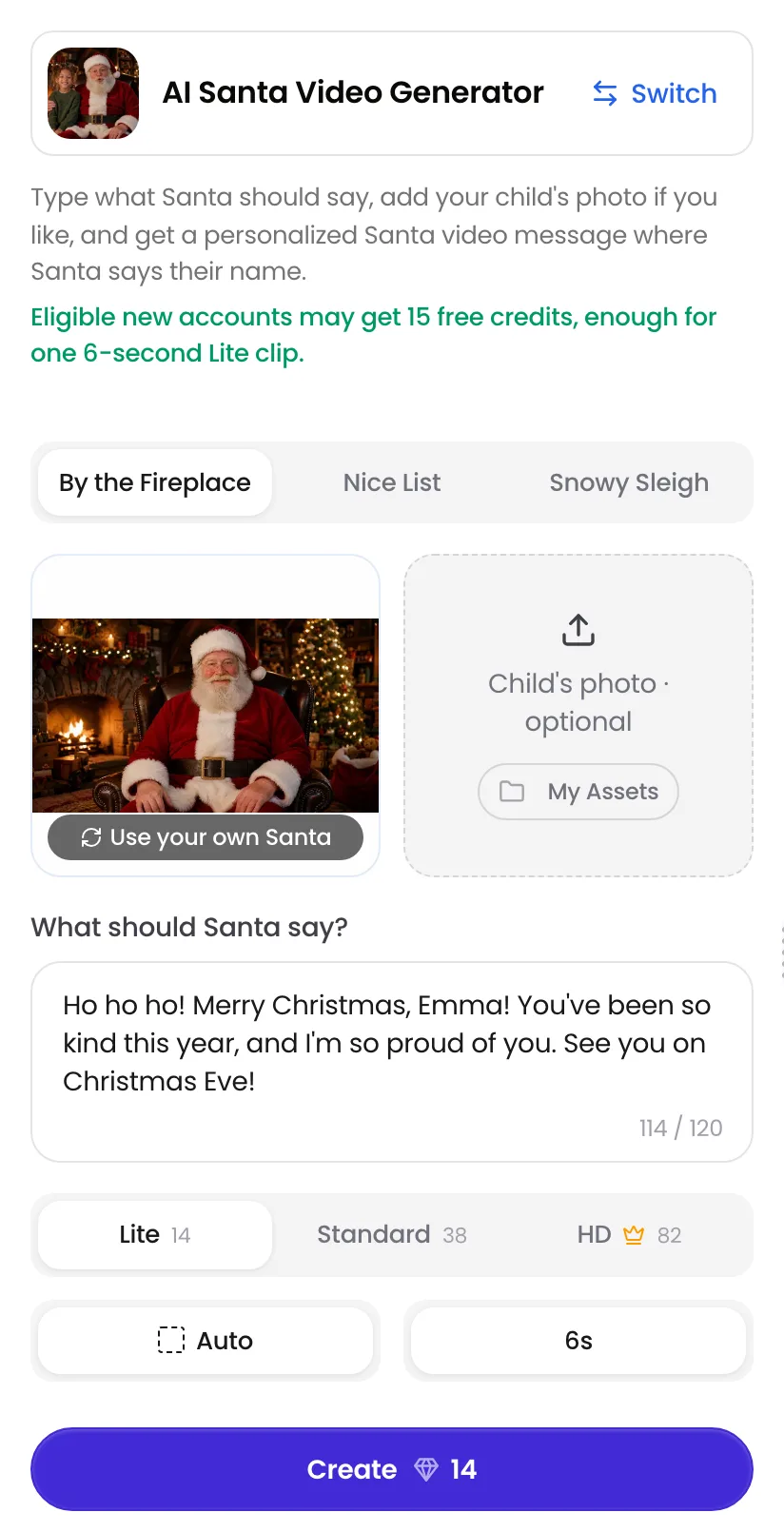
Santa is already in the first slot, so you can skip photos completely. To put your child in the video, upload one photo into Child's photo. Then choose a scene: By the Fireplace (Santa in his armchair), Nice List (Santa at his desk with the list and a quill) or Snowy Sleigh (Santa by his sleigh on a snowy night). Want your own Santa, like Grandpa in a Santa suit? Tap Use your own Santa and upload his photo instead.
Type what Santa should say
Write the message in What should Santa say? Put your child's name in it, plus one thing they did this year. Santa says exactly what you type, so the length depends on the clip:
- Lite (14 credits): 480p, 6 seconds, about 20 words. The one to try for free.
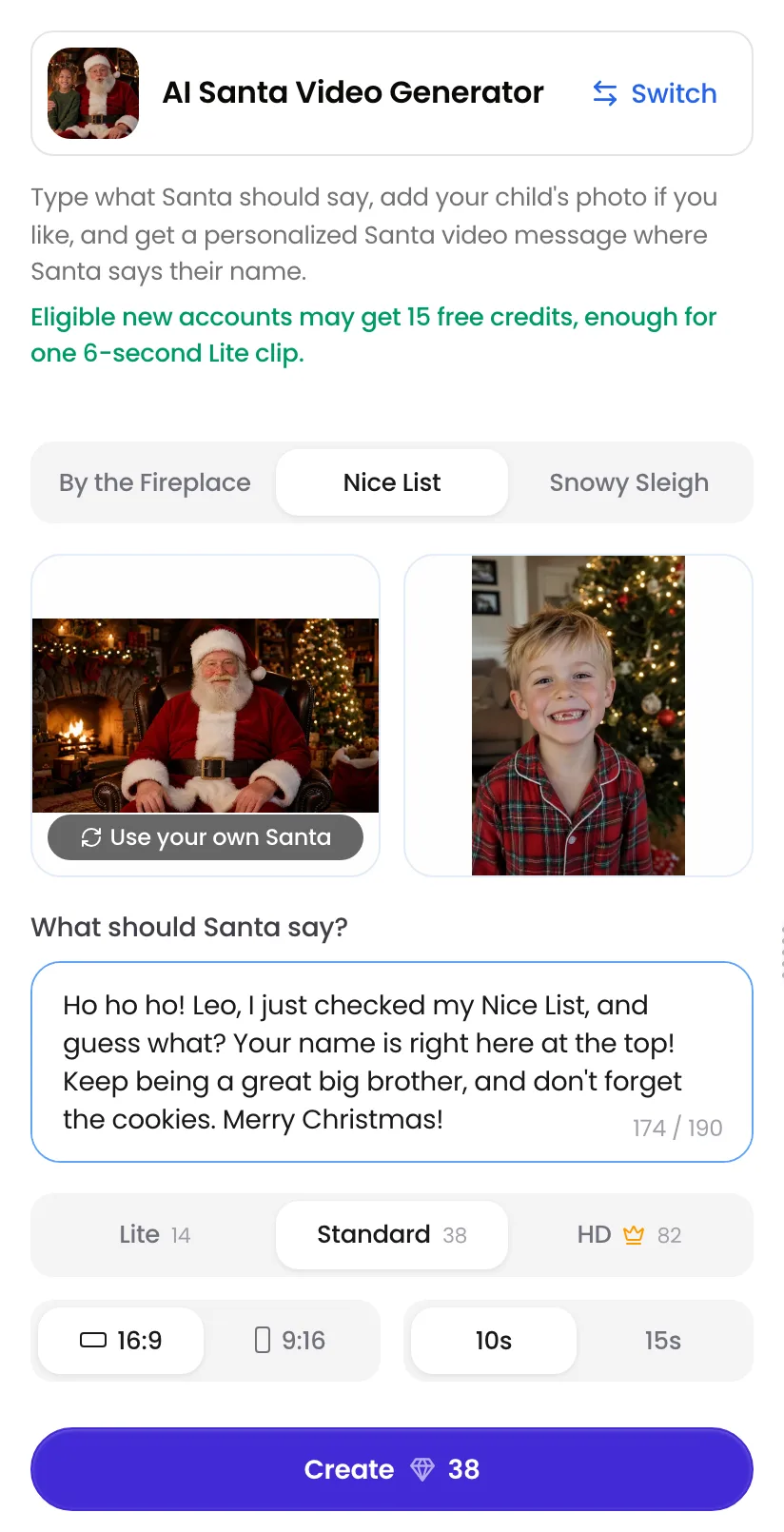
- Standard (38 / 57 credits for 10 / 15 seconds): 480p, about 30 or 45 words.
- HD (82 / 123 credits): 720p, the sharpest. Needs Starter or a one-time credit pack.
The box stops you at the length Santa can say in the time you picked.
Create and download
Pick 16:9 for a TV or laptop, or 9:16 for phones, then hit Create. You can leave the page while it renders; the video shows up in your History. Download the MP4 and send it by text, WhatsApp or email, or play it on the TV on Christmas morning.
Santa video message examples
A message for the whole family from Santa's sleigh, with no child photo, and Emma by the fireplace. Both are HD, 10 seconds.
The sleigh message was "Merry Christmas to the Johnson family! The reindeer are ready, the sleigh is packed, and I'm on my way." Emma's was "The elves told me you've been so kind to your little brother this year. I'm so proud of you."
How it works
The video model makes Santa's picture, voice and lip movements together, in one render. There is no robot text-to-speech voice pasted on top and no separate lip-sync step, which is why his mouth matches the words. Santa always has a deep, warm, jolly voice, but each clip is made fresh, so his exact voice and gestures change a little every time. If you don't love one, make it again.
Write a message your kid will believe
The message is what makes a child's eyes go wide. A few things that work:
- Use their name early. "Ho ho ho! Merry Christmas, Mia!" in the first line.
- Mention one real thing. A lost tooth, a new bike, being kind to a little brother. Santa knowing it is the whole magic.
- Give one gentle nudge. "Go to bed early on Christmas Eve" or "Leave a cookie out for Rudolph."
- End with Christmas Eve. "See you on Christmas Eve!" is the line kids repeat afterwards.
Short and specific beats long and general. If an unusual name comes out wrong, spell it the way it sounds ("Kai-lee" for Kylie) and try again. You'll find more ready-made lines in the Santa video message ideas on the generator page.
Which photo to use
- One child per photo. A sibling shot makes it unclear who should stand next to Santa, and faces can blend.
- Front-facing, good light, from the waist up. Santa puts a hand on your child's shoulder, so the AI does better when it can see the face and the upper body.
- What they wear is what they'll wear. Christmas pajamas or a holiday sweater look great next to Santa.
- No photo works too. Leave the slot empty for a classic message from Santa alone, like the sleigh example above.
Only use photos of your own family, or of people who agreed to it.
Make one for phones too
Pick 9:16 and the same scene comes out as a tall video for a phone screen, a family group chat or Stories.
Why the message is short
A clip here is 6, 10 or 15 seconds, so Santa says about 20, 30 or 45 words. That keeps it to one warm, personal message instead of a long speech, which is also what a five-year-old will actually sit through. If you have more to say, make two clips: one with the name and the good news, one with the Christmas Eve reminder.
Common mistakes
- Leaving the name out → Santa sounds like he's talking to everyone. Put the name in the first line.
- Writing a paragraph for a Lite clip → it won't fit in 6 seconds. Keep it to about 20 words, or switch to Standard.
- Using a group photo → the AI can't tell which child to put next to Santa.
- A tiny or dark photo → your child's face looks less like them.
- Expecting the same Santa voice twice → each clip is new. Keep the take you like best.
FAQ
Make your Santa video message
Type the message, add a photo if you like, and Santa says it by name. Lite is free to try with the 15 credits new accounts may get.
Make my Santa video →