Background Remover for GIF: Keep Frames and Motion Clean
ImagesArt.ai
11/10/2026
The most repeated advice for a background remover for GIF is to click one button, knock out the flat color, and download a transparent file. That advice fails on the edges even when the mask is right. A GIF pixel is either fully visible or fully invisible, and each frame holds at most 256 colors. Hair, glass, smoke, and drop shadows need partial opacity, so the encoder has to guess a hard edge and a single fringe color. The cutout can be correct and the file can still look broken.
Creators, marketers, and small teams hit this on Reels, ads, and product demos. The loop is the asset, not the still frame that looked clean in the preview. Fix the format choice first, then the frames, then the playback bugs.
Table of Contents
- Pick the Format That Holds Your Edges
- How to Remove the Background Frame by Frame
- Fix Halos, Flicker and Ghosting in Your GIF
- Use the Cleaned GIF in Reels, Ads and Product Demos
- Pick the Export That Fits Your Channel
Pick the Format That Holds Your Edges
GIF transparency is binary. Each pixel is fully visible or fully transparent, with no partial alpha in between.
The GIF89a specification documents how that works. A Graphic Control Extension carries a Transparency Flag and a Transparency Index. When a pixel uses that indexed color, the display pixel is not modified, so that palette entry reads as transparent. It is not a continuous alpha channel. A remover has to pick an edge color and keep or discard each pixel. Hair, fur, smoke, glass, motion-blurred edges, and semi-transparent shadows cannot fade smoothly. Timing is stored in hundredths of a second, and every frame in the sequence has to be treated the same way or the subject flickers.
GIF still earns its place. It plays in old chat apps, email clients, and upload forms that refuse newer animation. You trade edge quality for that reach. If the destination will only take a GIF, plan for a fringe and pre-blend the edge against the exact background it will sit on.
What each format can actually hold
| Format | Transparency | Colors per frame | Best use |
|---|---|---|---|
| GIF | Binary, fully visible or fully transparent | Up to 256 per frame | Legacy uploads and anything that must be a GIF |
| Animated WebP | 8-bit alpha, soft edges | 24-bit | Web pages and apps with soft hair, shadows and glass |
| APNG | Full alpha, soft edges | 24-bit (PNG) | Highest-fidelity animated transparency where file size matters less |
| PNG frame sequence or alpha video | Full alpha per frame | 24-bit | Editing master, encoded once into the final format |
Animated WebP keeps 24-bit color and an 8-bit alpha channel, so soft edges survive on web pages and in apps that accept it. APNG keeps full alpha at PNG quality. Files are larger, which is the right trade when a logo or product edge has to stay clean. A PNG frame sequence or an alpha video is the editing master. You keep every frame transparent while you work, then encode once. The ezgif transparency guide is blunt about the workflow: remove the background from every frame, keep transparency in PNG files while you edit, preview over the actual Reel, ad, or site background, and only then encode the GIF. A colored fringe is what makes a product demo or logo look unfinished.
A still-image background remover is a useful comparison, because a single photo can keep a soft matte in PNG. An animated file cannot, once you force it through a 256-color palette and one transparent index.
Match the edge to the format
Hair and fur. Fine strands become hard-edged sticks. The silhouette looks thick, or it breaks into dots. GIF is a poor home for that. WebP or APNG holds the soft strands.
Glass and semi-transparent packaging. The bottle either turns solid or still shows the old backdrop through the plastic. Partial opacity is the only honest result, so keep an alpha format.
Smoke and motion blur. These become stair-step shapes. Reduce the blur in the source, or crop tighter so fewer half-transparent pixels have to survive. If the blur is the point of the shot, do not deliver GIF.
Drop shadows. You get a hard band, a smear, or nothing. Render the shadow as its own layer, or leave it in the destination video instead of baking it into the GIF.
Logos, icons, and flat illustration. Solid colors survive the palette. This is the easy case, and GIF is often the right delivery file.
Practical rule: Hard edges work in GIF. Soft edges need WebP or APNG. If the file must be a GIF, pre-blend the edges against the background it will sit on, and expect a fringe on any other background.
Answer two questions before you cut anything. Which formats does the destination accept? Does the subject have soft edges a GIF cannot hold? If the answer to the second question is yes, and the destination allows WebP or APNG, stop treating a transparent GIF as the goal.
How to Remove the Background Frame by Frame
Work on decoded frames, not a single still, because the loop is the product. A changed delay makes the motion faster or slower even when every mask is perfect. A skipped preview hides a halo until a client opens the file.
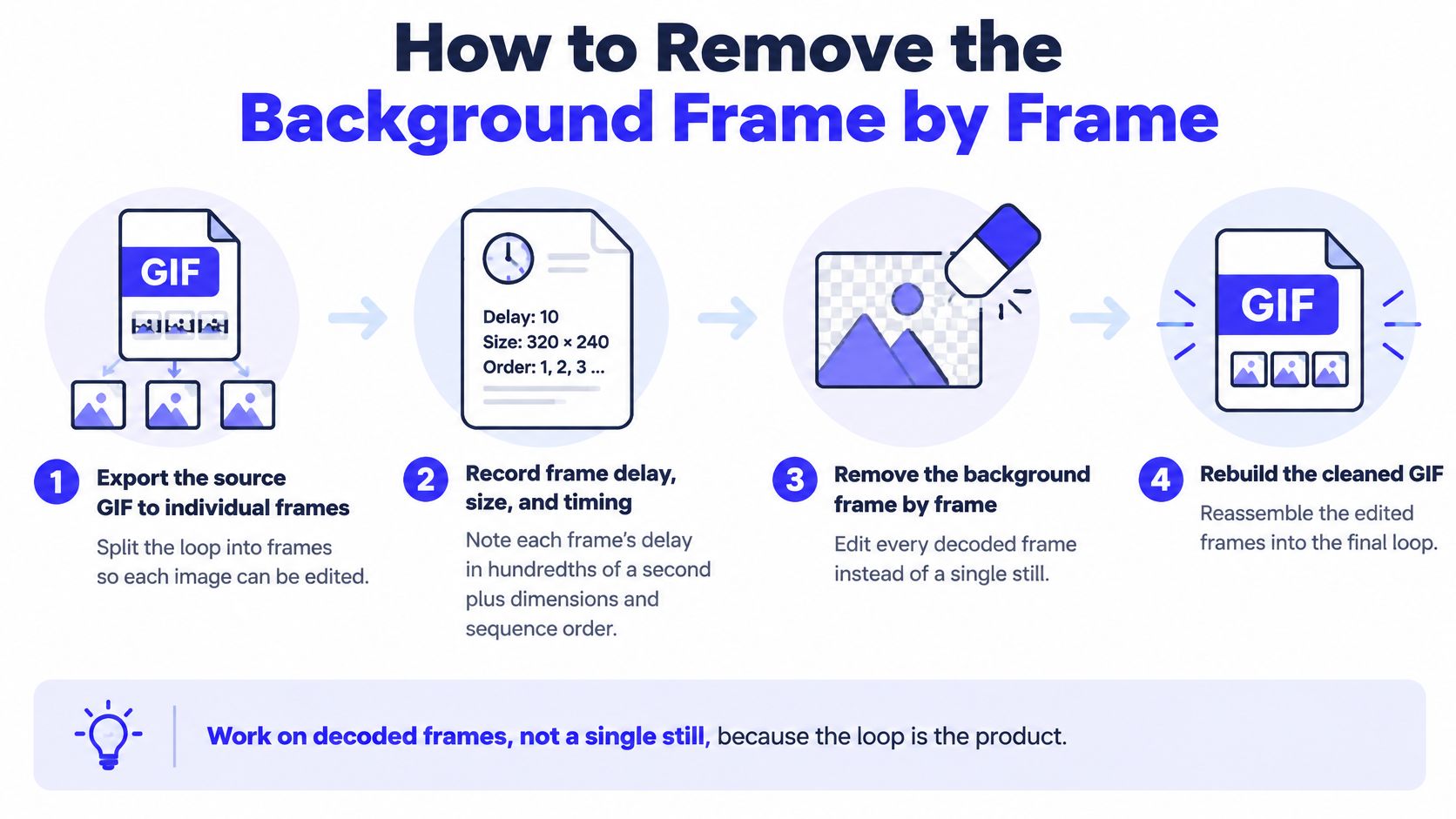
As Pixotter's GIF explainer notes, each frame stores its own delay in hundredths of a second, plus position and disposal information. Rebuild from uniformly spaced stills and the action drifts, which is painful on a short ad where a few frames change the reveal.
- Export the source and write down the timing. Split the GIF into individual frames. Record each delay in hundredths of a second, the frame size, and the position. You need those numbers later, because export tools rewrite them without warning.
- Cut every frame to transparent PNG. Run a background remover on each frame, or on a short batch. Save PNG so the palette is not reduced yet. Palette reduction is an export decision, not an editing one.
- Preview on two flats, then scrub the loop. Place each cutout on a flat light background and a flat dark background. Play the whole loop at normal speed. A subject that drops out, or a mask that jumps, shows up here and almost nowhere else.
- Fix only the failing stretch. Refine the mask on those frames. Use the neighboring frames as the reference for hair and motion blur, so you don't invent a new edge that pulses.
- Recompose with the original disposal. Put frames back in order and apply each frame's disposal method. Cleared areas should not reveal earlier frames. Wrong disposal is how trails appear even after a clean cut.
- Encode, then compare the loop to the source. Check total duration, the loop point, and where the subject sits. A good result keeps the subject in place, stays within one frame of the source duration, and has no seam where the loop restarts.
To replace the background instead of removing it, put the new layer behind the cleaned frames. Keep the same order, size, and delays. Review each frame for a colored fringe against the new color before you encode. A fringe that vanished on the old backdrop often shows up on a new one.
Fix Halos, Flicker and Ghosting in Your GIF
Most failures come from three places: how each frame's mask changed, the palette rules, and how frames were stacked. A colored fringe is the one you can spot in a single glance, so start there.
A halo means edge pixels still carry color from the original background. Check every frame, not the hero frame. Put the cleaned loop on light, dark, and saturated backgrounds. A halo that disappears on white often returns on navy or on a brand red.
| Symptom | Likely cause | Fix |
|---|---|---|
| Light or dark halo around the subject | Edge pixels keep color from the original background | Re-cut the edge, then preview on light and dark backgrounds |
| Jagged or stair-step edges | Threshold too strict or palette reduced too far | Soften the matte, then export at the source frame size |
| Edges shimmer or pulse during playback | Each frame's mask changed independently | Add temporal smoothing or keyframe guidance to the affected frames |
| Old frames show through as trails | Disposal method does not match the frame change | Set disposal per frame, then test in two browsers |
| Motion runs faster or slower | Frame delays changed during export | Restore source delays in hundredths of a second and compare total duration |
| Subject flickers on a flat background | Dithering shifts pixels between frames | Use one shared palette across the clip, or export animated WebP instead |
Flicker is a mask problem, not a color problem. Inspect the difference between adjacent output frames. Edge pulsing, mask holes, and sudden matte changes during fast motion mean the clip needs temporal smoothing or keyframe guidance. Painting a new background color will not stop it.
Ghosting is usually disposal. The FFmpeg developer notes on GIF disposal list four values: unspecified, do not dispose, restore to background, and restore to previous. These tell the decoder what to do with the current frame before the next one is drawn. "Do not dispose" leaves the frame in place. "Restore to background" clears the occupied area. Full scenes want a clear. Frames that only store changed regions often want the previous pixels left alone. Process composited frames, not isolated thumbnails, and test in two browsers or social previews before you re-encode.
Reject any clip that shows edge pulsing, mask holes, or abrupt matte changes. Fix the short problem stretch. Don't rebuild the whole animation because three frames drifted.
For timing, compare total duration and the loop point with the source. A few frames of drift can change the reveal in a short ad even when the masks look finished.
Use the Cleaned GIF in Reels, Ads and Product Demos
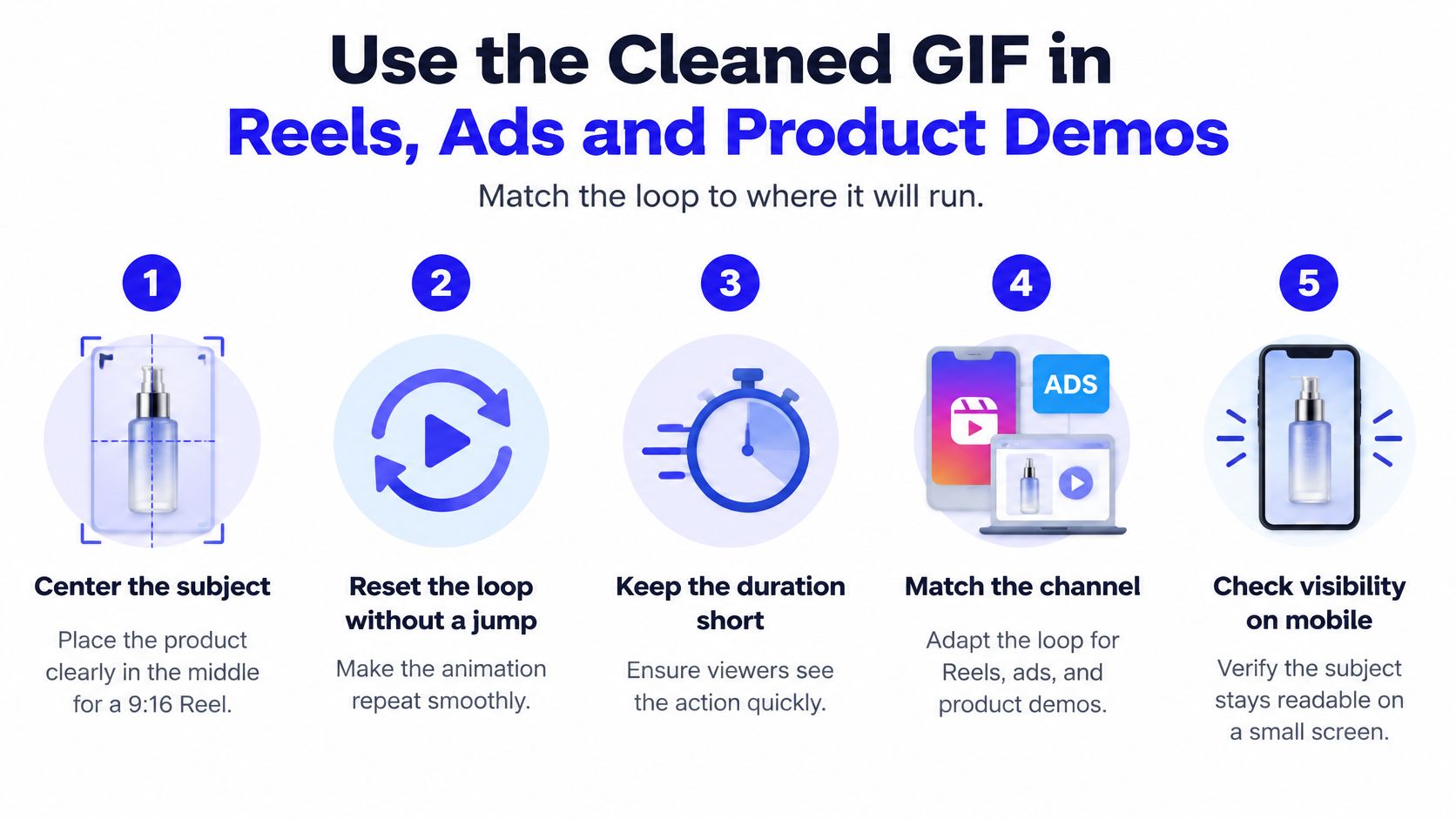
Match the loop to where it will run. A 9:16 product demo needs the subject near the center, a restart with no jump, and a duration short enough that someone sees the action again before they scroll. Video dimensions for Instagram are worth checking before you lock a canvas, because a square export cropped into a Reel hides the edges you just cleaned.
Ads usually composite the cleaned loop over a video background. Preview on that footage, not on a flat test color. A fringe that is invisible on gray shows up on a moving street or a product table.
Website heroes and portfolio pages have a different constraint. Guidance on animated images points out that looping motion can create attention or vestibular problems, and accessibility guidance commonly calls for a pause or stop control when motion lasts more than five seconds. A static poster frame, grabbed at the moment the product is clearest, gives readers who prefer reduced motion a fallback. An indefinite loop that also flickers is unusable even if the cutout was technically correct. Small mask changes between frames alter hair, boundaries, and transparent pixels, and a limited palette amplifies them through quantization and dithering. Review at normal speed, check fast motion and brief occlusion, and hand-fix the short bad stretch.
Keep the source frame size. Upscaling a small GIF grows every edge error. For a 9:16 Reel, place the loop on a 1080 by 1920 canvas and keep the key action inside the first few seconds. Trim to the shortest sequence that shows the action. Frame count and frame size drive file size, and a long loop is tiring to watch.
If you need a new motion pass rather than a cleaned loop, an AI GIF generator is a separate path. Don't use it to paper over a bad matte on footage you already have.
Before you publish, run this list and name the channel next to each check:
- The loop restarts without a visible seam. Required for Reels and any autoplay ad.
- The subject stays in place across frames. Required everywhere, and especially on a product demo.
- Total duration matches the source within one frame. Required for ads where the reveal is timed.
- Edges hold on the destination background. Required on the ad plate and the page color.
- A static poster frame exists where a page needs one. Required for site heroes and portfolios.
Pick the Export That Fits Your Channel
Choose the channel first, then the file. A GIF-only upload gets a GIF pre-blended to the target background, and you keep the transparent PNG master so you can re-export later. A website or web app gets animated WebP, with APNG as the fallback when a browser or CMS still wants PNG-style frames. A video edit for Reels or ads gets a PNG sequence or an alpha video, and the editor encodes once.
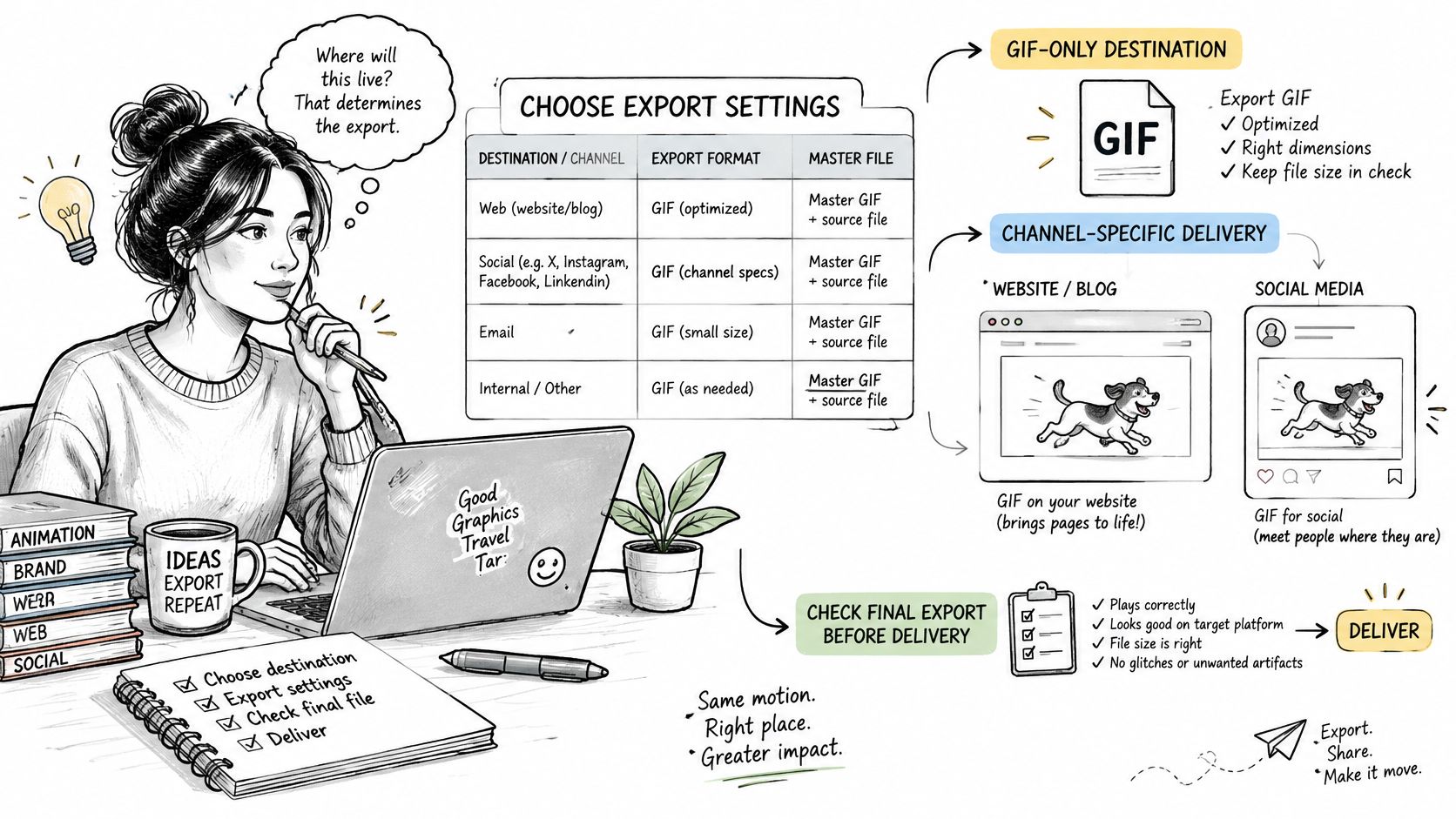
The same split shows up in publishing specs. Video upload guidelines for publishing integrations are a useful cross-check when an ad platform wants a video file and a chat app still wants a GIF. Don't send one encode to both.
Three actions before you ship
- Run the delivery checks on the actual plate. No visible loop seam. The subject stays put. Duration is within one frame of the source. Edges hold on the destination background. A static poster exists if the page needs one.
- Save the transparent master with its delays and disposal settings. That master is what you re-export when the brand color changes. The GIF is a delivery copy.
- Export a test on the actual background and watch it at normal speed. The first clean frame is not the test. The loop is.
For moving footage rather than a finished GIF, a background remover for video keeps a real alpha channel through the edit, which is the right master when the final encode will be a Reel or an ad, not a chat sticker.
Our image tools sit next to that video work when you need stills in the same account: AI Image Generator, AI Image Editor, AI Background Remover, AI Clothes Changer, AI Pose Generator, and Virtual Staging AI. New accounts receive 15 free credits, with credits pricing on the generation button before you submit, so a short test costs nothing up front. Output can run from quick 360p drafts up to 4K when the plan allows it. Text/Image to Video animates one photo or a written prompt. Start-End Frame builds a transition between two images. Reference accepts up to seven images when a product or person has to stay consistent. Multi-model access means you can compare treatments without leaving the workspace.
A short walkthrough of frame-level cleanup is worth watching before you lock an export, especially if disposal and timing are new to the team.
I would start with the cheapest fix: pick the format the channel accepts, keep a PNG master, and only then spend time on a stubborn edge. A perfect mask inside the wrong container still looks wrong.
ImagesArt AI brings background removal, image editing, and short video generation into one account, including Text/Image to Video, Start-End Frame, and Reference with up to seven images. If your GIF edges keep failing after a clean cut, build the transparent master there and export the format the channel will play. Visit ImagesArt AI and try a short loop with the free credits before you commit a full ad cut.