10 Background Remover Video Free Tools Compared for 2026
ImagesArt.ai
11/6/2026
You have a talking-head clip with a messy hallway behind you and a Reel due by Friday. Removing the hallway is straightforward. Finding a free tool that also keeps your voice, exports the right format, and doesn't add a watermark takes more care.
A search for background remover video free brings up several different offers. Some tools process footage locally without an account. Others provide a limited trial, export silent clips, or put background removal behind a paid plan despite offering a free editor.
The useful comparison is the file you can download, not the preview you see before checkout. A clean cutout isn't much help if your editor won't open it. Likewise, a silent transparent clip won't finish a talking-head ad unless you can restore the original audio.
Practical rule: Export a sample before editing the full clip. Check its background, sound, watermark, and compatibility in the app where you'll finish the job.
The options below suit different tasks, from private presenter footage to product demonstrations and captioned social posts. There's no universal winner, and an unfamiliar local tool can be a better fit than a familiar paid editor. If you're comparing a broader production stack, use this guide to find the right AI tools, then choose your remover around the next deliverable rather than its feature count.
Table of Contents
- 1. Cutmallow
- 2. Fuzz Puppy
- 3. Mastershot
- 4. unscreen.io
- 5. CapCut
- 6. Canva
- 7. VEED
- 8. Picsart
- 9. Fliki
- 10. Adobe Express
- Free video background removers at a glance
- Pick the Free Workflow That Fits Your Next Clip
1. Cutmallow
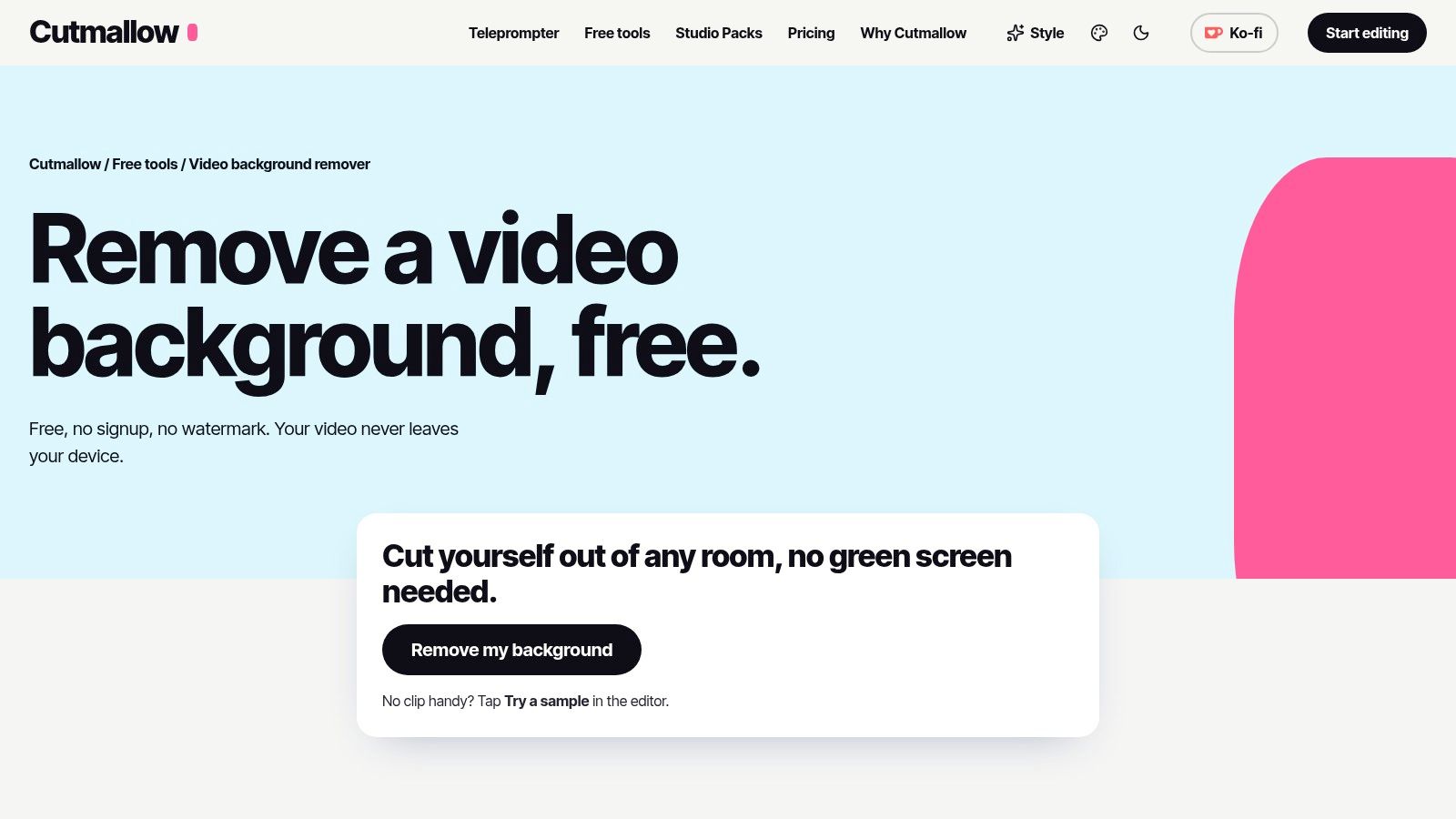
Your device does the processing, so a slow phone can become the bottleneck. In return, Cutmallow keeps footage on your device and doesn't require an upload, signup, or watermark.
It's a practical starting point for a presenter Reel with a distracting room behind the speaker. AI person segmentation handles the cutout, while optional green-screen keying provides another route when you've filmed against a suitable backdrop.
Best for a Private Presenter Reel
Cutmallow's video background remover is free with no stated usage charge and supports clips up to 15 minutes. Desktop and mobile browsers can use the editor, although finer hair-edge processing takes longer.
For a straightforward edit:
- Open the clip locally: Start with the trimmed take rather than unused footage.
- Choose the background treatment: Use blur for a natural presentation, or replace the room with a color, photo, or video.
- Inspect moving edges: Watch hair, shoulders, and fingers before exporting.
The main limitation is subject choice. Cutmallow is designed around a person, not a catalog of products or pets. Audio and final export settings deserve a sample check before you commit to a spoken deliverable.
Switch tools when you need reliable object isolation or a particular transparent delivery format. For a separate still-image task, use a photo background-removal workflow rather than treating a video preview as a finished product image.
2. Fuzz Puppy
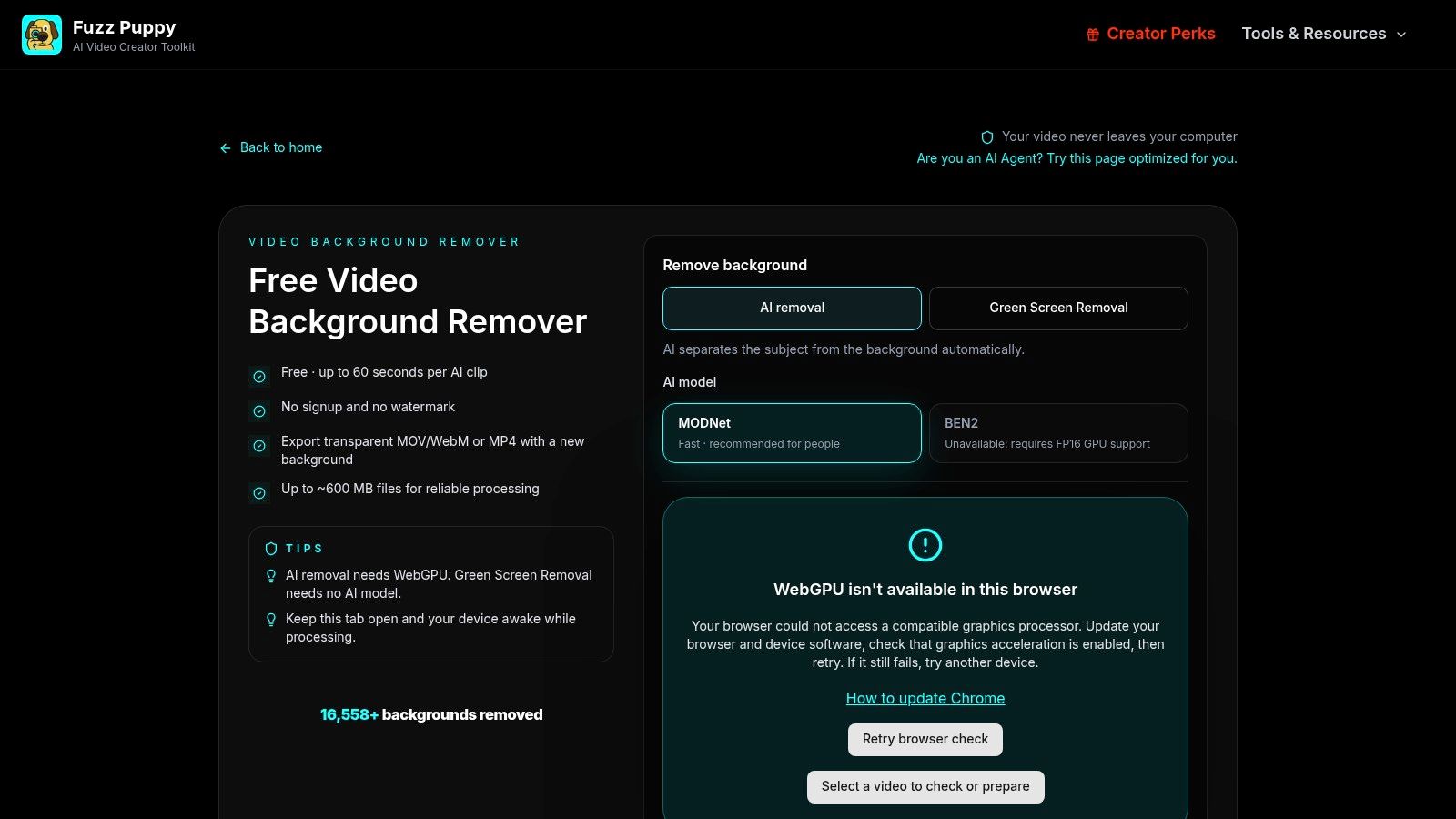
Browser compatibility comes before export flexibility. Fuzz Puppy's AI removal requires compatible WebGPU support, so test the browser before preparing a full project.
Fuzz Puppy describes its remover as free and unlimited, without signup or watermarks. Processing stays on your device, and its MODNet and BEN2 options support a broader subject range, including people, products, and pets.
Best for a Product Cutout
A rotating package or pet-accessory demonstration is a better reason to try Fuzz Puppy than another people-only remover. It offers transparent WebM or MOV output, plus MP4 when you've already chosen a replacement background.
- For further compositing: Export transparency and import the sample into your destination editor immediately.
- For a finished social post: Add the replacement scene first, then export MP4.
- For green-screen footage: Try the dedicated keying mode instead of assuming AI segmentation will look cleaner.
Transparent output and ordinary video output aren't interchangeable. A technical explanation of video transparency distinguishes ordinary MP4 delivery from alpha-capable workflows such as WebM with VP9 alpha or ProRes 4444 MOV.
Local processing can be slow, and device capacity still limits practical file handling. Some mobile features also have shorter clip limits. Switch to a different browser or tool if WebGPU fails, and verify audio preservation rather than assuming every export path includes it.
3. Mastershot
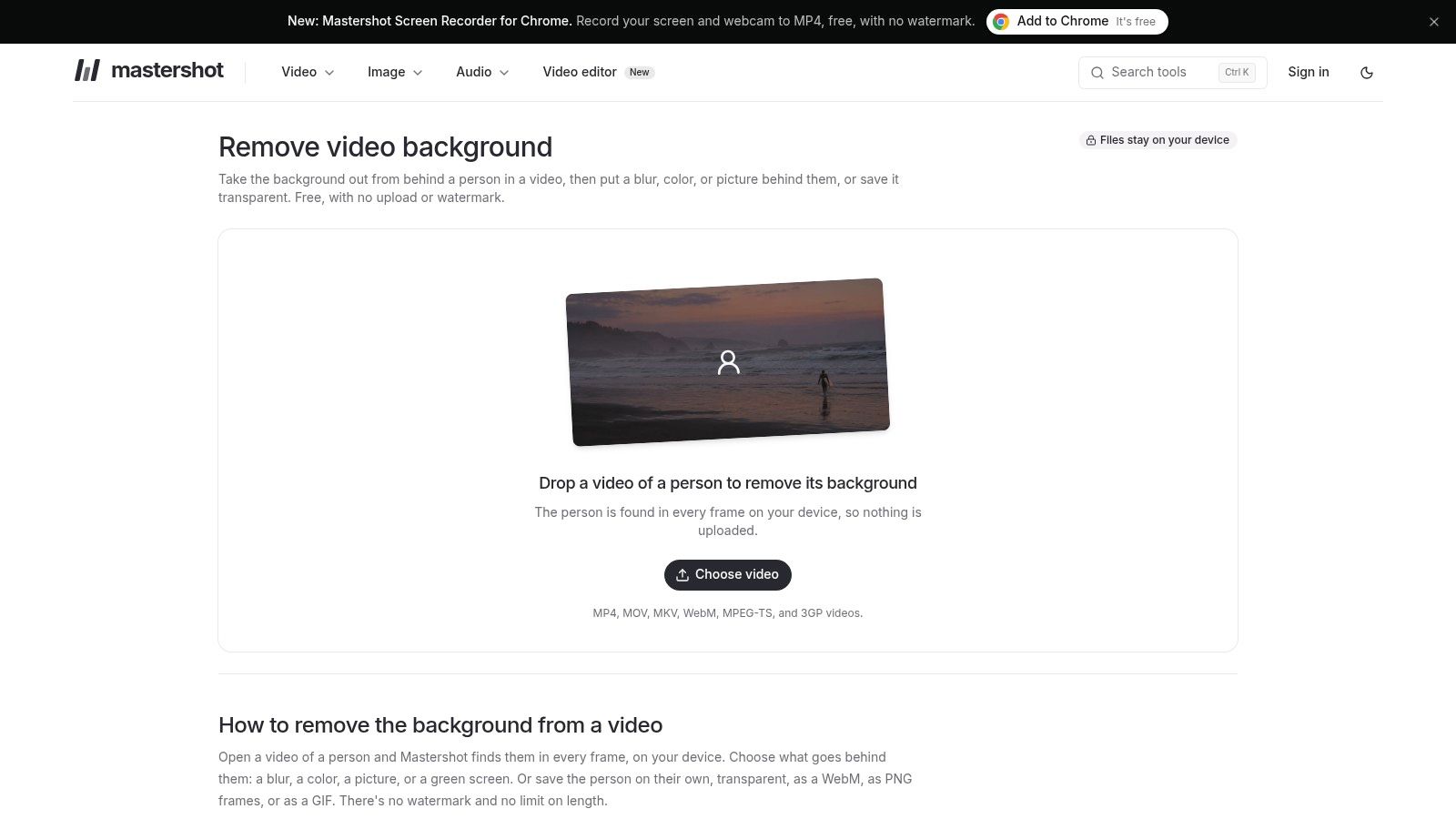
A transparent presenter clip is only useful if your next editor accepts it. Mastershot offers several handoff formats, but compatibility still needs testing.
Mastershot's remover runs locally without an account, upload, or watermark, and lists no stated duration limit. It focuses on people and offers blur, color, image, or transparent backgrounds.
Its export options include MP4, transparent WebM, PNG-frame ZIP, and GIF. For spoken content, it can preserve audio in MP4 and transparent WebM.
Best for a Talking-Head Overlay
Say you're placing a presenter beside a screen recording. Remove the room, export transparent WebM with sound, and import that result above the tutorial footage.
Before processing the complete take:
- Check the destination editor: Confirm that it displays transparency rather than a solid rectangle.
- Check synchronization: Compare the speaker's mouth movement with the exported audio.
- Check subject scale: Small people in busy wide shots can produce rougher boundaries.
Keep a copy of the original recording. A transparent cutout is an editing asset, not a replacement for your source footage.
Mastershot is less suitable for products, pets, or isolated objects. PNG frames can help in specialist workflows, but they add assembly work; GIF isn't a substitute for a spoken video.
Switch tools when your subject isn't a person or your editor rejects transparent WebM. If your final background is already decided, compositing before MP4 export can avoid an unnecessary transparency handoff.
4. unscreen.io
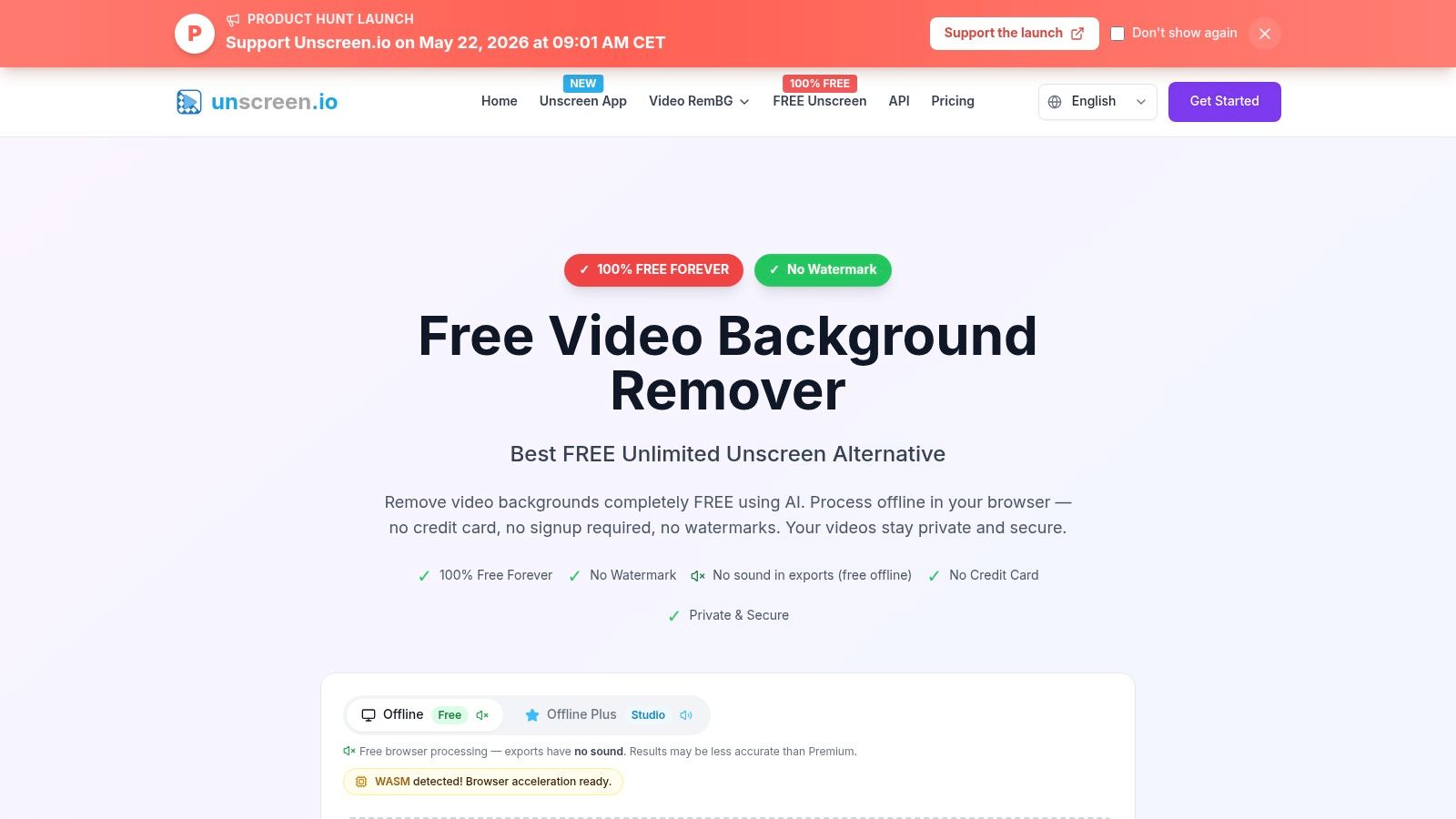
The free export has no sound. That makes unscreen.io a poor first choice for a finished interview, but a reasonable candidate for a silent visual layer.
unscreen.io's free remover processes footage locally, requires no signup or credit card, and exports without a watermark. This is unscreen.io, not the former Unscreen.com service.
Best for a Silent Social Overlay
Use it for a gesturing presenter placed over a title card, a visual reaction layered onto a tutorial, or footage that will receive music later. The free output is WebM, so the destination editor must support that workflow.
A sensible sequence is to trim your source, run removal, download the WebM, and test it in the final composition. Don't spend time arranging captions until you know that import works.
- Privacy trade-off: Free-mode processing stays on the device, but speed depends on that device.
- Export trade-off: Watermark-free output doesn't mean unrestricted formats or preserved audio.
- Upgrade trade-off: Paid options add cloud processing, sound, and additional export choices.
For an audio-led ad, use Mastershot or another workflow that explicitly preserves speech. You could restore the original soundtrack separately, but that introduces synchronization work.
The same distinction matters when choosing between image and video utilities: this background-remover comparison can help separate a still-image requirement from a moving-subject export requirement.
5. CapCut
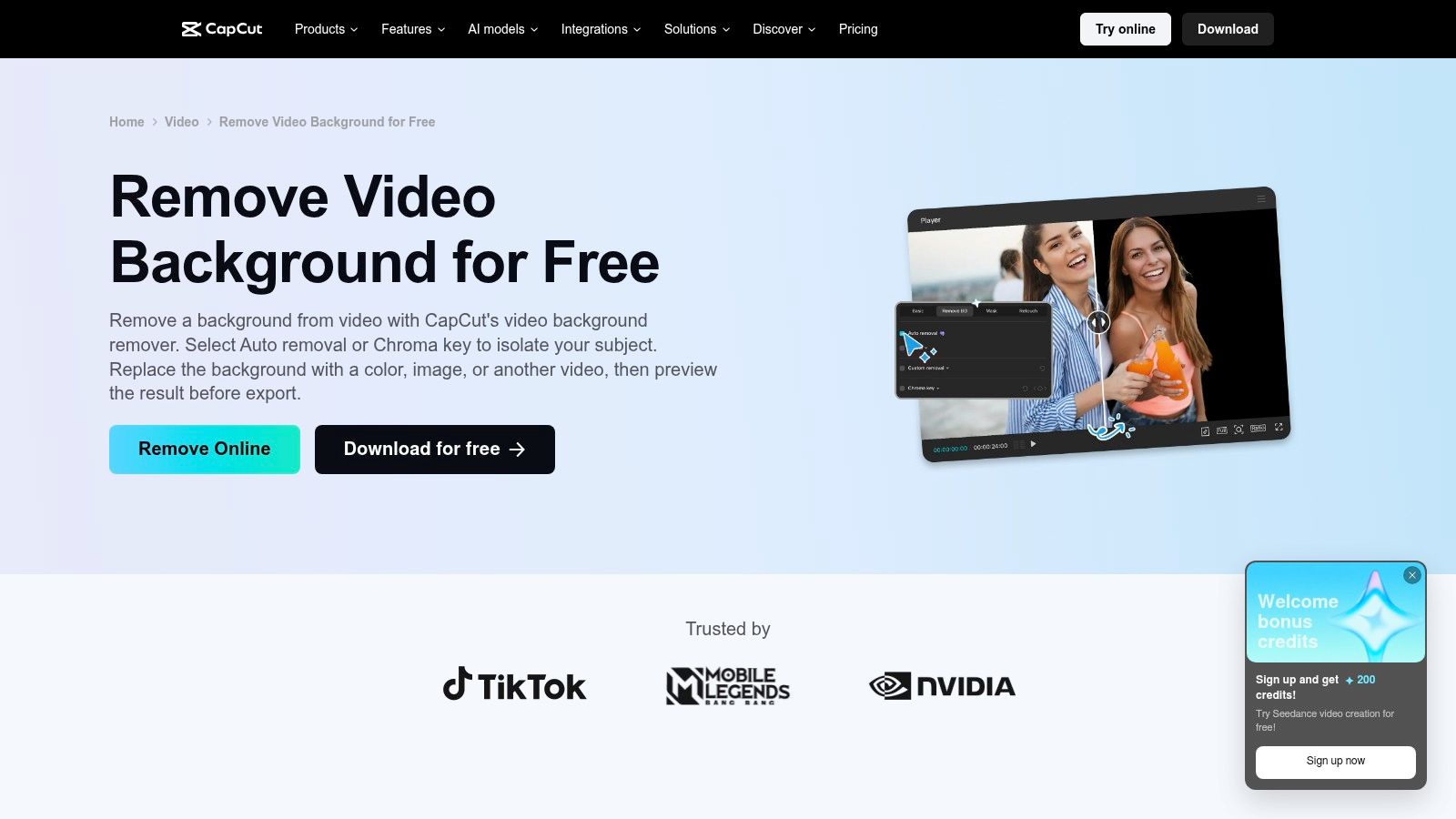
Feature access can vary across platforms, accounts, and regions. CapCut is convenient when removal is available in your workflow, but don't build a deadline around a button you haven't tested.
CapCut's background-remover page describes automatic subject recognition, background replacement, custom removal tools, and a web workflow with watermark-free export. Its online and desktop editing options also let you continue trimming, captioning, and styling the clip.
Best for a Captioned Reel
The benefit is avoiding a separate cutout-and-import stage. A creator can isolate the speaker, replace the room, add captions, and finish the social edit within the same product.
Start with an export rehearsal:
- Confirm access: Open the specific removal feature on the platform you intend to use.
- Inspect restrictions: Check whether the project includes paid effects or other restricted assets.
- Download a sample: Verify the watermark, sound, resolution, and actual output format.
An account may be required. Don't assume the web workflow is local merely because it runs in a browser, and don't assume mobile and desktop provide identical access.
For vertical advertising, compose before exporting: TikTok's cited in-feed specifications recommend 9:16, with a minimum of 540 × 960 pixels for that format.
Switch tools if removal is gated in your account or confidentiality requires an explicitly local process. CapCut's broader editing tools don't compensate for unavailable access to the feature you need.
6. Canva
Canva isn't a fully free standalone video remover. Its background-removal feature requires an eligible paid plan and an account, so it belongs here as a common free-editor misconception.
The advantage appears after removal. If you're already building a branded presentation, social layout, or campaign asset in Canva, keeping the cutout inside that design avoids another transfer between apps.
Best for an Existing Canva Design
Canva requires video clips to be under 10 minutes for removal, and mobile upload workflows have restrictions. Use a short source segment and verify the intended desktop or mobile route before assembling the design.
A useful presentation workflow is straightforward:
- Place the presenter: Position the video beside the slide's main message.
- Remove the room: Check shoulders and hair against the intended slide background.
- Build around the subject: Add headings and brand elements without covering meaningful gestures.
Don't treat access to a free Canva account as proof that this particular operation is included. Likewise, background removal alone doesn't establish the watermark, asset licensing, audio, or export conditions of the entire design.
Canva isn't the choice for footage that must remain on-device. Use a local remover first when that's a requirement, and only transfer approved material into a design environment.
Switch tools if you need no-cost removal rather than integrated layout work. If you already have an eligible plan, however, staying in the existing design can be more practical than generating a separate transparent asset.
7. VEED
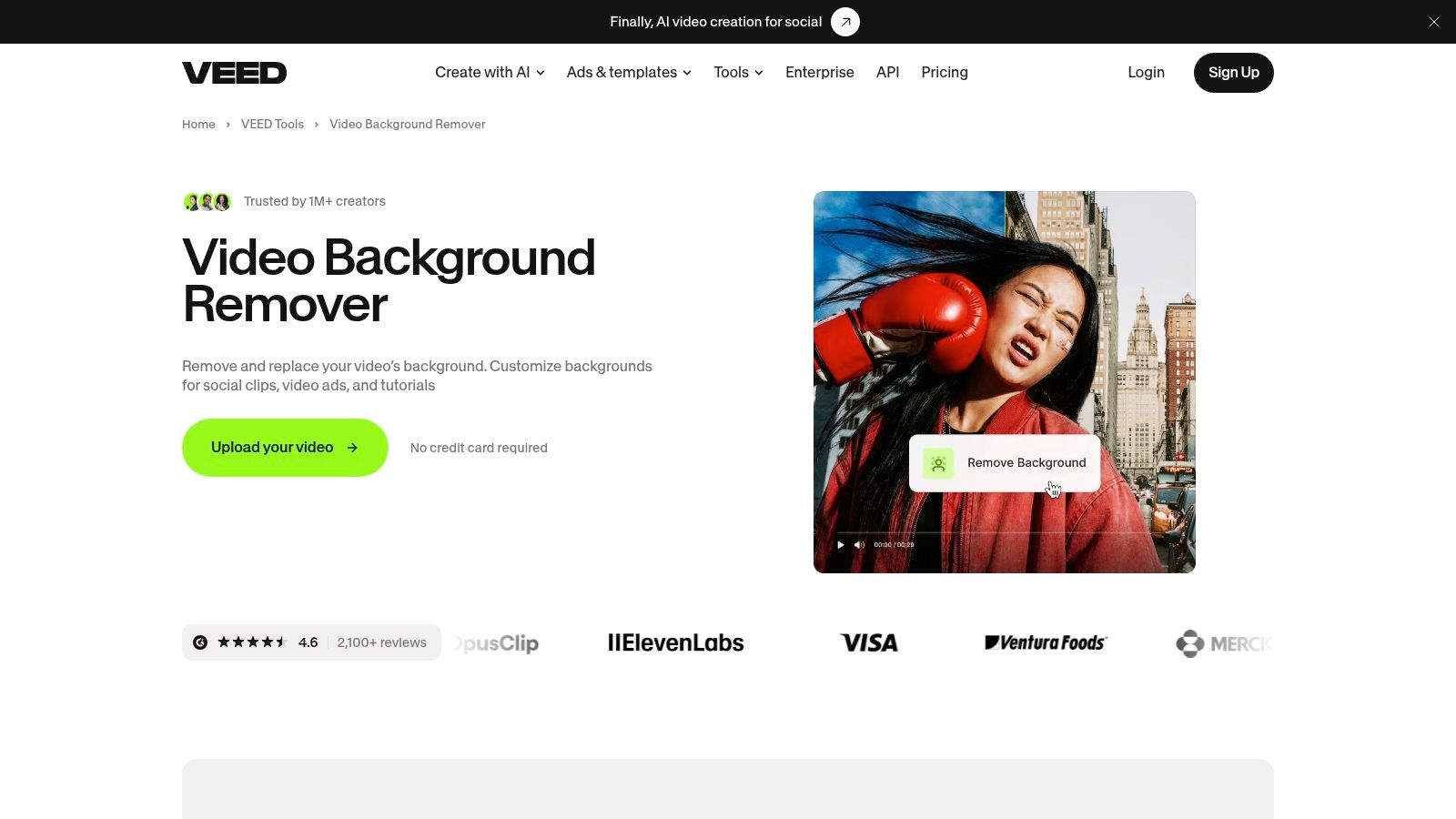
Free chroma keying and free AI removal are different offers. VEED's video background remover includes chroma keying on its free plan and one free AI-removal try, while continued AI removal requires a paid plan.
That distinction makes VEED more attractive for an existing green-screen tutorial than for ongoing no-cost segmentation. Its AI mode targets footage containing people.
Best for a Green-Screen Tutorial
With a solid-color background, use the color picker and sensitivity controls before trying automatic AI removal. Add the final image or color behind the speaker, then inspect the boundary around clothing and hands.
- Use chroma keying: Choose it when the source has a suitable solid-color background.
- Use the AI trial carefully: Test difficult motion, not just a motionless opening frame.
- Expect a finished composite: Exports aren't transparent and need a replacement or default background.
Delivery distinction: A finished background replacement is ready to watch. A transparent cutout is ready to composite. Choose the output your next step actually needs.
Check the free editor's current watermark, account, audio, and file conditions before finishing. The removal allowance alone doesn't settle those questions, and browser-based editing shouldn't be mistaken for a local-processing guarantee.
Switch tools when you need repeated free AI removal or a reusable transparent presenter. If you want to change a clip's broader appearance instead of merely replacing its background, a video-to-video AI workflow addresses a different task.
8. Picsart
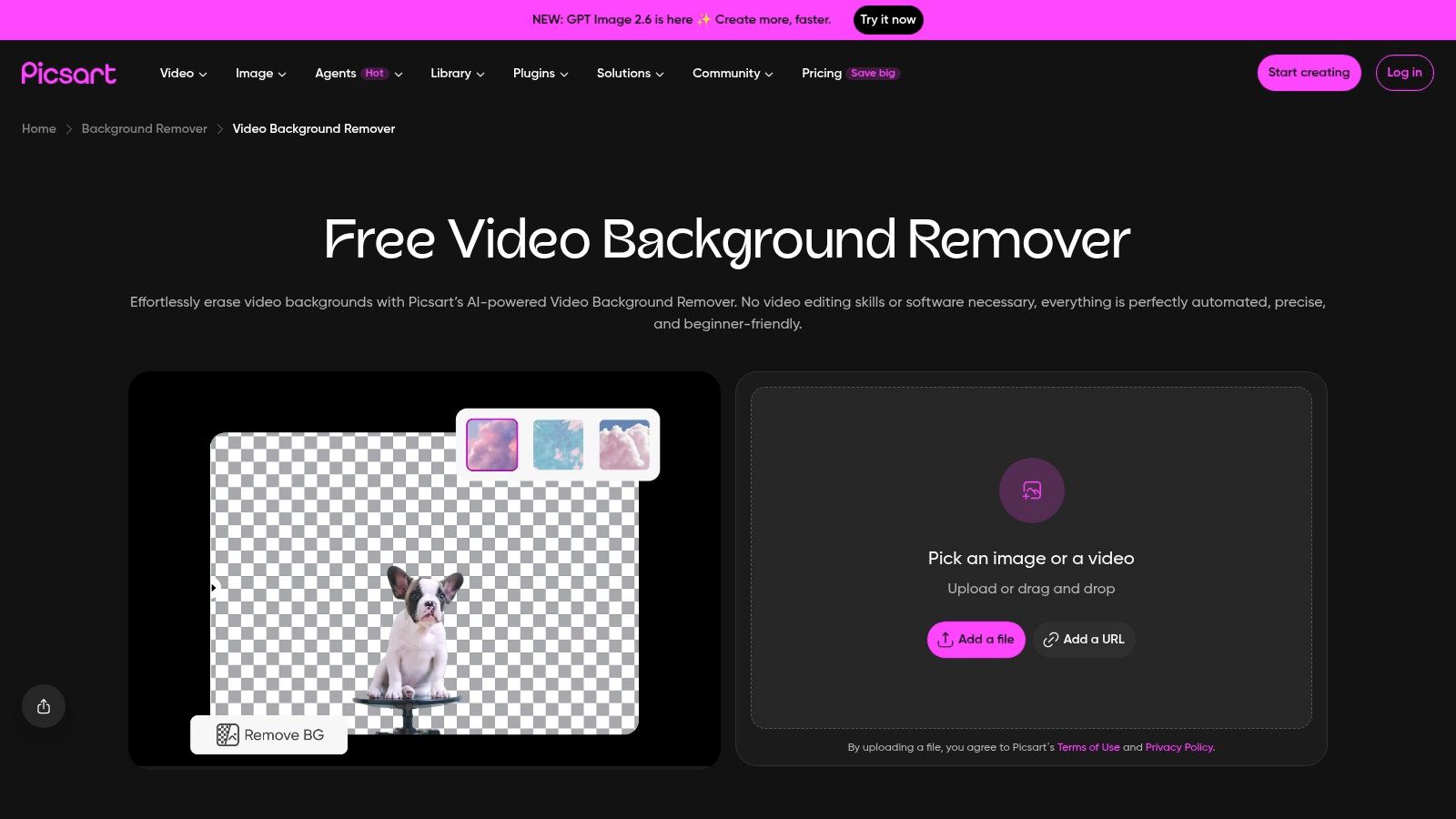
Your product demo arrives with a cluttered workshop behind the item, and the only budget left is free. Picsart can separate the subject, swap in a color or custom visual, and preview the composite beside other editing tools. The public free-tier page still does not spell out export format, resolution, audio handling, watermarking, or account limits. That gap matters more than the removal itself when a client is waiting on a file.
Picsart's remover runs on uploaded footage, so the clip leaves your device. Treat that as the first trade-off. If the footage is confidential, stop here and use an offline tool.
Best for a Simple Product-Demo Composition
A product demo with one clear subject, restrained movement, and a plain replacement scene is the right trial. Reflective packaging, overlapping hands, and a moving camera are the wrong first test. The cutout may preview well on a still frame and still fail once the product turns.
Before uploading a final source:
- Test a non-sensitive sample: confirm the subject edge, not just the first frame.
- Inspect the download options: check format, resolution, sound, watermark, and any account requirement.
- Complete an export: a preview does not prove that free delivery meets your deadline.
Keep the replacement background subordinate to the product. A busy scene behind a small item makes both the cutout and the offer harder to read.
For a series of promotional clips, set colors, caption style, and wording in a brand voice guide for video posts. Background changes should not turn every post into a different visual identity.
Switch tools when export conditions stay unclear, the footage cannot leave your device, or you need a confirmed transparent file for another editor rather than a baked-in replacement.
9. Fliki
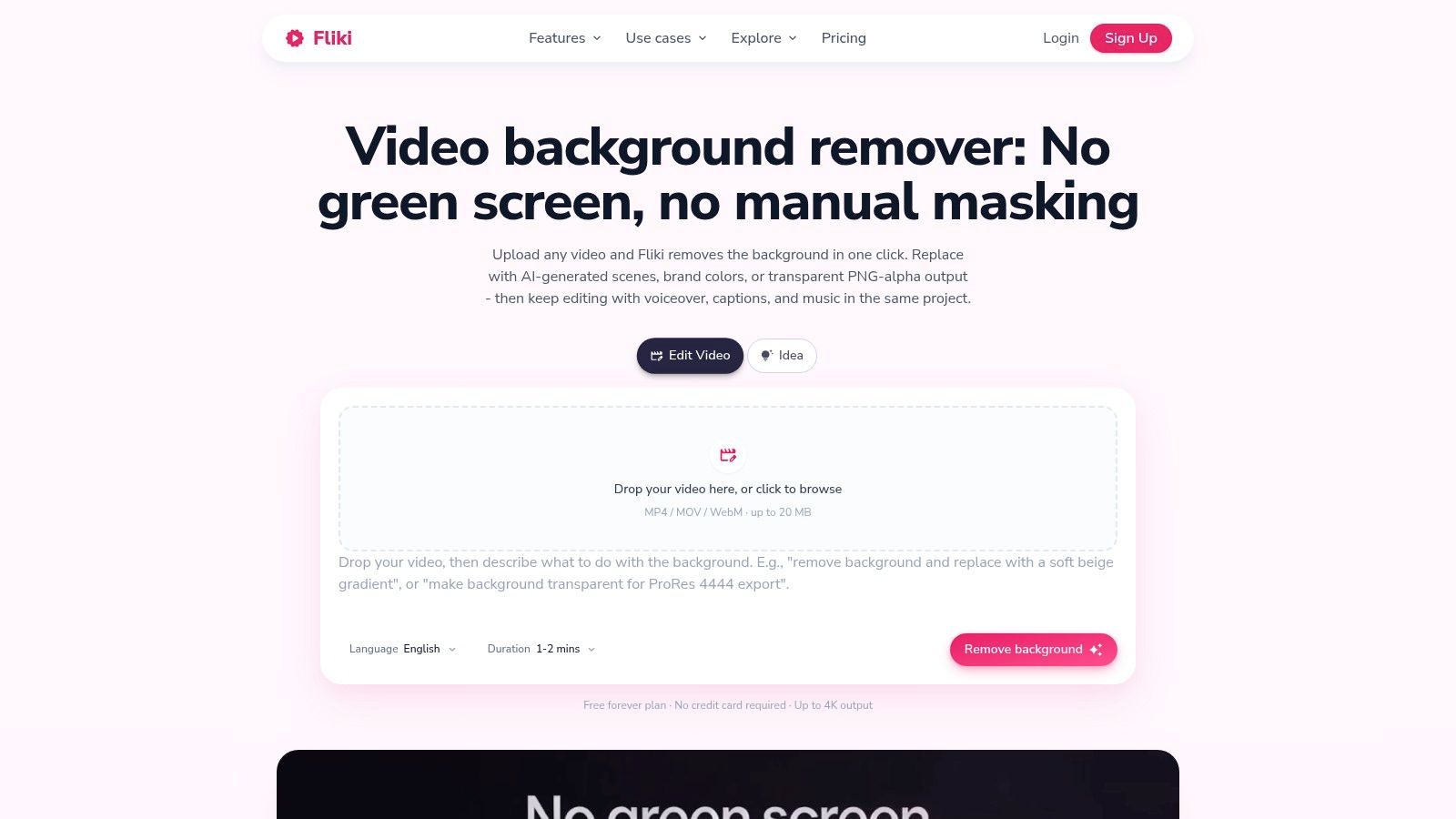
The free plan is better suited to a production trial than an unrestricted final cutout. Fliki combines removal with voiceover, captions, music, and generated background scenes, but free output includes a watermark and limited credits.
Fliki's feature page lists a 20 MB video-file limit. Monthly processing limits also apply, and commercial rights are associated with paid plans, so confirm licensing before using an export in an advertisement.
Best for a Narrated Marketing Draft
Say your team needs to pitch a product explainer before approving the full edit. Fliki can help combine an isolated subject, a replacement scene, captions, and narration into a draft that communicates the concept.
Its broader workflow is the reason to try it. It's not the strongest fit when you need a clean transparent asset for another editor.
- Prepare the source: Trim unused footage before upload rather than compressing a long recording unnecessarily.
- Build the draft: Add the background, voiceover, and captions needed to judge the idea.
- Review the final conditions: Check watermark, audio treatment, account requirements, licensing, and available formats.
No credit card is required to start on the free plan. That doesn't mean unlimited processing or unrestricted commercial delivery, and you shouldn't treat the service as an on-device workflow.
Switch tools when the watermark prevents client delivery or you only need background removal. For an internal concept review, the integrated narration and scene-building tools may justify the tighter free allowance.
10. Adobe Express
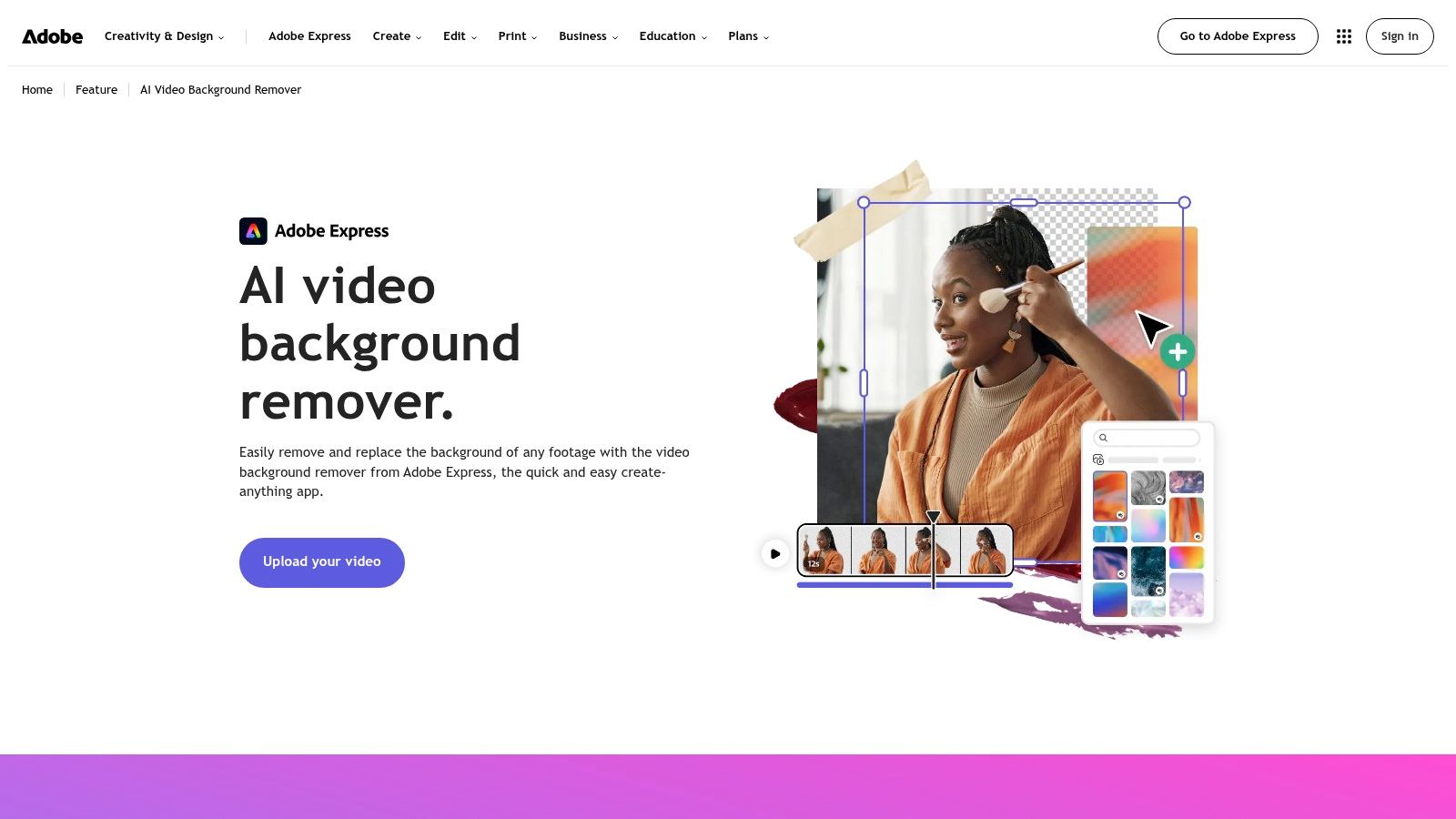
An Express free plan doesn't make video background removal free. Adobe Express's AI video-removal page identifies the feature as Premium, and an Adobe account is required.
The benefit is integrated design rather than no-cost access. You can remove the original setting, add an Adobe Stock asset or your own background, and continue editing within Express.
Best for an Existing Express Premium Workflow
A small team already preparing campaign graphics in Express can keep its presenter footage and replacement scenes in the same editing environment. That's useful for a finished promotional composition, not a reason to subscribe solely because a search result mentions free editing.
Adobe's video background-removal guidance describes uploaded clips up to two minutes and recommends reviewing frames where subject tracking may fail.
A practical edit follows this sequence:
- Upload the trimmed take: Keep the source focused on the intended message.
- Run background removal: Review hair, hands, clothing, and fast movement.
- Add the final scene: Match its lighting and visual weight to the presenter.
- Check the download: Confirm audio, format, and any asset-related conditions.
This isn't an explicitly local, no-signup option. Nor should you assume that a clean preview establishes transparent export support.
Switch tools if your requirement is free removal without an account. Stay with Express when you already have eligible access and its design workflow saves more effort than transferring a separate cutout.
Free video background removers at a glance
| Item | Account Required | Watermark on Free Output | Best Fit |
|---|---|---|---|
| Cutmallow | No | No | Short clips featuring one person |
| Fuzz Puppy | No | No | Local removal for people, products, or pets |
| Mastershot | No | No | People cutouts with flexible export formats |
| unscreen.io | No | No | Watermark-free WebM exports without audio |
| CapCut | May be required | No watermark advertised for web exports | Social clips with follow-up editing |
| Canva | Yes | Not specified | Video cutouts within Canva designs |
| VEED | Not stated | Not specified | Testing AI removal or using chroma key |
| Picsart | Not stated | Not clearly specified | Simple social, tutorial, or product-demo edits |
| Fliki | Not stated | Yes | Broader AI video creation and editing |
| Adobe Express | Yes | Not specified | Removal within Adobe Express workflows |
Pick the Free Workflow That Fits Your Next Clip
Choose around the deliverable, not the longest feature list. A single person in a short Reel, a product demo needing transparency, and a talking-head ad needing sound are different jobs. The right free tool is the one that completes your particular handoff without an unpleasant export surprise.
For a private presenter clip, start with Cutmallow or Mastershot. For products or pets, Fuzz Puppy is a more relevant candidate, provided your browser supports its AI processing. For silent visual layers, unscreen.io's restrictions may be perfectly acceptable.
Run a Small Export Rehearsal
Test each candidate on a 10-second clip from your real footage before committing a deadline to it. Include a head turn, hand movement, and the most difficult edge in the recording. Don't use an unusually clean sample that avoids the problem you need to solve.
- Watch the motion: Play the result at normal speed, then inspect troublesome frames.
- Change the background: Check the cutout over both light and dark scenes.
- Open the exported file: Verify transparency, sound, watermark, and synchronization in the destination editor.
- Confirm handling requirements: Establish whether footage stays local and whether an account or upload is acceptable.
A steady boundary matters more than a flattering still preview. If hair flickers or fingers disappear, try a cleaner source, stronger subject-background contrast, or a less demanding replacement scene. Don't assume a higher export resolution will repair a poor cutout.
Finish for the Actual Placement
Choose your canvas before arranging the presenter, product, and text. TikTok's Global App Bundle specifications recommend vertical 9:16 video at least 720 × 1280 pixels for that placement. Treat other placements as separate deliverables rather than assuming every campaign uses identical specifications.
Keep the original recording and download an approved master. That gives you a route back if a browser export loses audio, a client requests another background, or the destination editor rejects transparency.
When you need still images as well as video, ImagesArt AI includes an AI Background Remover for photos, and new accounts receive 15 free credits with no credit card required. Photo cleanup and moving-footage segmentation are separate operations, so choose each tool for the asset it produces.
The best free workflow may involve a local remover followed by your regular editor. That's preferable to rebuilding a finished project after discovering that the final download is silent, watermarked, or incompatible.
ImagesArt AI combines photo background removal with Text/Image to Video, Start-End Frame, and reference-based generation for creating supporting visuals. Visit ImagesArt AI to clean up a product photo, develop a replacement-scene concept, or turn an existing image into a short companion clip for your next Reel or ad.