Best Text to Video AI in 2026: 10 Tools Compared
ImagesArt.ai
11/19/2026
Friday is close. You need a 10-second vertical product clip for Reels, there's no budget for a crew, and the thing has to look like the thing. The first prompt returns a gorgeous kitchen with the wrong finish. The second gets the finish right and lets the handle melt into the body around second four.
That gap between a demo clip and a usable clip is the entire problem. A 2025 benchmark, T2VEval-Bench, compared 1,783 generated videos from 13 text-to-video models against 148 written prompts and scored them on visual quality, temporal consistency, motion, and prompt alignment. What it shows is that "best" isn't a single ranking. It's a fit between a model's strengths and the job in front of you.
So this list of the best text to video AI tools isn't ordered by spectacle. Each entry is compared on five things that decide whether a clip ships: output quality, creative controls, clip duration, resolution, and how pricing accrues as you retry. Every tool is matched to a job, and every entry ends with a short test you can run in credits before you commit to a plan.
If the clip is headed for an ecommerce listing rather than a feed, the guide to video ads for Amazon brands covers the placement rules worth knowing first.
Ten tools. Choose by job, not by hype.
Table of Contents
- 1. ImagesArt AI
- 2. Google Flow
- 3. Runway
- 4. Kling AI
- 5. Adobe Firefly
- 6. Luma Dream Machine
- 7. Pika
- 8. PixVerse
- 9. Vidu
- 10. HeyGen
- How the 10 text-to-video tools compare on free access, pricing, and best use
- Choose by Job, Then Test a Small Credit Pilot Before Buying
1. ImagesArt AI
This is the one to start with if your problem is too many tabs and not enough finished clips. Text to video, image to video, Start-End Frame transitions, and a Reference mode that accepts up to seven images of a person, product, or place all live in one account, so a scene can keep the same subject from the first frame to the last.
Models including Seedance, Kling, Veo, Grok Imagine, MiniMax, and Wan sit behind the same prompt field. You can run one idea through three engines in a single sitting and keep the take that holds the product's shape.
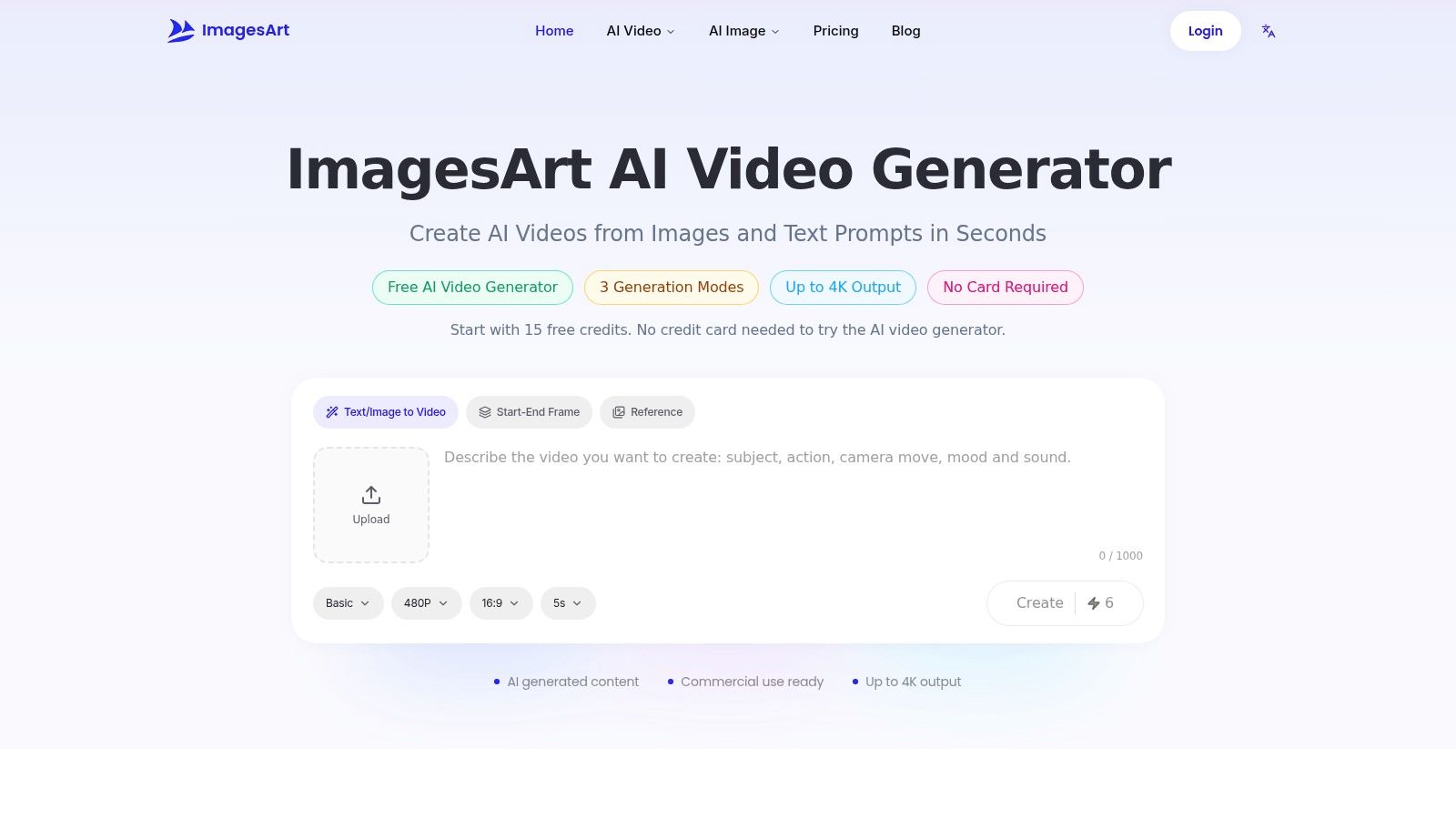
Output runs 1 to 15 seconds with native audio, from 360p up to 4K depending on model and plan. Image tools share the asset library, so background removal, editing, and style conversion happen in the same place as the video rather than in a second subscription. For a product demo, that matters: you can clean up a source photo, animate it, and export without leaving the workspace.
What the credits actually buy
The generation button shows the credit cost before you submit, so you know the price of a retry before you click. That detail matters more than it sounds, because every text-to-video workflow is really a loop of attempts. A 10-second product clip that needs four or five takes multiplies fast, and cost per clip is the variable most reviews skip.
New accounts get 15 credits with no card, with 480p output on the free tier and higher resolutions on eligible paid plans. Paid subscriptions and one-time credit packs sit on top of that, so a project spike does not force a plan change. Check current plan pricing and storage terms on the ImagesArt AI site before budgeting a pilot.
Run this before you upgrade: put the same product prompt through two models at 720p, count the credits each burns, then decide whether the sharper output survives compression on a phone.
Pros
- Multi-model, one login: compare engines on an identical prompt without opening new accounts.
- Frame and reference control: start and end frames plus seven reference images for continuity.
- Image tools included: editing, background removal, and style conversion share the library.
- Low entry cost: free credits first, then subscriptions or one-time packs as usage grows.
Cons
- Clips are short: 1 to 15 seconds, so anything longer needs stitching.
- Credit math varies: 4K and heavier models consume credits faster.
Website: imagesart.ai
2. Google Flow
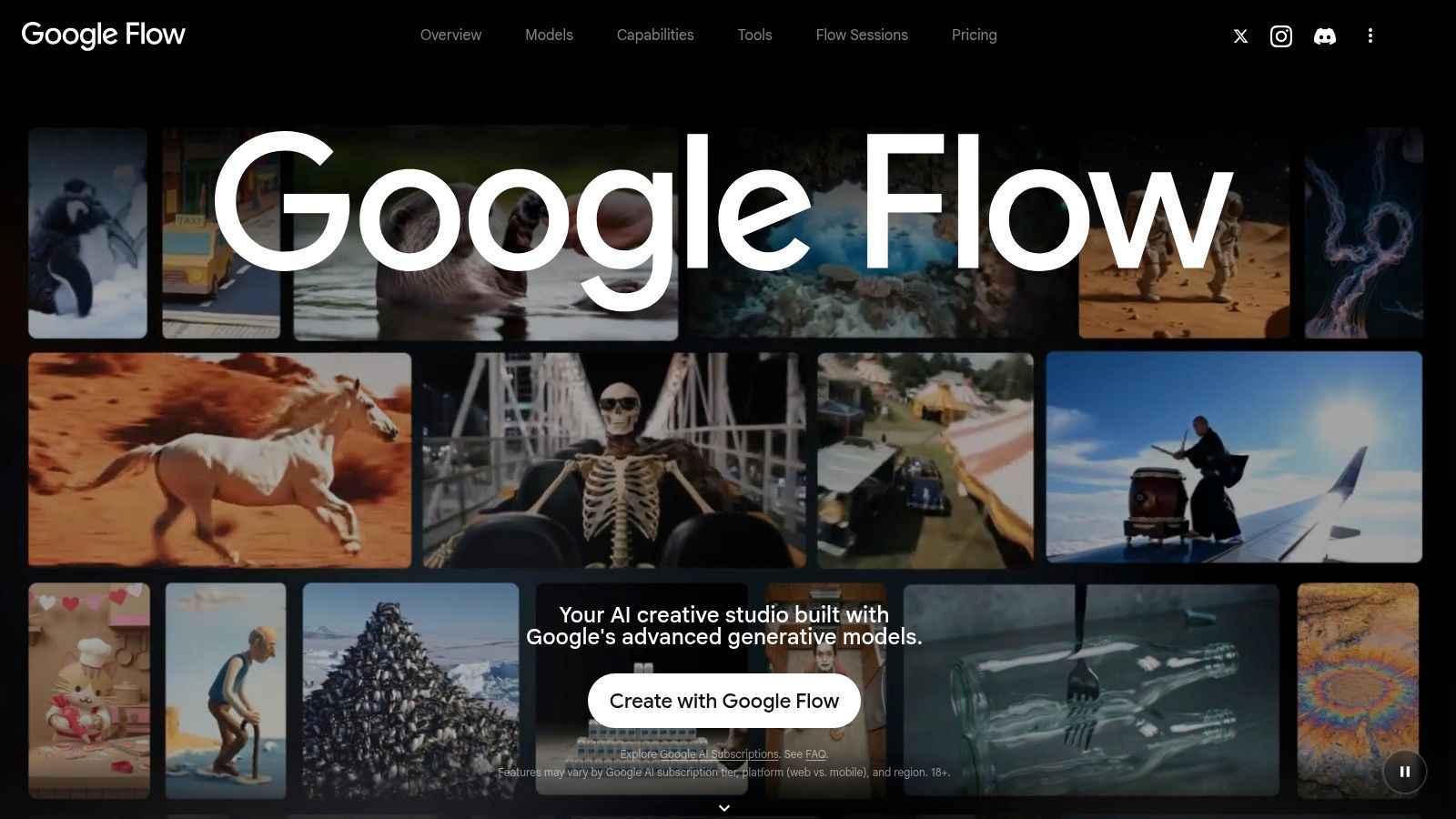
Flow is for the creator who already knows what the shot should be. It's a workspace built on Google's Veo models that accepts a prompt, a starting frame, or a visual reference, then lets you extend a scene or bridge two supplied frames. Camera controls and consistency tools sit next to the prompt box, which is the difference between directing a shot and hoping one arrives.
The limit that shows up on causal scenes
Looks aren't the bottleneck anymore. T2VWorldBench tests models across six categories and 60 subcategories using 1,200 prompts covering physics, nature, activities, culture, causality, and objects, mixing automated visual scoring with human judgment. Current systems generally score below 0.70 on world-knowledge generation. A scene can be beautiful and still pour water upward, or show a bottle cap unscrewing itself between frames.
That's the test to run before you build a campaign around it.
Pros
- Directed inputs: frames and references give more control than prompt-only tools.
- Daily free credits: enough to learn the workflow before paying.
- Scene extension: build sequences rather than isolated shots.
Cons
- Peak-hour queues: free access gets throttled when demand spikes.
- Short generations: longer pieces turn into an editing project.
- Spoken audio: natural, consistent dialogue is still in development.
Write the hardest frame first. If the model can't hold a hand on a bottle at second zero, no camera move rescues the clip.
Test it this way: one 5-second clip of a two-step action, such as open then pour, at 1080p. If the second action breaks, the cause is composition, not resolution.
Website: Google Flow
3. Runway
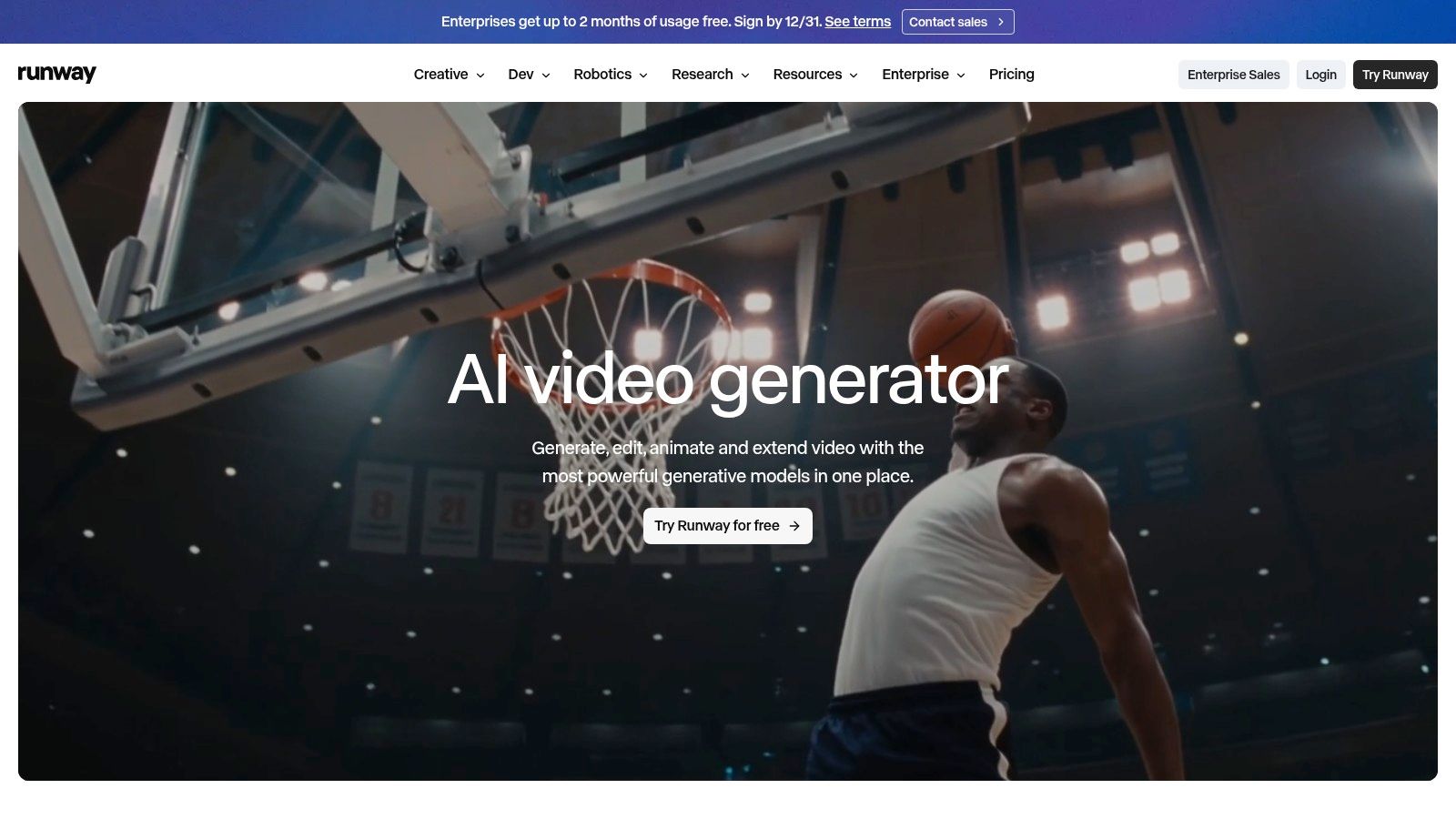
Runway earns its place for one job most generators can't do: changing footage you already have. Text-to-video, image-to-video, and video-input generation live in the same workspace, and the extend, upscale, and edit tools mean a clip leaves the app closer to finished than what a raw generator hands you.
Where the second half of a clip breaks
Independent evaluations of text-to-video models keep surfacing the same gap: motion looks smooth frame to frame, while multi-step actions and object consistency over time fall well behind. A clip starts strong. Then a jacket changes color, a second product slides onto the counter, or the camera resets mid-move.
Runway's answer is to stop regenerating and start editing. Extend the take that worked, swap the backdrop, or upscale the export, all inside the same project. That fixes a 6-second clip in one pass instead of burning credits on rerolls.
If your source is footage rather than a prompt, read up on the video to video workflow before you plan the edit.
Pros
- One pipeline: generate, revise, extend, and export without leaving the app.
- Works on existing footage: apply AI-driven changes to clips you already shot.
- Visible costs: generation price shows before submission.
Cons
- Plan-gated models: access and capacity depend on your tier.
- Credit drift: consumption changes with model and settings.
- Short outputs: longer videos need chaining or an edit.
Test it this way: upload a 5-second product shot you already have and request one controlled change, such as a new backdrop or different lighting. Then compare frames. If the product, label, and geometry survive the edit, Runway can replace a reshoot. If it redrew your product, it added one.
Website: Runway
4. Kling AI
Motion control is what separates Kling from a prompt-and-pray tool. You can animate a product photo and specify the movement, add lip sync to a spoken line, or restyle a scene, and it takes either a written description or a supplied image as the starting point.
Where motion control earns its keep
A still product shot with a slow push-in beats a generated scene that invents a new table every take. Kling's motion and refinement tools let you keep the frame you already approved and add movement, which is often the difference between a usable 6-second ad and a reshoot.
Durations and aspect ratios vary by model, and image utilities sit in the same workspace, so a product photo can be cleaned up before it's animated.
Pros
- Beyond prompts: motion control, lip sync, and restyling tools in one place.
- Two entry points: start from text or from an existing image.
- Free entry option: lets you test before subscribing.
Cons
- Plan-dependent output: credit cost, model access, and quality options change by tier.
- Price is a poor proxy: a monthly fee doesn't tell you how many finished clips you'll get, so count the clips rather than the dollars.
- Commercial terms: usage rights follow the applicable subscription and its terms.
Test it this way: one photo, one 5-second move, label facing camera the whole time. Check second five. If the label rotates away, the model isn't ready for product work at that setting.
Website: Kling AI
5. Adobe Firefly
Firefly's argument isn't the model. It's the handoff. If your team already edits in Premiere Pro or designs in Photoshop, a generated clip arrives in the same account as the timeline you'll cut it into, which saves a download, an upload, and an argument about file naming.
Where it falls down is exactly where design teams care most: type.
The on-screen text problem
T2VTextBench ran human evaluation on ten systems and found every evaluated model scored below 0.43 for accurate on-screen text generation, with instability across prompt categories and architectures. Performance dropped further when text went through geometric or temporal transformations, which is to say any camera move or perspective change.
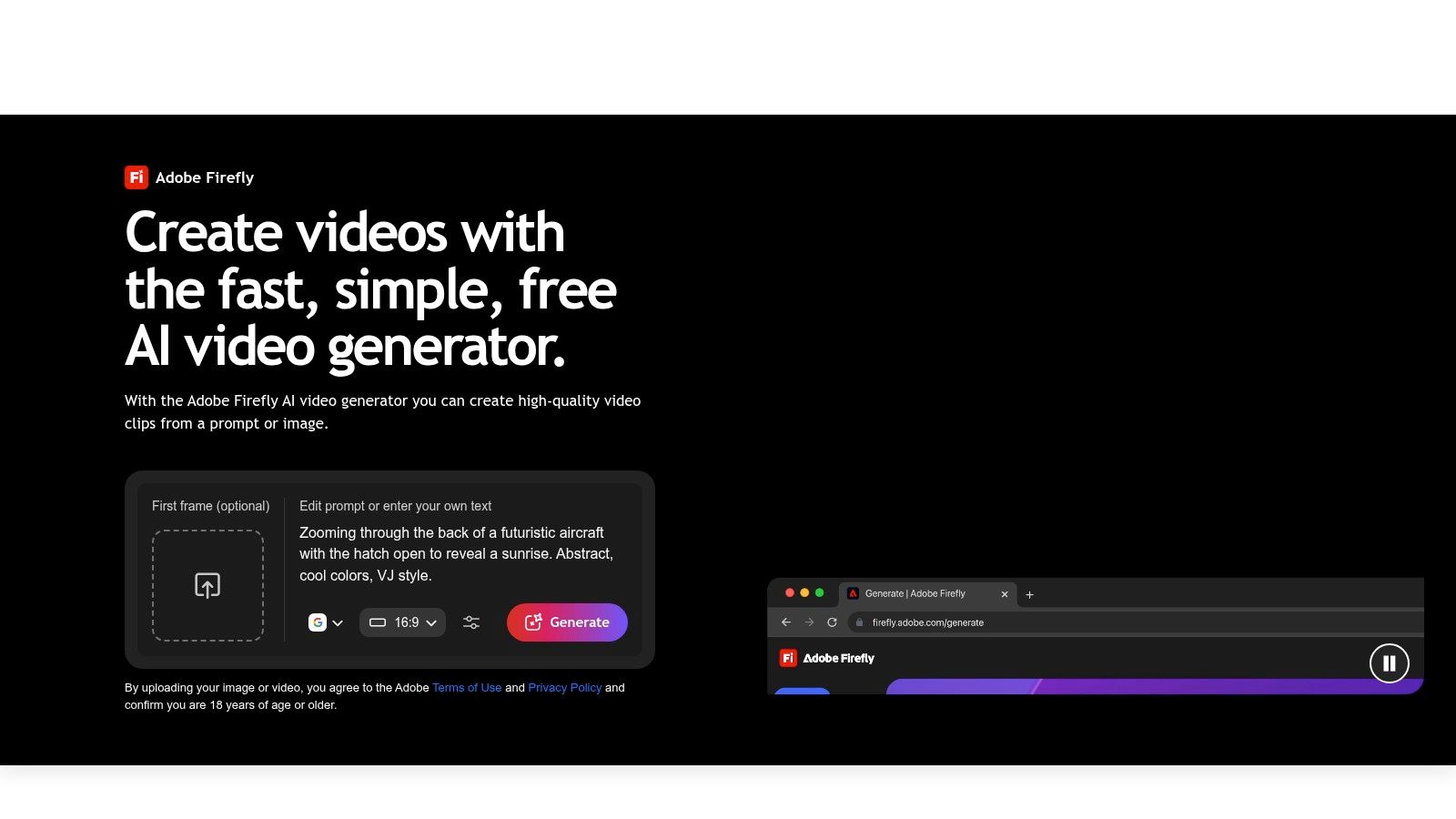
For anyone generating price displays, product labels, subtitles, or calls to action inside the clip, that's a hard stop. Render the scene without critical copy, then set the exact text in your editor with a proper font and kerning.
Pros
- Fits existing Adobe work: video, image, and audio tools in one suite.
- Free daily generations: try selected generative features at no cost.
- Familiar workflow: assets land where your edit already lives.
Cons
- Credit ceilings: monthly allowances limit total video output.
- Short clips: long-form work still needs assembly.
- Plan variance: included features and limits differ by tier.
Rule I follow: never let a model write a price, a legal line, or a brand name. Generate the plate, then type the copy.
Test it this way: prompt one clip containing a three-word brand string. Score legibility at second one, three, and five. If it fails at two of the three, plan an overlay workflow instead.
Website: Adobe Firefly
6. Luma Dream Machine
Two things make Luma worth a slot: it generates from text or images, and its Modify Video tool reworks existing footage while keeping the original motion and camera dynamics. That second capability is rarer than it should be, and it's why an editor with a library of b-roll might pick it over a prettier generator.
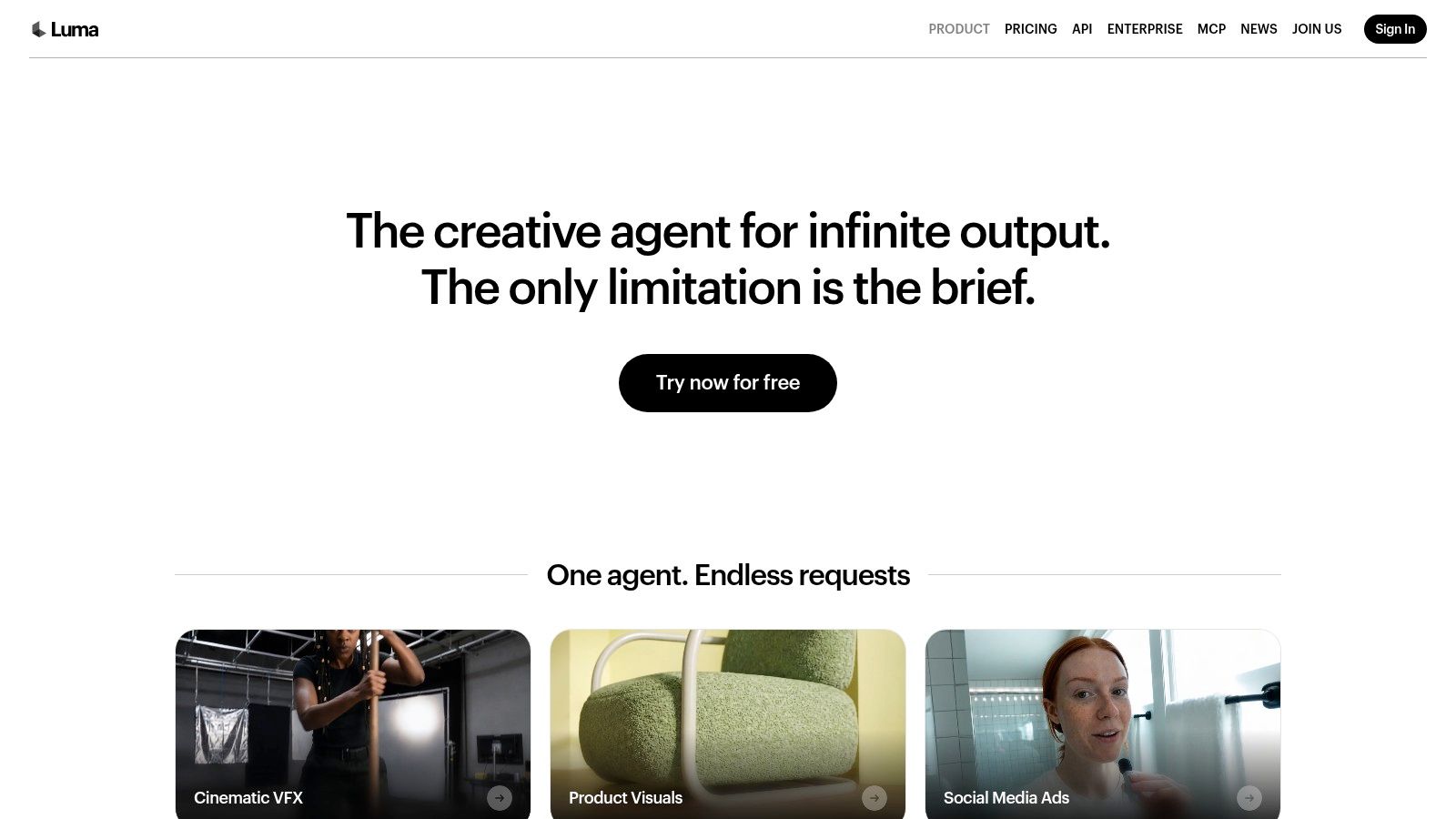
Ray model options carry different durations, resolutions, and credit costs, so speed and fidelity trade against each other inside the same subscription.
Getting a Reel out without reframing
Instagram accepts Reels from 1.91:1 through 9:16 but recommends vertical 9:16 to reduce cropping or blank space, at a minimum of 720 pixels and at least 30 frames per second, per Instagram's Reels specifications. A good clip gets ruined by a last-second crop more often than by a weak prompt.
Pros
- Modify Video: restyle footage without losing its motion.
- Quality tiers: pick speed or fidelity per shot.
- Free tier: enough to explore the interface.
Cons
- Free output is limited: the plan guide frames it as personal projects.
- Credit use shifts: model, resolution, and duration all change the cost.
- API is separate: subscription credits don't transfer.
Test it this way: write one vertical scene prompt, generate the core motion, then watch the first and last second inside a 9:16 frame at 720 pixels. If either edge loses the product, fix the prompt before you pay for a longer take.
Website: Luma Dream Machine
7. Pika
Pika is a clip generator, not an editing timeline, and it's honest about that. H3 Flex routes accept text, image, or reference inputs with synchronized audio on supported paths, and output runs 5 to 15 seconds across multiple aspect ratios. For social work, that's the whole brief.
Built for the 9-to-15-second slot
TikTok's in-feed specs ask for vertical 9:16 at a minimum of 540×960 pixels, a runtime of 5 to 60 seconds, and a recommendation of 9 to 15 seconds for the strongest fit, with MP4, MOV, MPEG, or 3GP files at a minimum bitrate of 2,500 kbps, according to TikTok's ad creative requirements. Creative can't be stretched or compressed, and watermarks, including TikTok's own, aren't allowed. Pika's default clip length lands right in the recommended band.
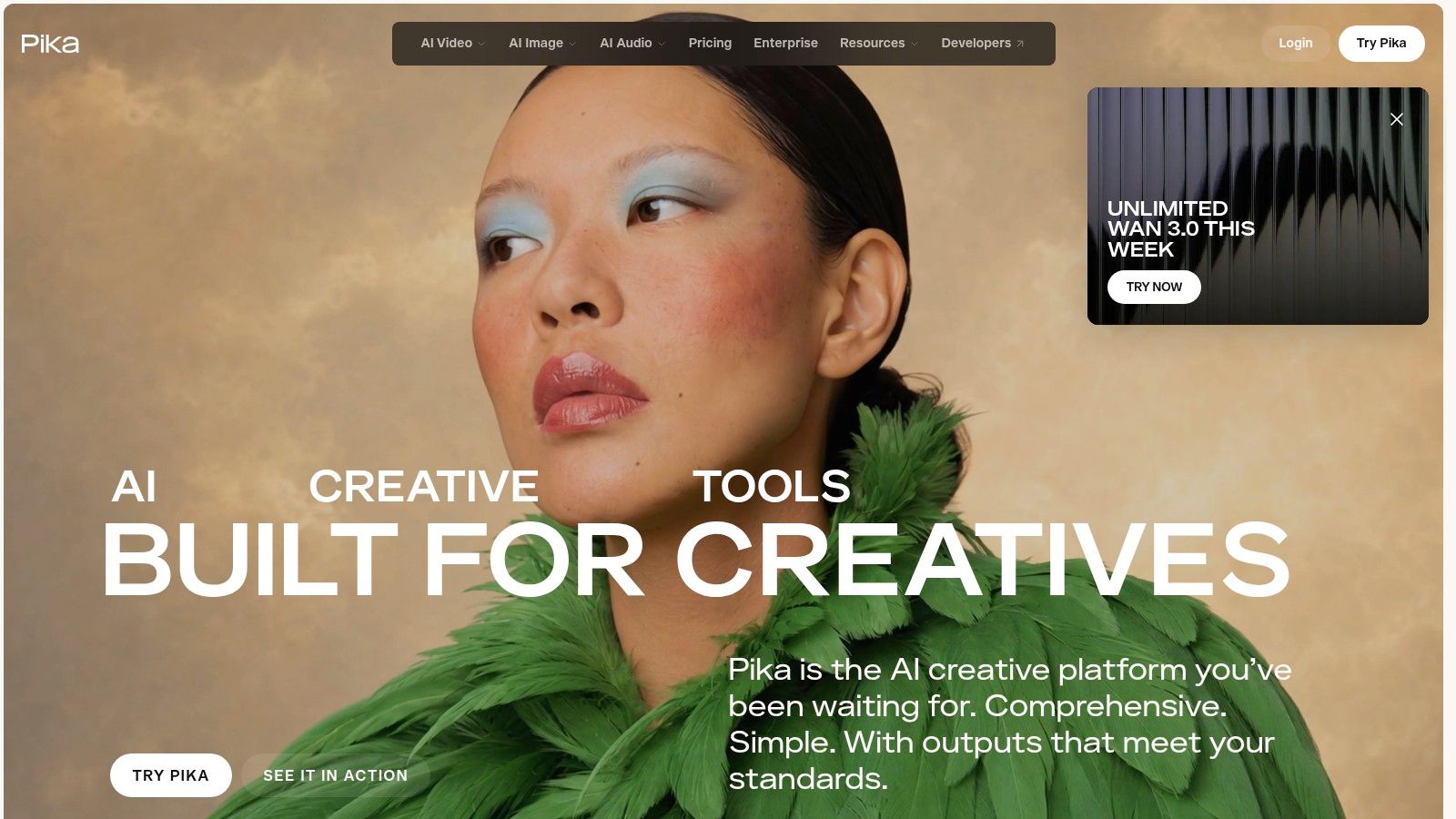
If your starting asset is a photo rather than a prompt, animating a still image is the faster route to a finished 9-second cut.
Pros
- Right length by default: 5 to 15 seconds suits in-feed tests.
- Multiple references: guide generation with more than one input.
- Transparent output pricing: rates listed by resolution and duration.
Cons
- No free monthly credits: its current pricing page lists none for a free account.
- Rising credit use: higher resolution and longer clips cost more.
- Not an editor: assembly and sound happen elsewhere.
Test it this way: generate a 9-second vertical at the resolution you'll publish, then check the first frame for a visible brand mark. If it's cropped, fix the framing in the prompt, not in the export settings.
Website: Pika
8. PixVerse
PixVerse's strength is range. One login gives you several video models, plus text-to-video, image-to-video, transitions, and reference-based generation in the same workspace. When a client hasn't approved a visual treatment yet, running one prompt through two engines is cheaper than guessing.
One concept, two lengths
TikTok's app-bundle placement calls for vertical 9:16 at 720×1280 pixels or larger, a runtime of 5 to 60 seconds, and a recommended 21 to 30 seconds for that placement, per TikTok's global app bundle specifications. In-feed spots reward shorter cuts, so the sensible move is generating one concept at two lengths instead of reusing a single export everywhere.
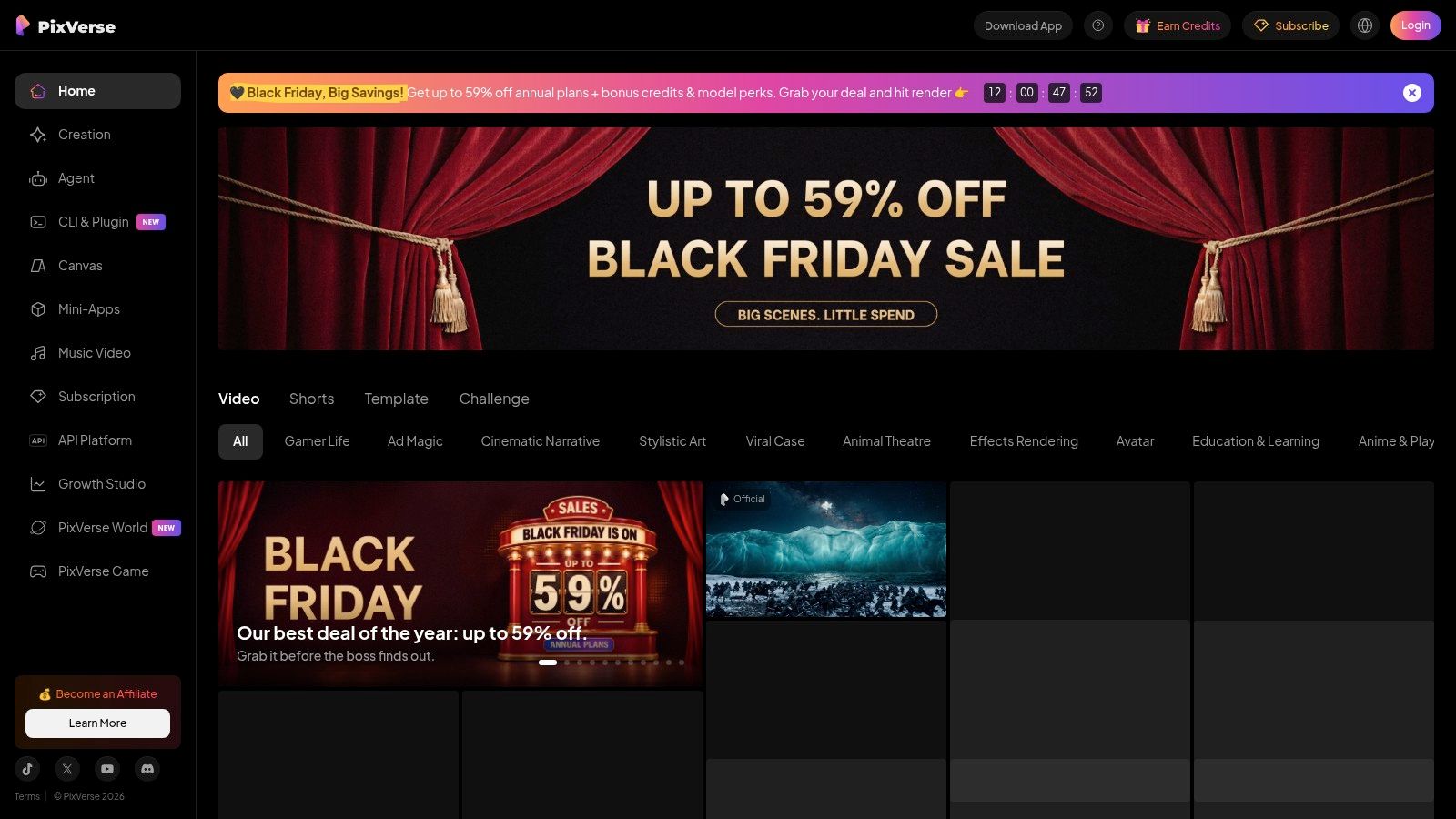
The order that works: generate the visual at the best quality your credits allow, cut the opening two seconds for immediate context, show one product action, then export a vertical master before making shorter edits.
Pros
- Model variety: compare treatments without separate accounts.
- Multiple modes: text, image, reference, and transitions.
- Free allowance: enough to judge output quality first.
Cons
- Free limits: fewer credits and lower resolution.
- Variable credit use: cost depends on model and settings.
- Plan details change: confirm current credit and refund terms on the pricing page before buying a pack.
Test it this way: run one prompt through two models at 720p for 8 seconds each, then watch both on a phone. Whichever holds the product shape wins, regardless of which one looks better on a monitor.
Website: PixVerse
9. Vidu
Vidu covers more input modes than most tools at this level: text to video, image to video, and start-and-end-frame generation, plus reference-to-video with multiple image references. If your job is keeping a character or a package consistent across several shots, the reference workflow is the part to test first.
Start and end frames for transitions
Supplying both a beginning and an ending frame is the cleanest way to get a reveal, a before-and-after, or a morph that lands where you planned. You set aspect ratio, duration, resolution, and motion amplitude, then the model fills the space between two images you already approved.
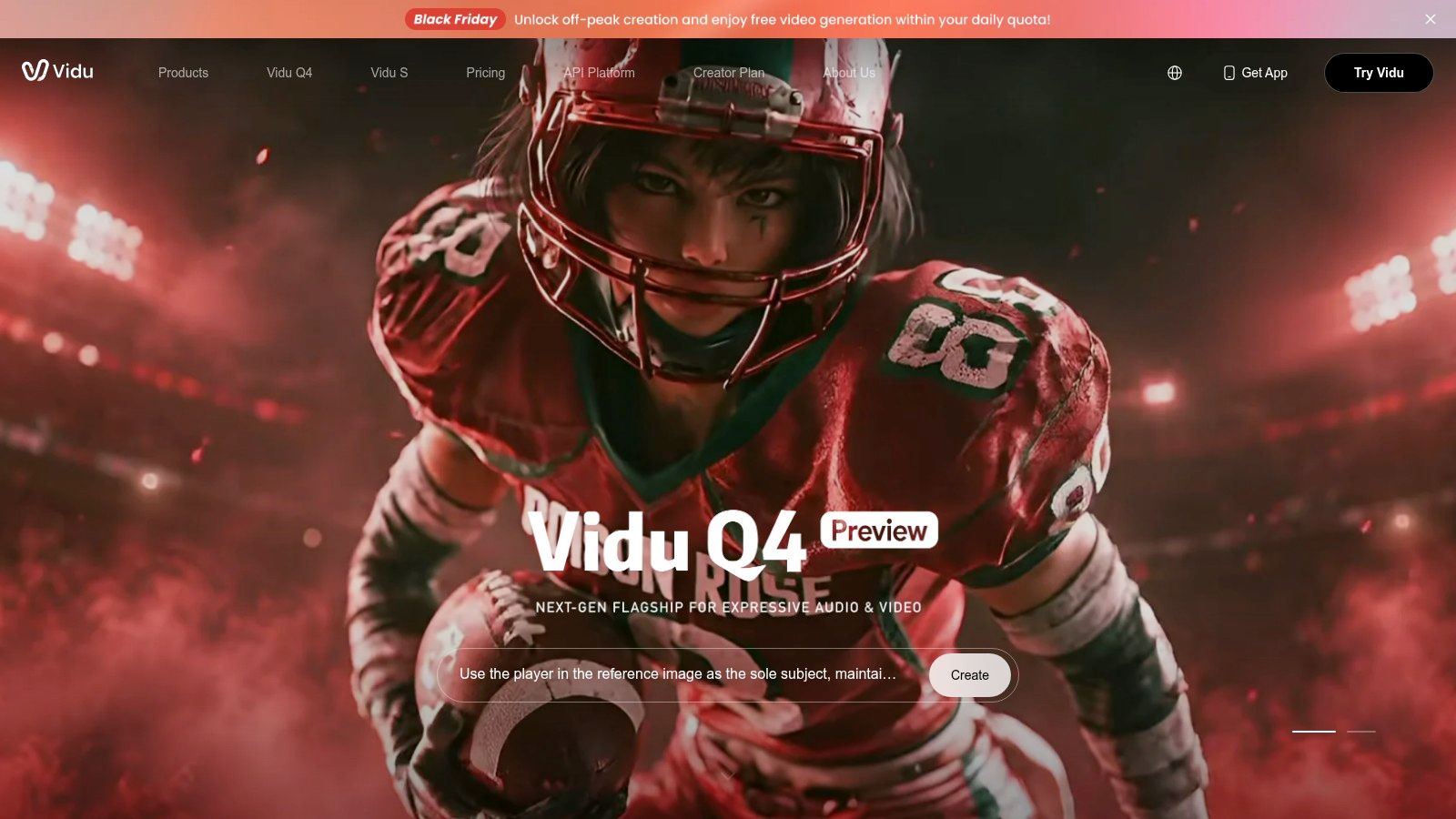
The workspace also includes image, audio, extension, and lip-sync tools, and its text-to-video models include an anime-optimized style, which matters if your brand leans illustrated rather than photographic.
Pros
- Wide input range: text, image, frames, and references.
- Continuity help: reference features keep a subject recognizable.
- Style range: anime and animated work are supported.
Cons
- Model-dependent features: availability changes by model and workspace.
- Credit-based pricing: cost follows the model and settings.
- Finishing required: clips still need assembly and sound work.
If a transition matters to the story, supply both ends of it. Describing a morph in words gives the model room to invent a third image you didn't ask for.
Test it this way: two product photos, one 5-second transition between them, motion amplitude set low. Then check whether the label text survives the midpoint. If it smears, shorten the duration.
Website: Vidu
10. HeyGen
HeyGen answers a different question than the other nine. Not how do I generate a scene, but how do I put a presenter in front of this script. Avatars, multilingual voices, and script-to-video make it the sensible pick for explainers, product walkthroughs, and narrated marketing, and it handles longer formats than a clip generator ever will. A separate HeyGen Video mode covers text, image, and reference-based cinematic generation.
Risk concentrates in the presenter
A talking-head walkthrough compresses a five-minute demo into 90 seconds with consistent framing. It's also where brand risk sits, because claims, disclosures, and product representation now pass through a synthetic presenter. Adoption statistics and readiness aren't the same measurement, and surveys define "using AI" differently, a caution worth applying to Adwave's AI video generation statistics roundup as much as to any vendor page. Adopt freely, review carefully.
For paid placements, the AI video advertising guide covers the review steps worth building in.
YouTube classifies square or vertical uploads of up to three minutes as Shorts for standard channels when uploaded after October 15, 2024, and caps upload resolution at 1080p, according to YouTube's Shorts upload rules. Shorts longer than one minute with an active copyright claim can be blocked globally, so use original narration or cleared music. Generated visuals don't remove a claim.
Pros
- Presenter-ready: avatars, voices, and script-to-video in one flow.
- Longer formats: explainers and walkthroughs, not just clips.
- Free plan: test the presenter workflow before paying.
Cons
- Two workflows, one brand: avatar video and cinematic generation are distinct tools.
- Watermarks on free: plus usage limits.
- Tier-gated quality: model access, resolution, and credits follow the subscription.
Test it this way: one 60-second script, one avatar, one export. Watch for pacing compression. Most presenter tools shorten transitional reasoning, so confirm your key claim survived intact.
Website: HeyGen
How the 10 text-to-video tools compare on free access, pricing, and best use
Free access isn't one thing across these ten tools. A one-time credit allowance runs out, daily generations reset, and a free account without generation credits opens the product without funding a test. Match the entry model to the job before you compare clip quality.
| Tool | Free access and pricing model | Best for |
|---|---|---|
| ImagesArt AI | 15 free credits, no credit card; free tier capped at 480p. Every paid plan includes all video and image tools, alongside one-time credit packs; per-generation cost, set by model, resolution, and duration, shows before you submit | Comparing several video models and producing images and short clips in one workspace |
| Google Flow | Free daily credits, though access can tighten at peak hours; credit-based beyond the allowance | Developing directed video scenes and shot sequences |
| Runway | Plan-based: the subscription tier sets which models you can run and how much you can generate | Generating, editing, and extending footage in one workspace |
| Kling AI | Free entry option, then free and paid tiers; credit costs scale with the plan and settings you choose | Directing motion, lip sync, and image-to-video creation |
| Adobe Firefly | Free daily generations on selected features; paid plans bundle monthly generative credits | Adobe users creating short clips, B-roll, and storyboards |
| Luma Dream Machine | Free tier for first tests; paid plans differ mainly in credit allowance | Generating videos and transforming existing footage |
| Pika | Free account with no monthly generation credits; per-clip cost scales with settings, resolution, and duration | Short social clips and quick concepts |
| PixVerse | Limited free credits and capped resolution; paid tiers raise both | Comparing visual styles across multiple video models |
| Vidu | Credit-based, so you pay per generation; cost depends on the model and output settings | Reference-led video creation and anime-style work |
| HeyGen | Free plan carries a watermark and usage limits; paid plans add credits, export quality, and model access | Presenter-led, narrated, and multilingual videos |
Two pricing models run through that column: credits meter each generation, plans meter capacity. Before committing to a credit pack, check expiry. At ImagesArt AI, packs purchased on or after September 29, 2026 don't expire; earlier packs lapse 30 days after purchase.
Choose by Job, Then Test a Small Credit Pilot Before Buying
Sort the ten by job before you sort them by preference. Animating a product photo points at reference and image-to-video modes. A presenter-led explainer points at HeyGen. Reworking footage you already shot points at Runway or Luma's Modify Video. A short in-feed test points at Pika or anything with a 5-to-15-second range.
Then run the pilot. Same prompt, same resolution, same duration, two or three shortlisted tools. What you're measuring isn't beauty. It's whether the product, the person, or the artwork survives from the first frame to the last, and what that survival costs in credits.
A pilot that takes an afternoon
- Write one prompt with one action and one camera move. Two actions in a single prompt stress the model's weakest skill, which is useful as a diagnostic but useless for comparison.
- Generate at your delivery resolution. A low-resolution test tells you nothing about whether a label stays readable after compression.
- Count credits per attempt, not per successful clip. Four tries at one price can cost more than one try at triple the price.
- Score three things separately: subject consistency, motion realism, and text accuracy. A model that wins one can lose badly on the others.
- Export to the target platform spec. A clip that looks right in the preview can still fail a placement's minimum resolution or frame rate.
The number to track is cost per usable clip, not cost per generation. That's the only figure that survives contact with a deadline.
Pricing tells you less than you think
The AI video generator market was estimated at USD 788.5 million in 2025, and new models ship monthly, which gives any ranking a short shelf life. What doesn't change is the arithmetic of retries. A cheap model that needs six attempts to keep a product intact costs more than an expensive one that lands in two.
Treat every subscription as a pilot. Buy the smallest allotment that covers a real deliverable, run it against a live brief, then decide. If the final asset is music-led rather than product-led, the top lyric video tools for 2025 covers the parts a generator won't handle.
Pick the tool whose failures are cheap. Then buy.
The workflow above works best when the tool gives you more than one way in. ImagesArt AI puts text to video, image to video, start and end frame transitions, and reference-guided generation in one workspace, with models including Seedance, Kling, and Veo on the same prompt field. You get 15 credits free without a card, enough to run the pilot on a real product photo before you choose a plan. Visit ImagesArt AI and see what your first three attempts tell you.